Chat and Evaluation · Chat workspace
Use the chat workspace
Send prompts, follow streaming responses, stop generation, retry requests, and work with model output.
The chat workspace is where EidoStack sends your prompts to a selected provider model and keeps the resulting conversation, usage, and configuration together. Treat each chat as a focused experiment: choose the model, instruction, and context policy deliberately before you send a prompt.
Know the workspace controls
The prompt toolbar contains the controls that shape the next request.


| Control | What it changes |
|---|---|
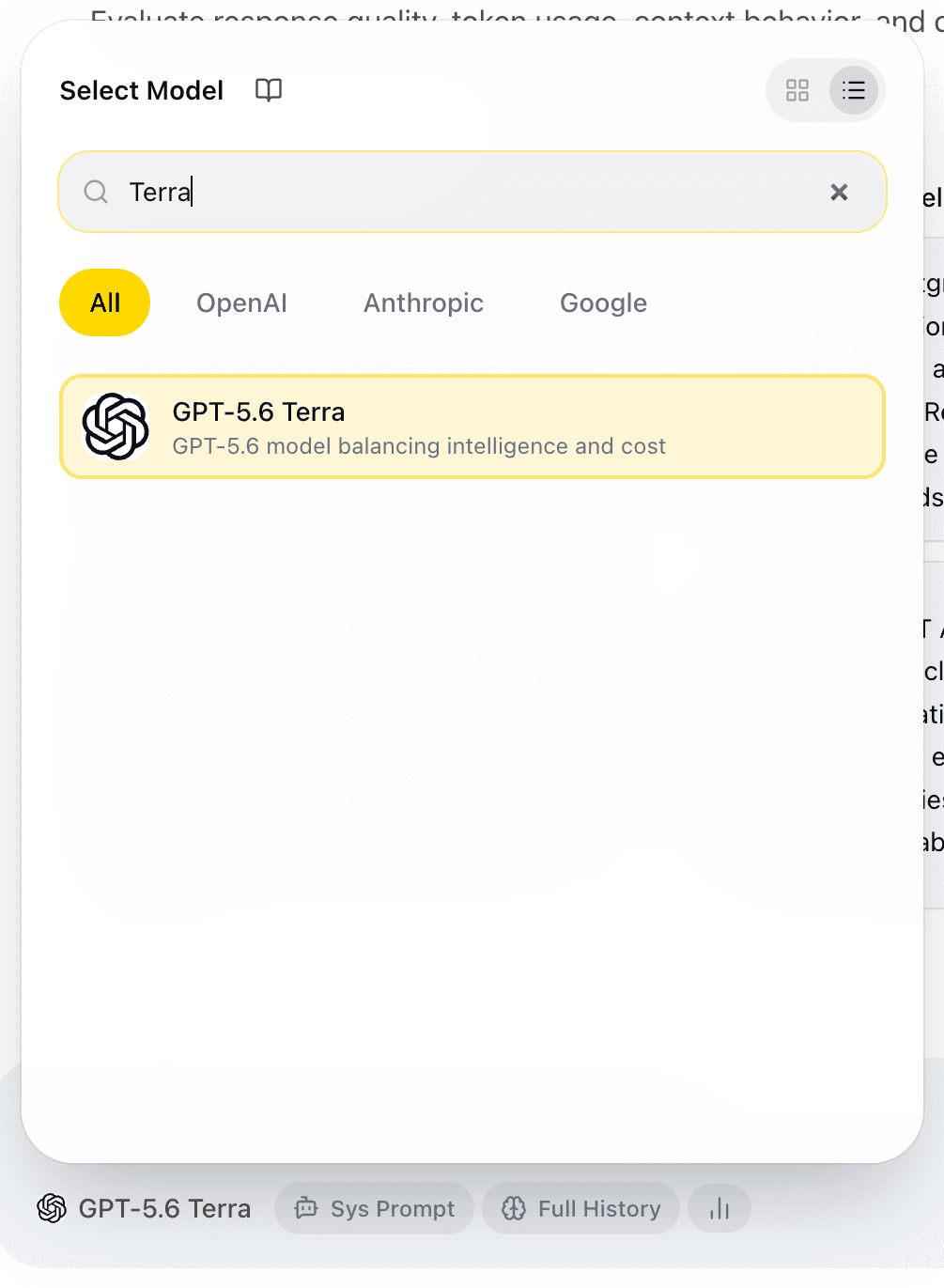
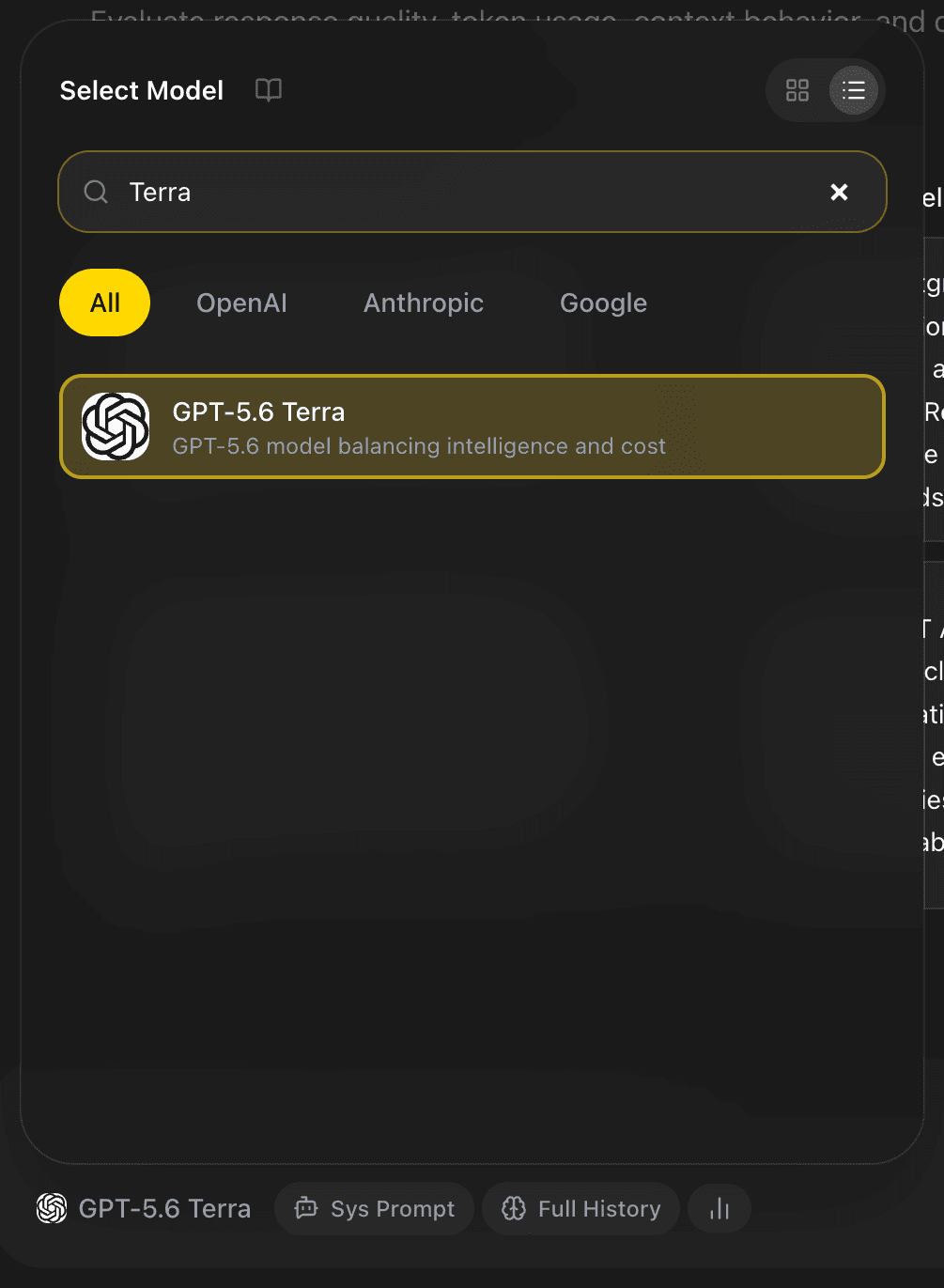
| Model name | Selects the provider model used for the chat. |
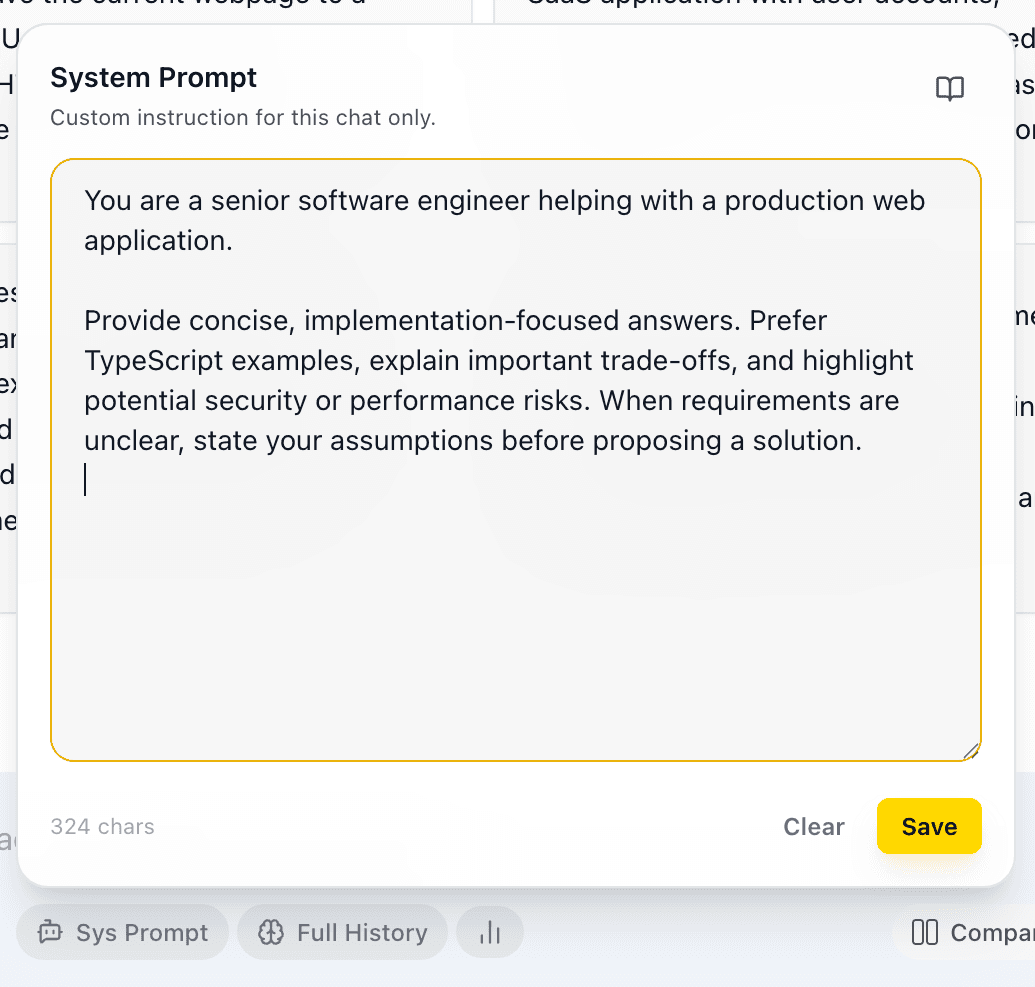
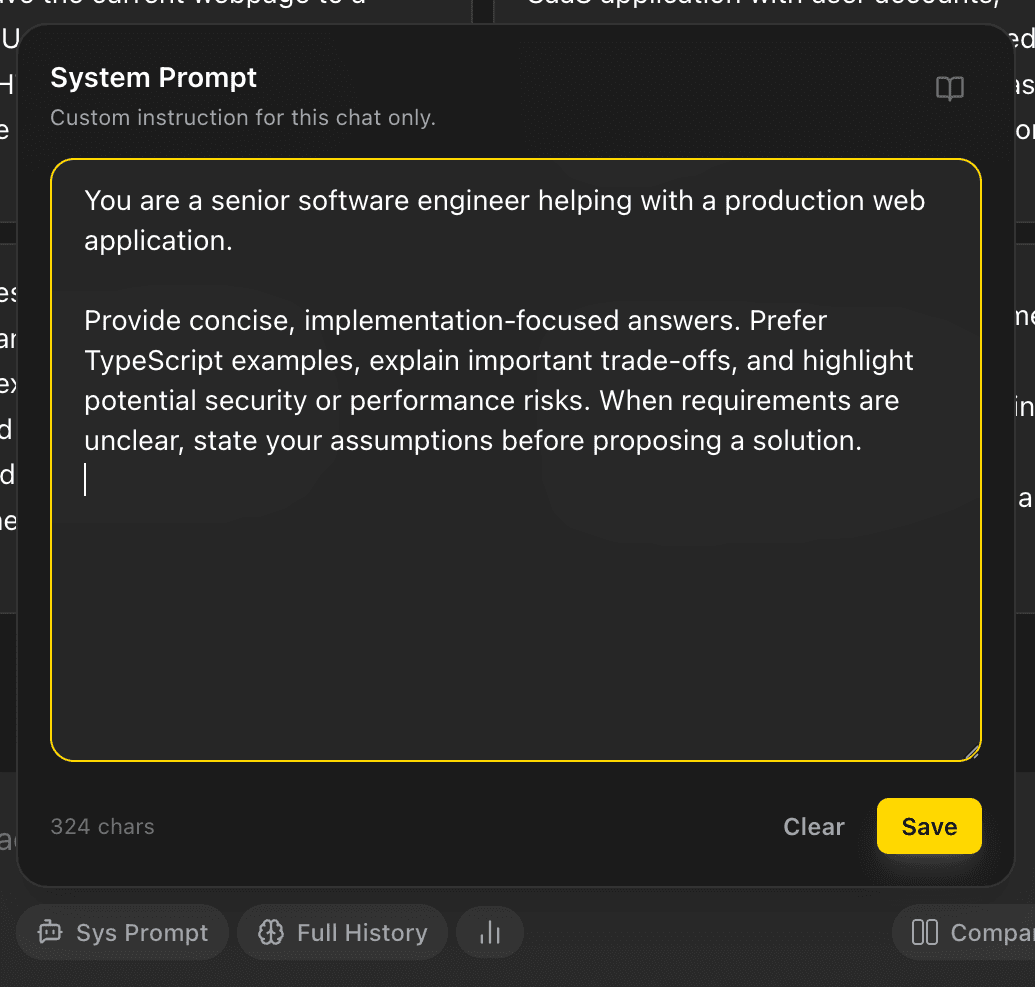
| Sys Prompt | Sets or clears the instruction for the current chat; comparison mode has a separate control for each side. |
| Context Memory | Chooses how previous messages are supplied with the new prompt. |
| Usage button | Opens the current chat’s context, token, and estimated-cost summary. |
| Compare | Sends the same prompt to two configured models when comparison is available on the plan. |
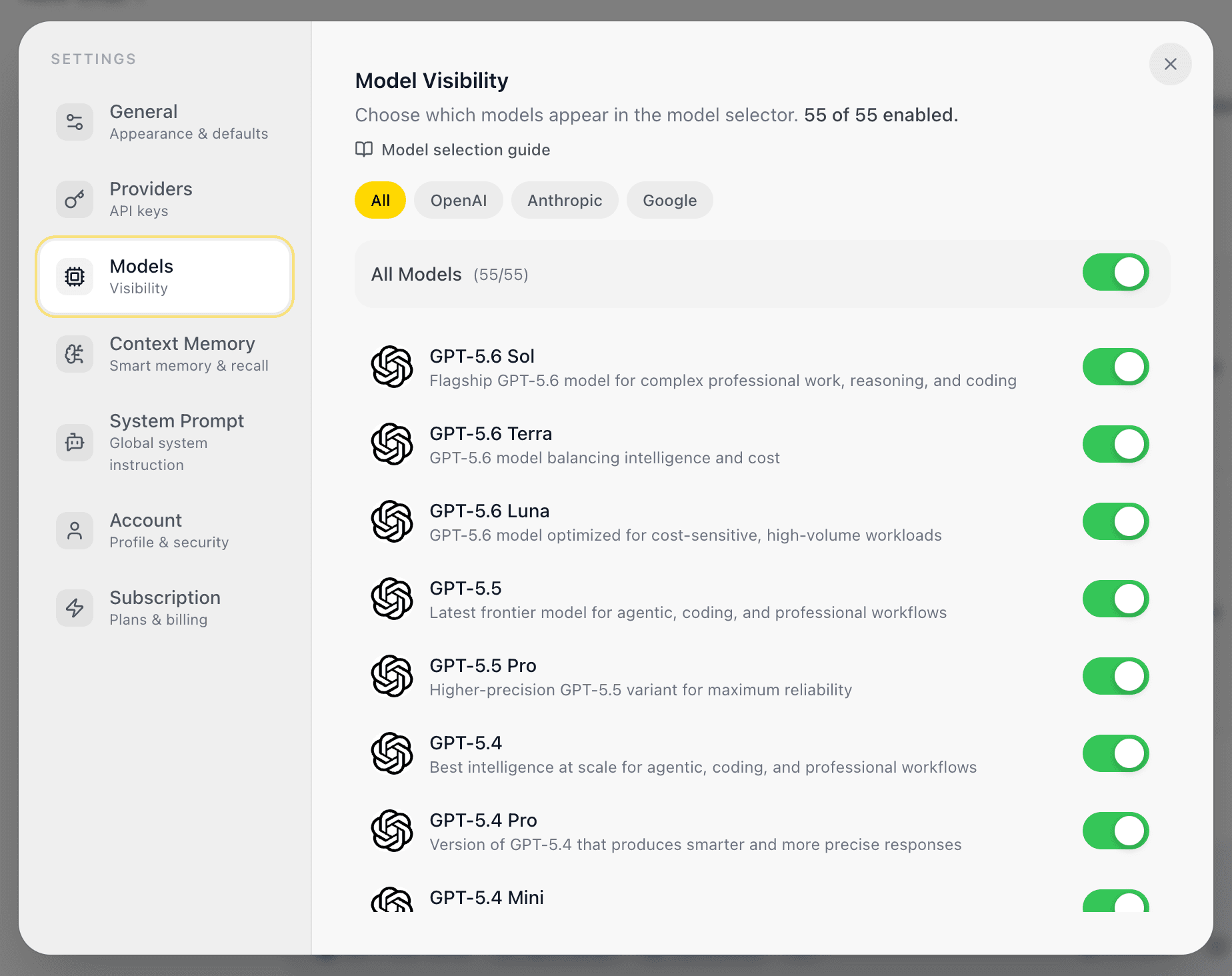
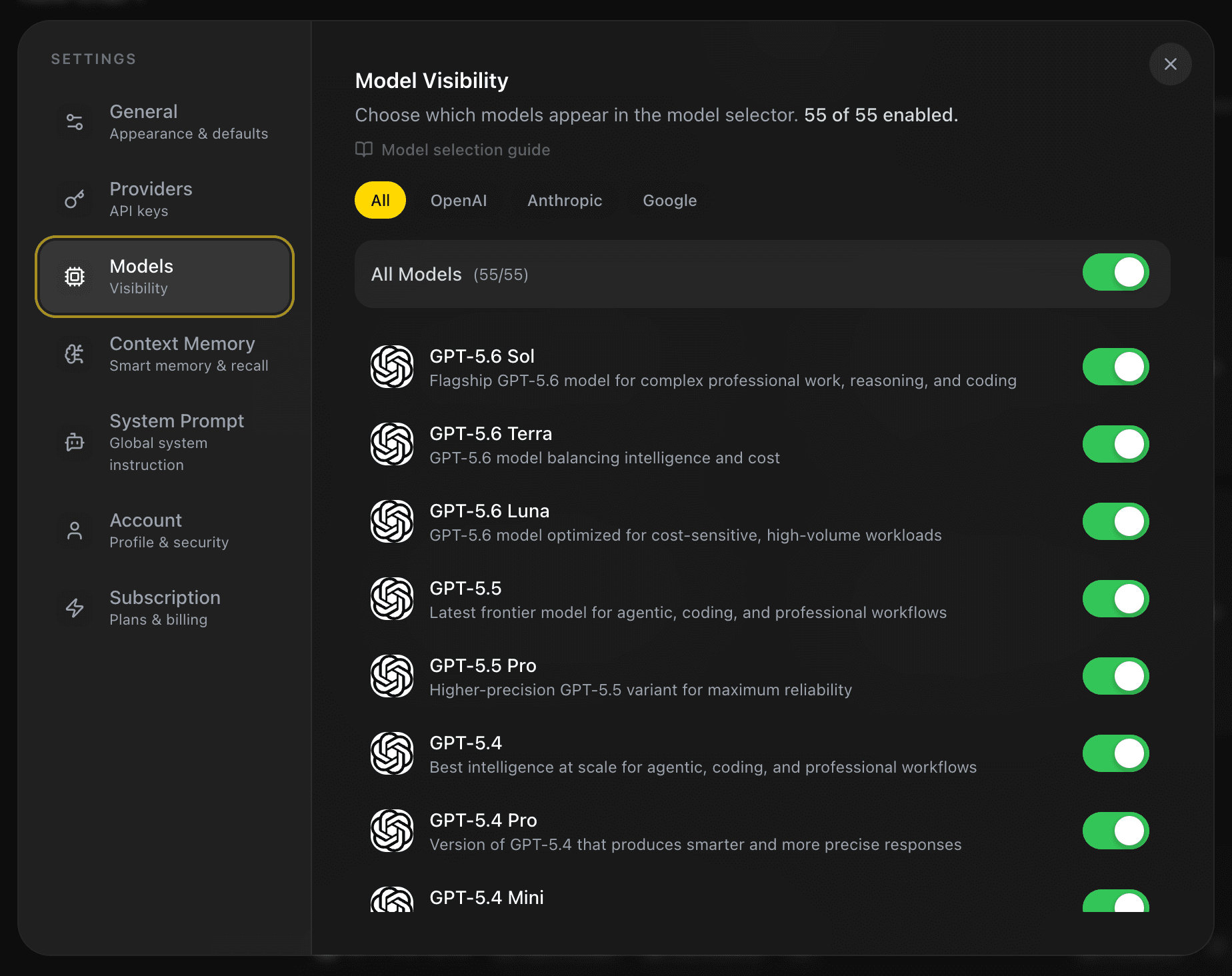
The model selector only lists models enabled in Settings > Models. Selecting a model without a matching provider key produces a warning instead of sending the request. Unlock the vault or save the matching key in Settings > Providers before continuing.
Send and follow a response
- Select a model in the toolbar.
- Add a chat-specific system prompt or context policy when the task needs one.
- Enter a prompt in the composer.
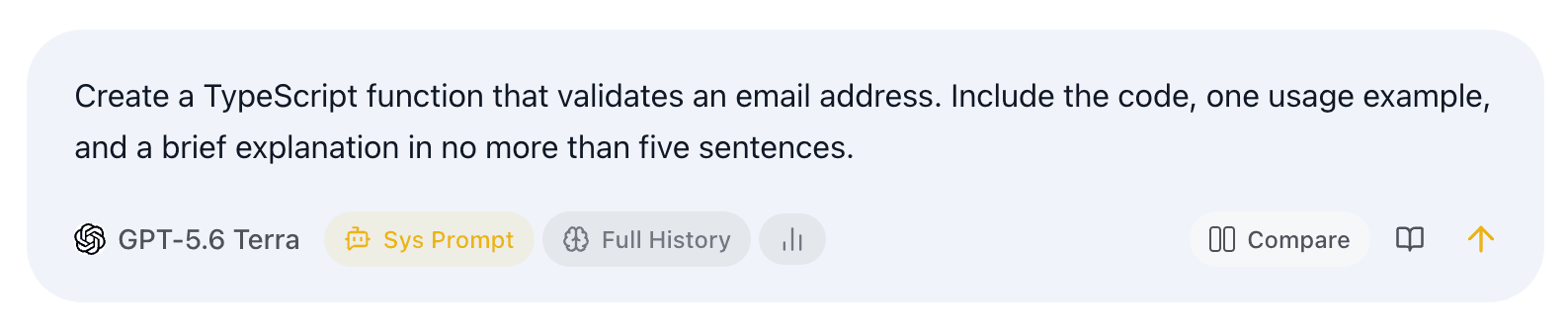
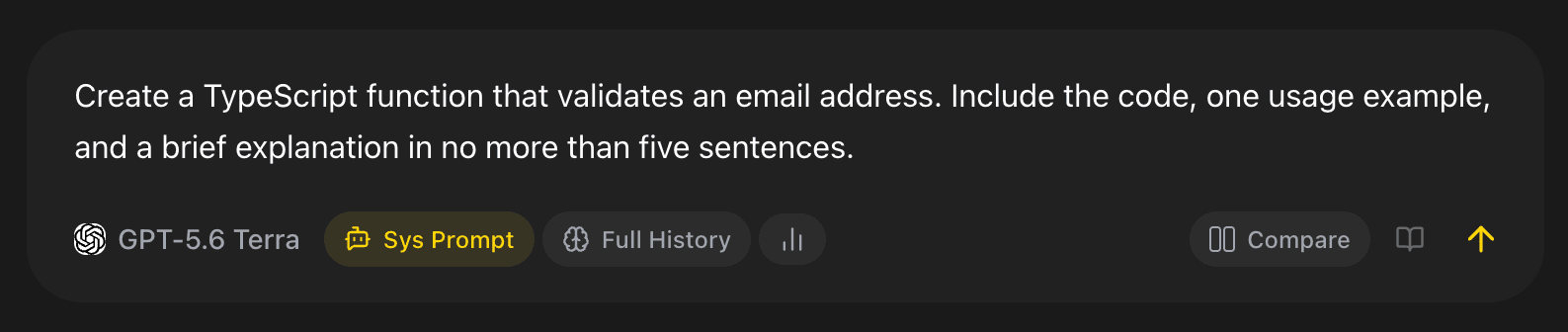
- Select the send arrow

 and follow the answer as it streams into the conversation.
During generation, the send control becomes a square stop button 
 . Selecting it cancels the active stream; any output received before cancellation can remain as a partial assistant message. EidoStack then lets you continue the chat or start a clean one for a separate experiment.
Completed assistant messages render Markdown and code blocks, and their hover controls include Copy.
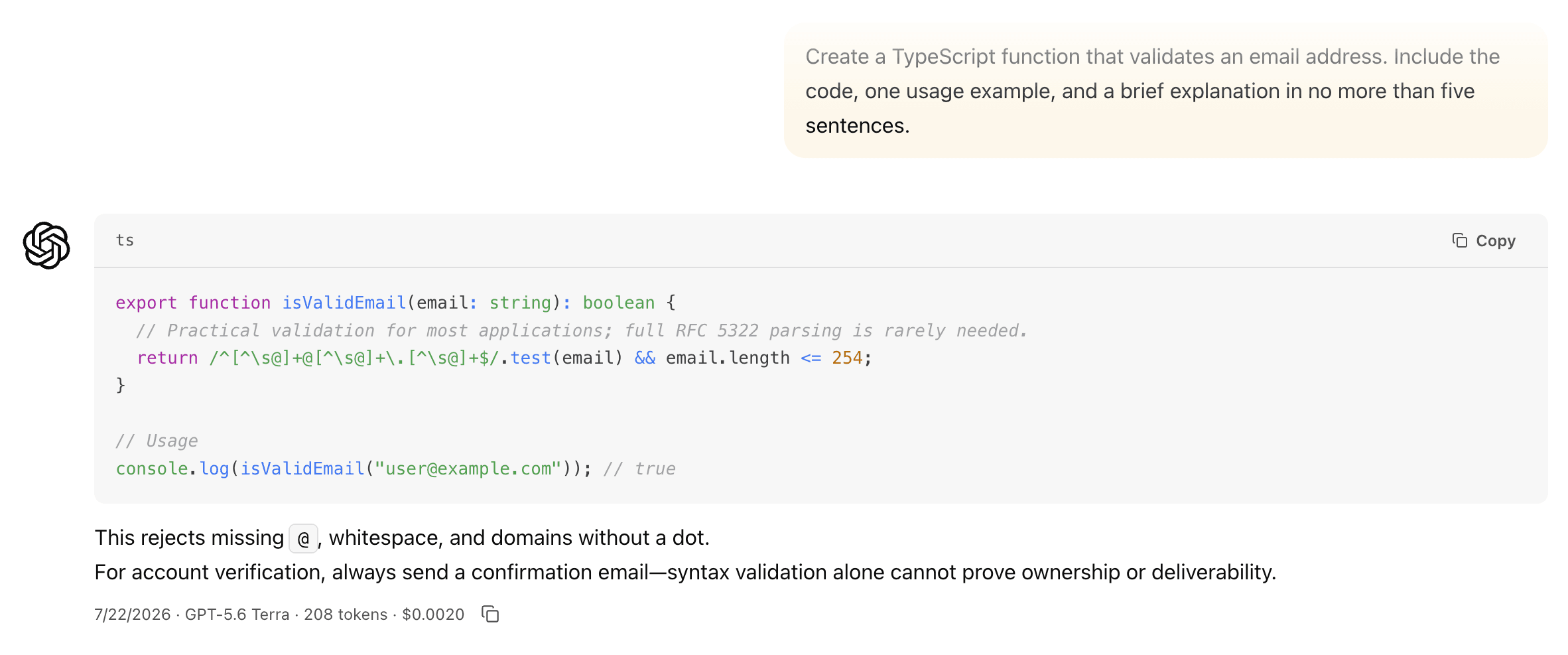
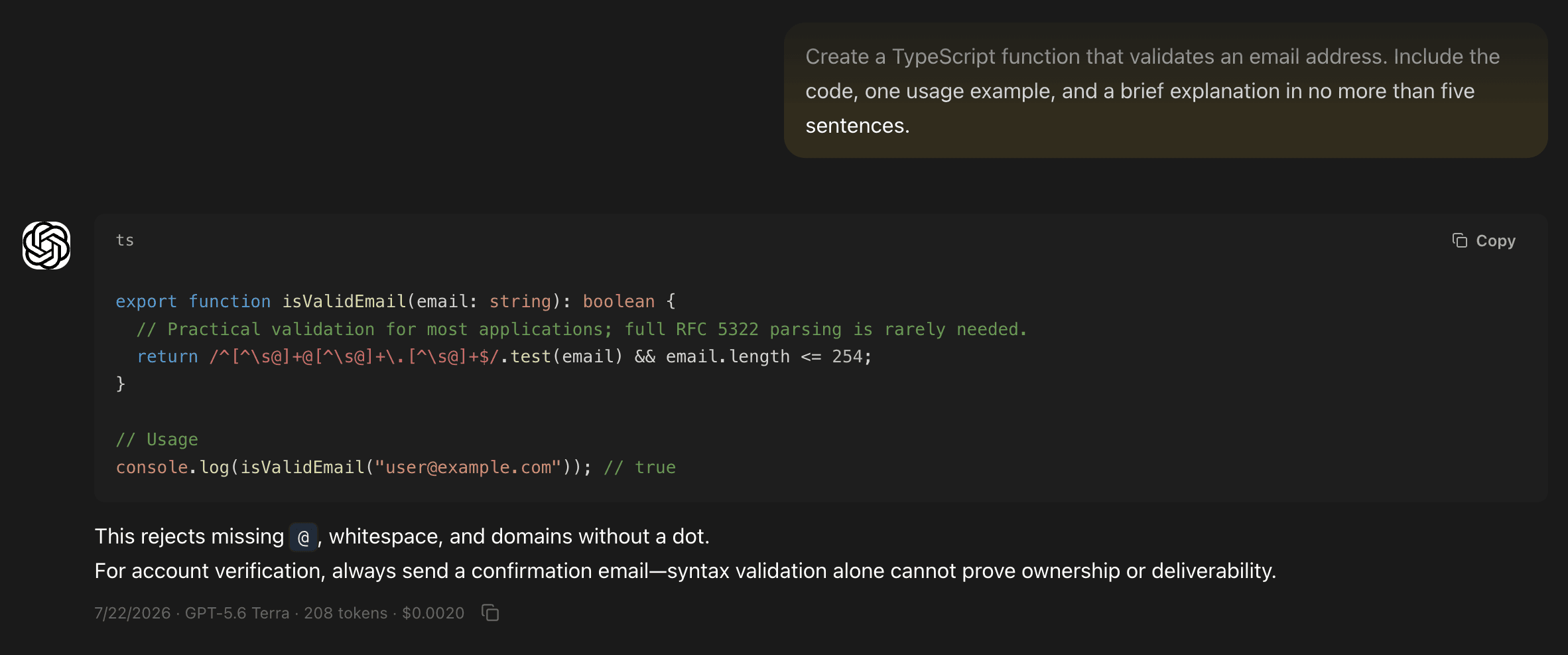
When provider usage is available, the message metadata shows the date, model, token count, and estimated cost. A provider refusal is displayed as a distinct response state so that it can be assessed as part of the evaluation rather than mistaken for a normal answer.
Recover from a failed request
When a provider request or message save fails, EidoStack shows an error card in the conversation. Select Try again to resend the last request. Confirm the following before retrying:
- The vault is unlocked in this browser.
- The selected model’s provider key is saved and still active.
- The provider account has available quota and is allowed to use the selected model.
- The prompt and selected model are still the ones you intend to test.
The application sends model requests directly from the browser using the provider key. An error can therefore come from the provider, the local vault state, the network, or EidoStack’s authorization checks. Do not paste provider keys into the chat as a workaround.
Use a conversation as evidence
Keep prompts, instructions, and context configuration stable while comparing candidate models. If you change several variables at once, the response difference cannot be attributed to a single decision. Use a fresh chat when you need a clean history; use the context control when history itself is the variable under test.
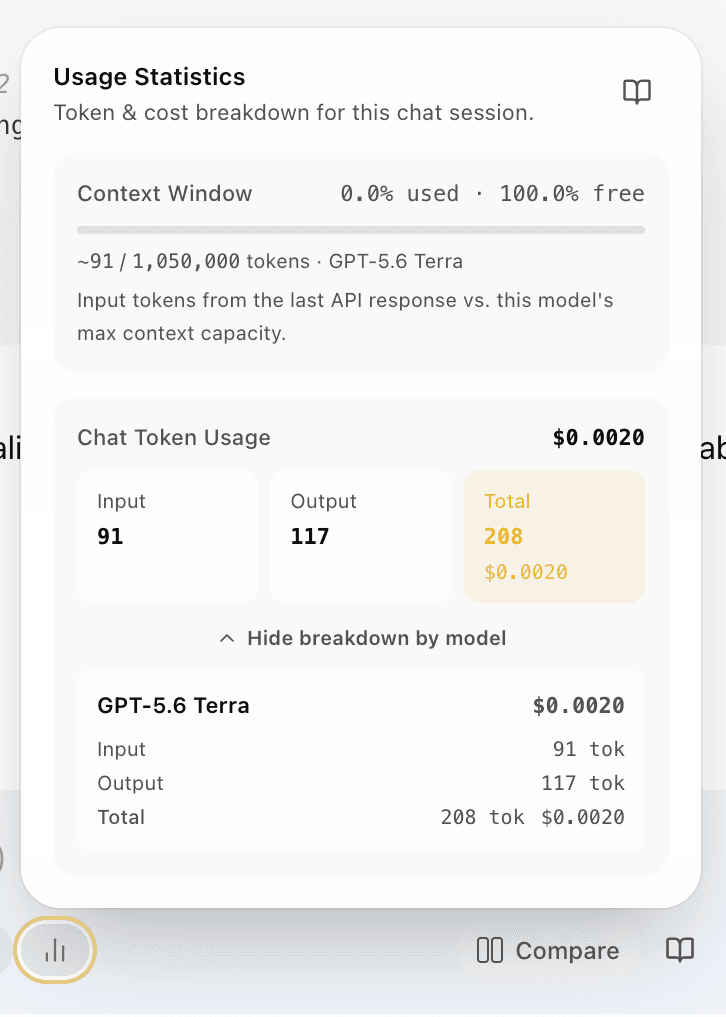
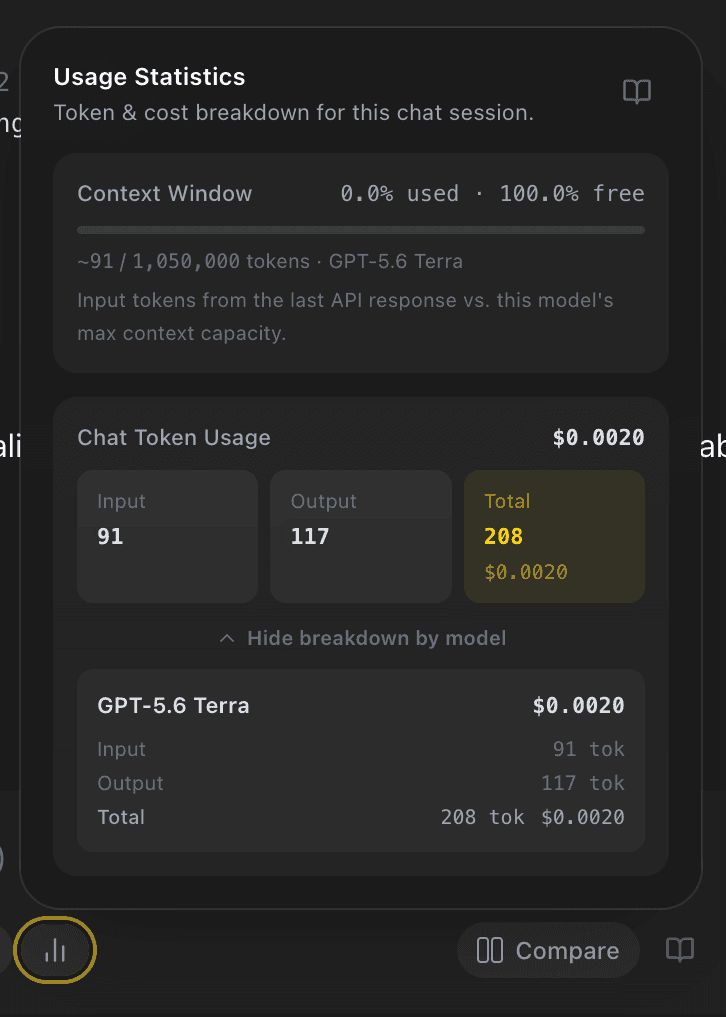
Open the toolbar usage button to review cumulative input tokens, output tokens, estimated cost, context-window capacity, and an optional per-model breakdown. For broader time-period reports, select the usage icon in the workspace header and read Usage, tokens, and costs.
Name and revisit the chat
When automatic chat naming is enabled, EidoStack can use the selected model after the first response to create a concise title. This can consume a small additional amount of provider quota. You can rename a chat manually from the header or its sidebar options; a manual title takes precedence over automated naming.
Organize conversations into folders or pin important ones once the experiment has value beyond a single prompt. See Organize chats and folders, then use Evaluate a model to turn the individual chat into a repeatable decision process.