Getting Started · First workspace
Start your first chat
Open a chat, choose a configured model, and send the first prompt in your workspace.
Your first chat is a small, repeatable model experiment: select a configured model, send a representative prompt, and inspect both the answer and the usage signal. Start with a task that resembles the work you want the model to do in production rather than a generic demonstration prompt.
Before you begin
Make sure the browser vault is unlocked and that the selected provider has a saved API key. You also need at least one enabled model. If either requirement is missing, the prompt area explains what is blocked and offers a path to Providers settings.
If you have not connected a provider yet, follow Configure your first AI provider. If you have already worked in EidoStack, the main chat route opens your most recent chat; use New Chat to create a separate evaluation.
Create a chat and select a model
- In the left sidebar, select New Chat.


- In the prompt toolbar, select the current model name.
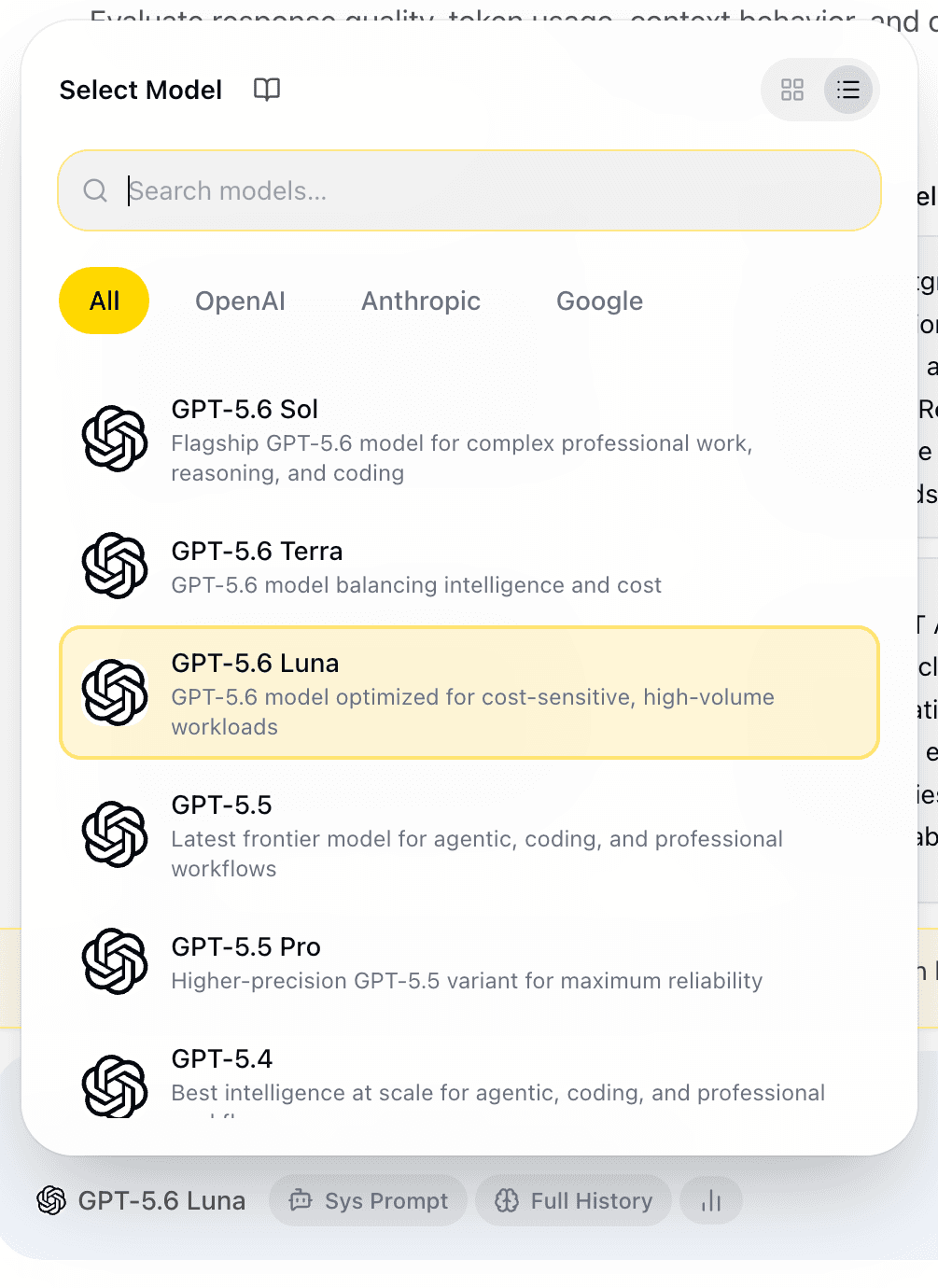
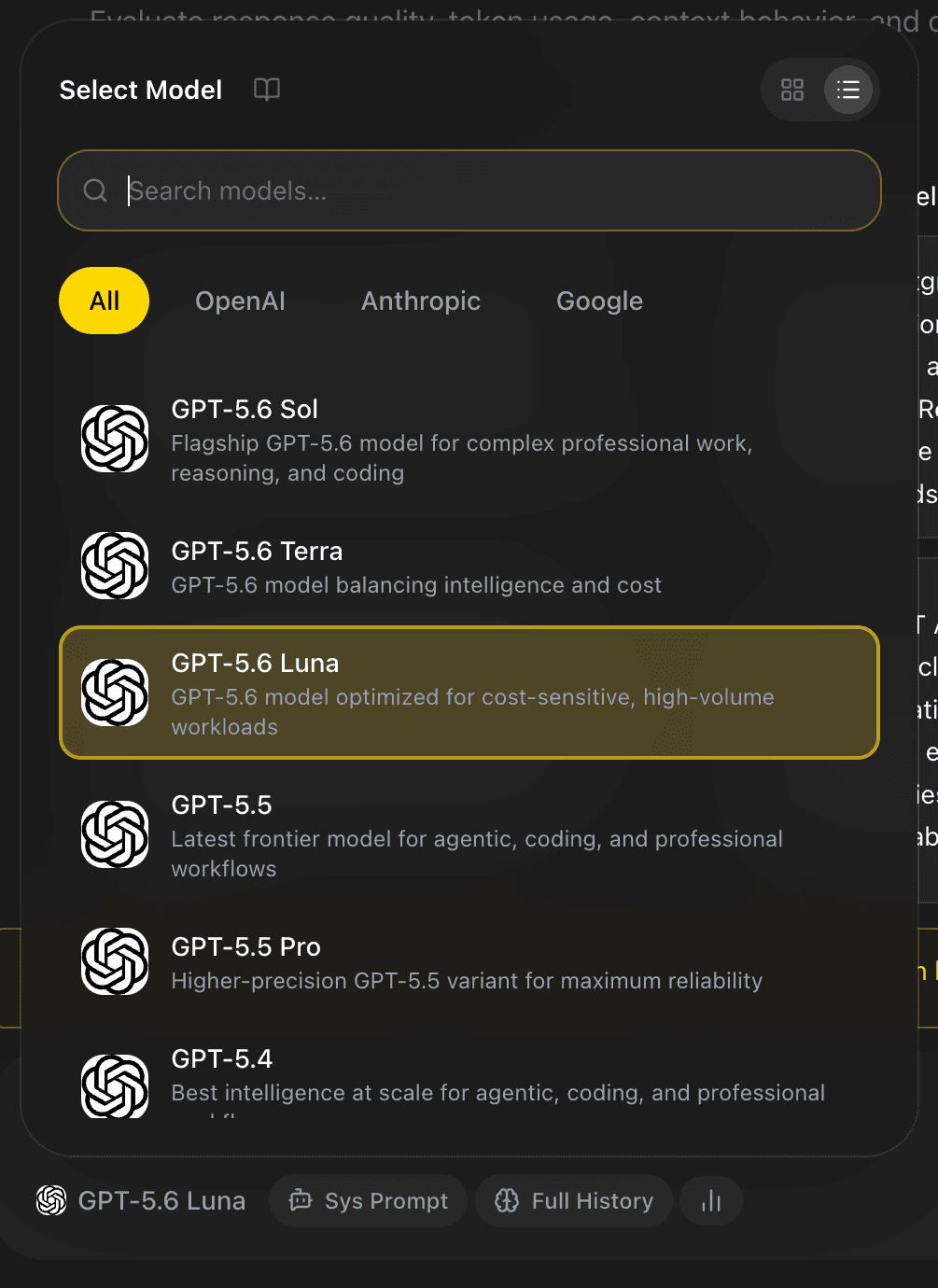
- Search for a model or use the provider filters, then select a model that belongs to a provider with a saved key.
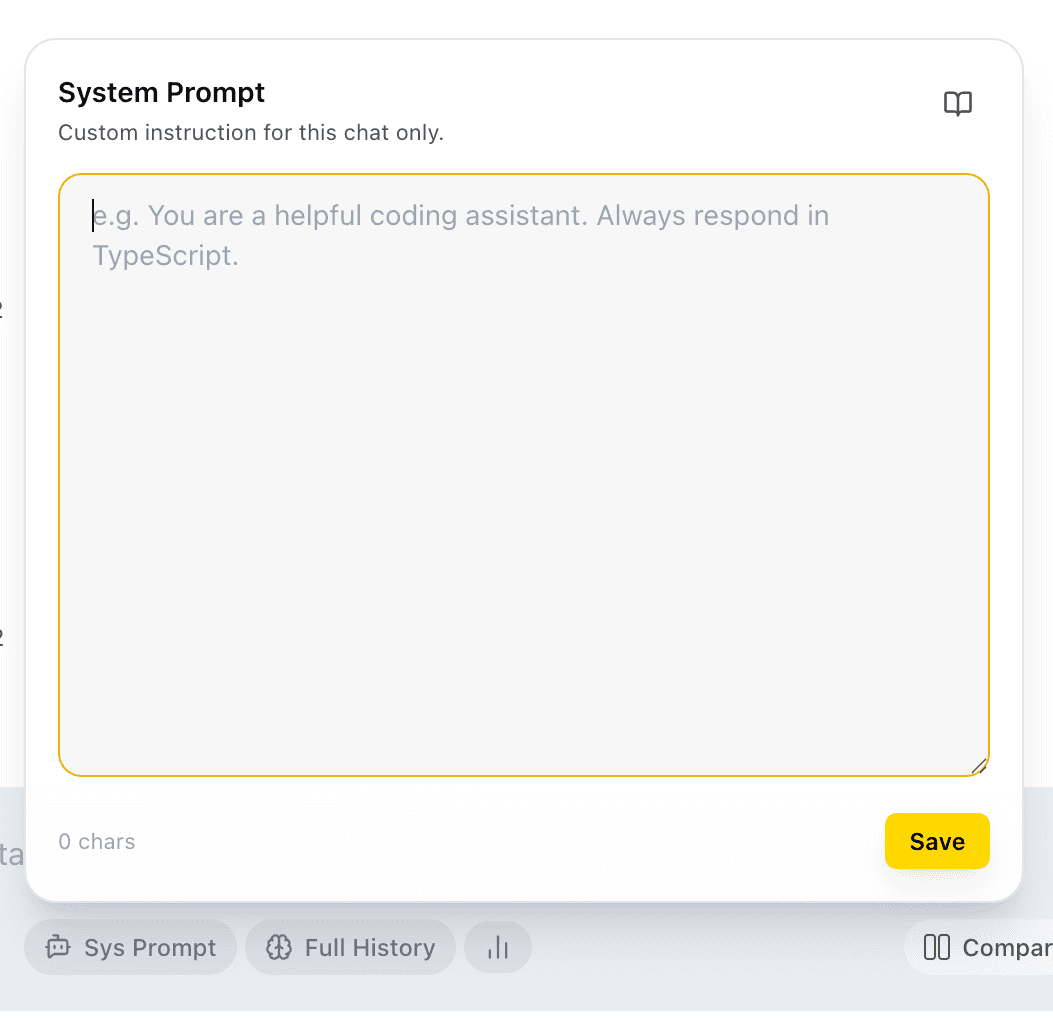
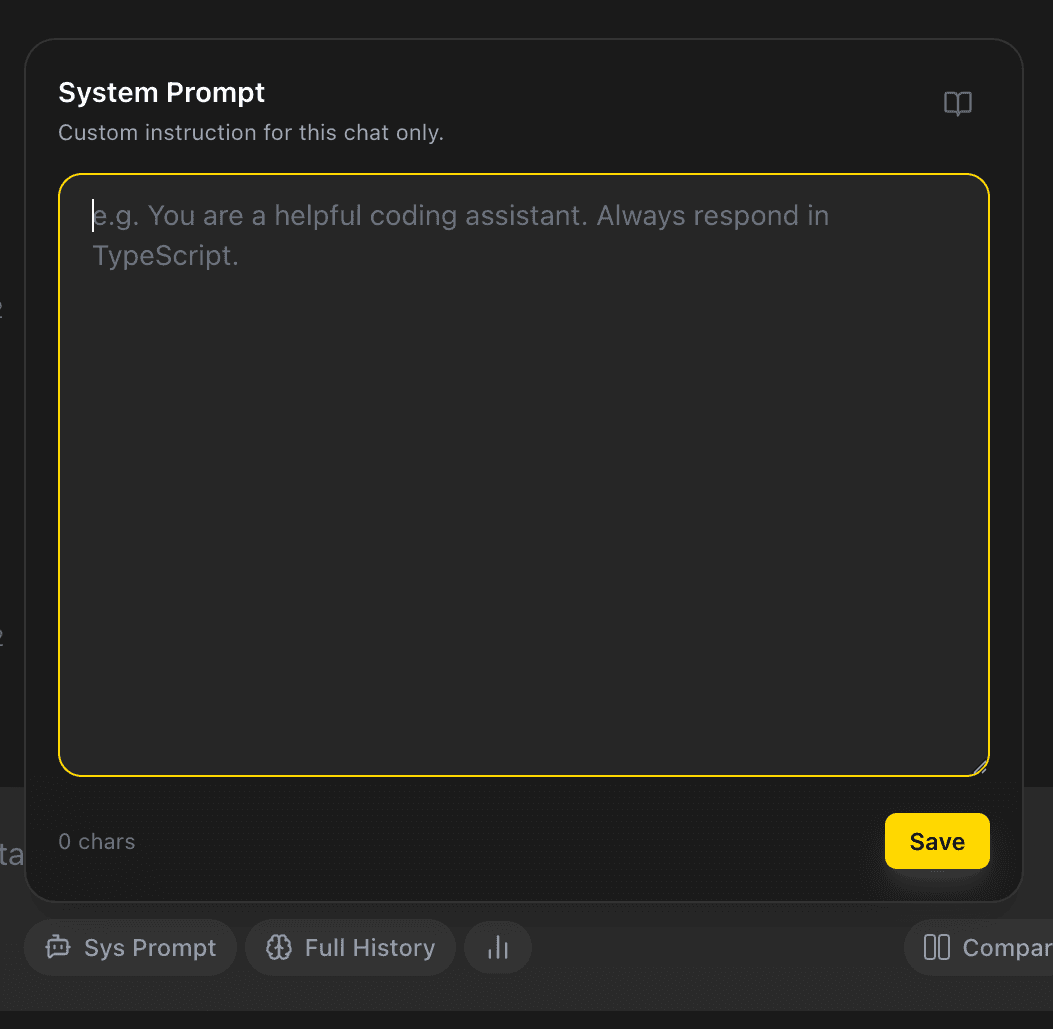
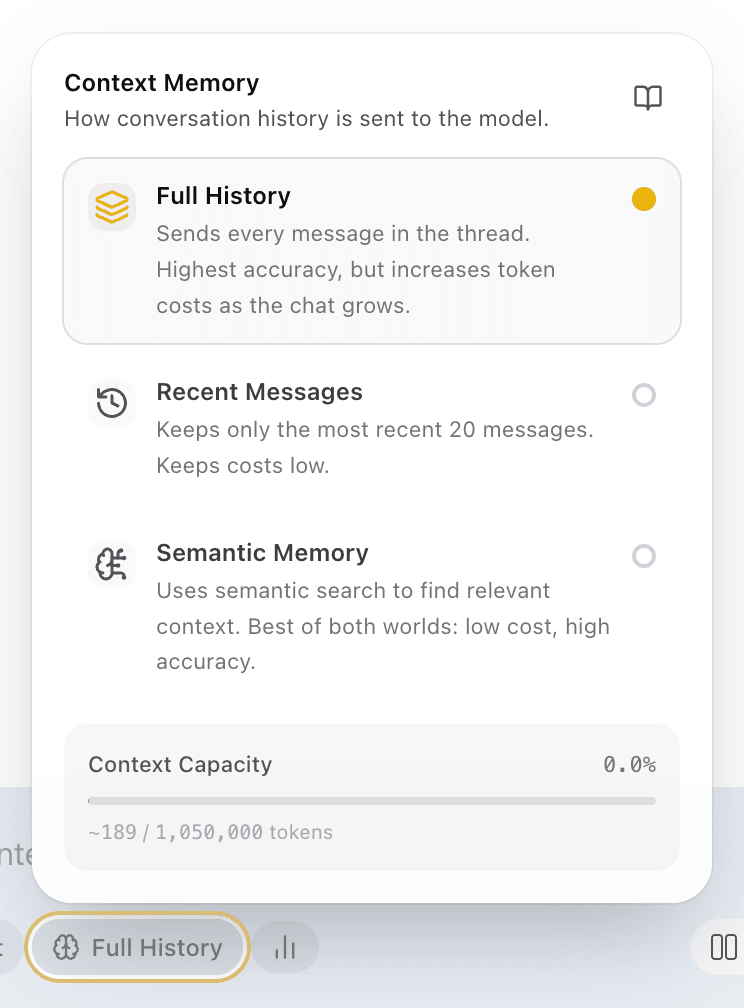
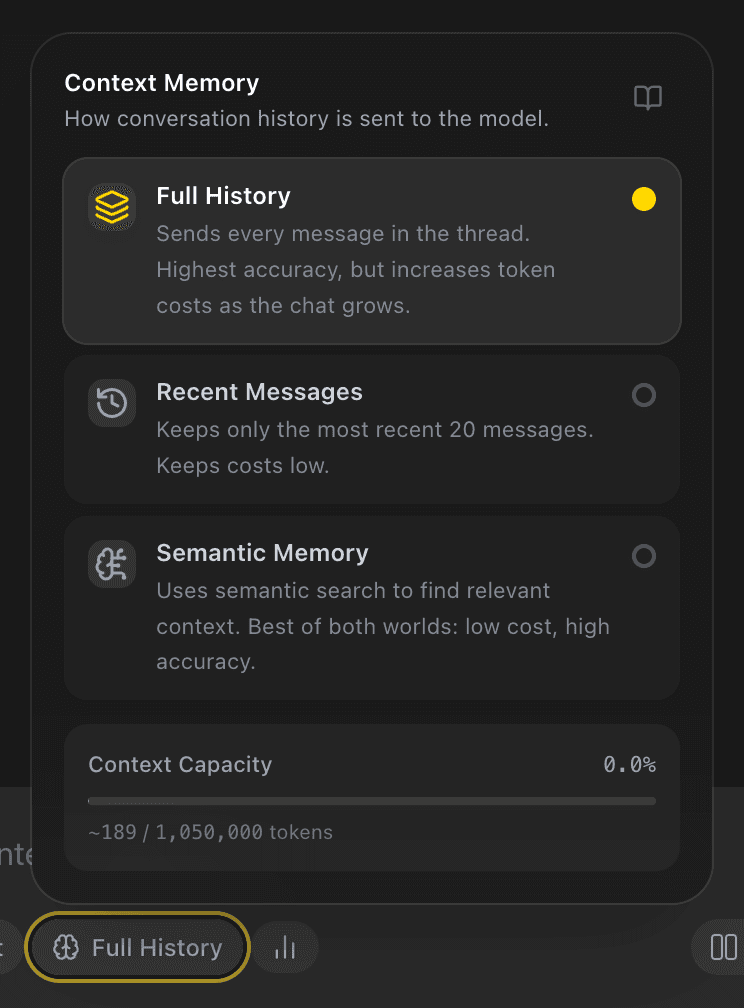
- Optionally select Sys Prompt to add an instruction for this chat, or use Context Memory to choose how earlier messages will be supplied.
  |   |
|---|
New chats inherit your default model, context settings, and global system prompt at the time they are created. Changing a setting in the chat toolbar affects that chat; it does not retroactively alter another chat. For model visibility and selector controls, see Select and manage models.
Send a first evaluation prompt
Write a prompt that lets you judge a concrete behavior. Include constraints that matter to your application, such as an output structure, source text to analyze, or an explicit success criterion.
For example, instead of asking a model to “write about security,” ask it to review a short policy statement and return three named risks, each with a practical mitigation. This makes the response easier to compare later.
- Enter the prompt in the composer.


- Select the send arrow.


- Follow the streamed response as it arrives.
- When the response finishes, read it against the criteria you set before looking at cost or latency-related signals.
Use the square stop button while a response is generating if you need to stop it. A partially generated answer can still remain in the conversation. If a request fails, EidoStack presents the error in the chat with a Try again action for the same request.
Inspect the result
Responses render as formatted Markdown, and the hover controls let you copy a message. The metadata below a completed response includes the model name, date, token count, and estimated cost when those values are available.
Open the usage button in the prompt toolbar to see the chat’s input and output token totals, estimated cost, context-window capacity, and, when more than one model has been used, a breakdown by model. These numbers help you understand the operational consequence of a response; they do not score its quality for you.
Continue the experiment
The chat remembers its selected context strategy and system prompt. Continue the conversation when continuity is part of the task, or use New Chat to test the same prompt from a clean starting point. Keep the important variable stable while comparing models: for example, use the same prompt, instruction, and context configuration.
For a two-model experiment, select Compare in the composer and follow Compare model responses. For the full set of chat controls and recovery steps, read Use the chat workspace.