Settings
General preferences
Set appearance, prompt-history capacity, and automatic chat naming for your workspace.
General preferences control the workspace appearance, the prompt-recall list in each chat, and automatic chat naming. Open the settings button in the workspace header and select General to change them.
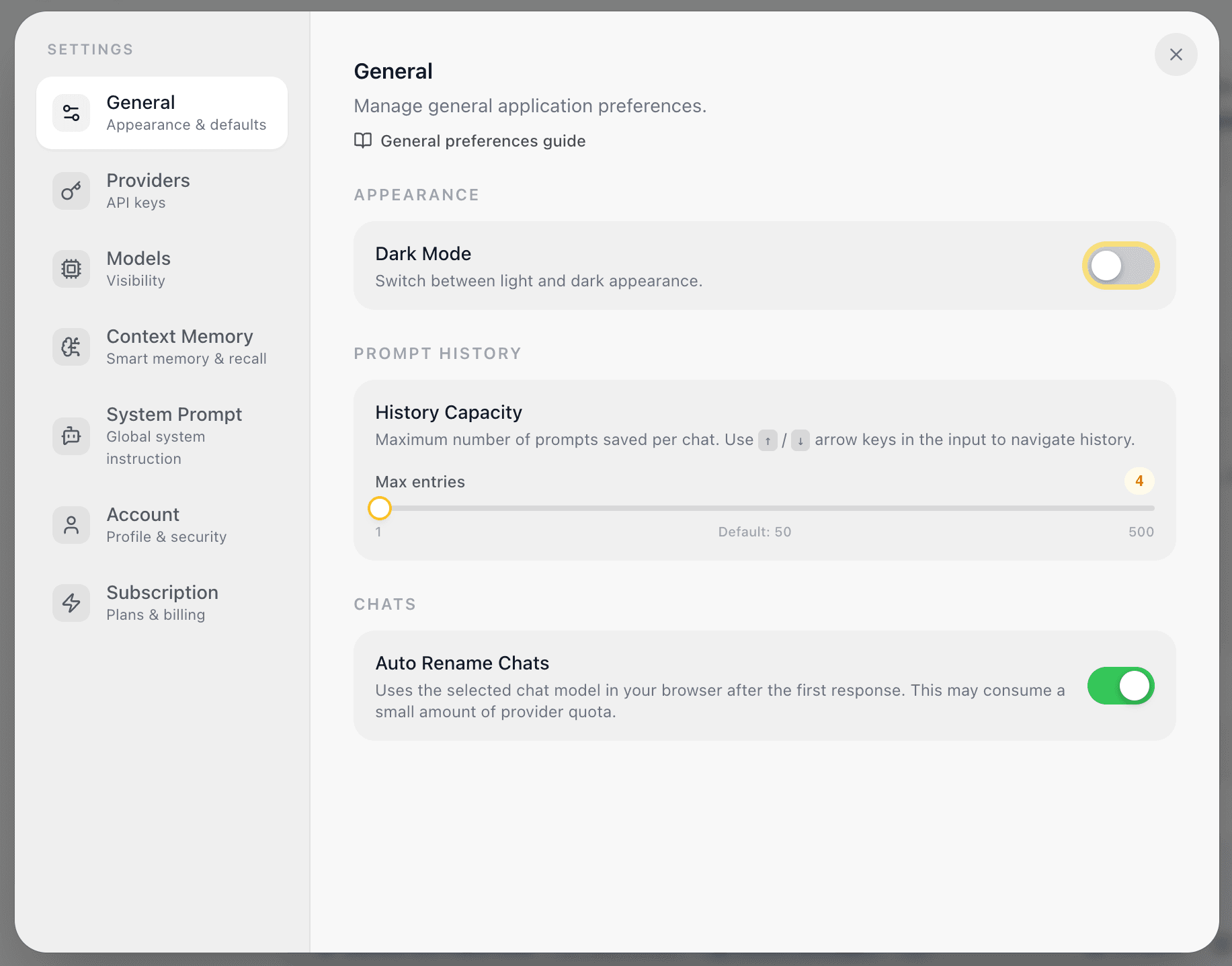
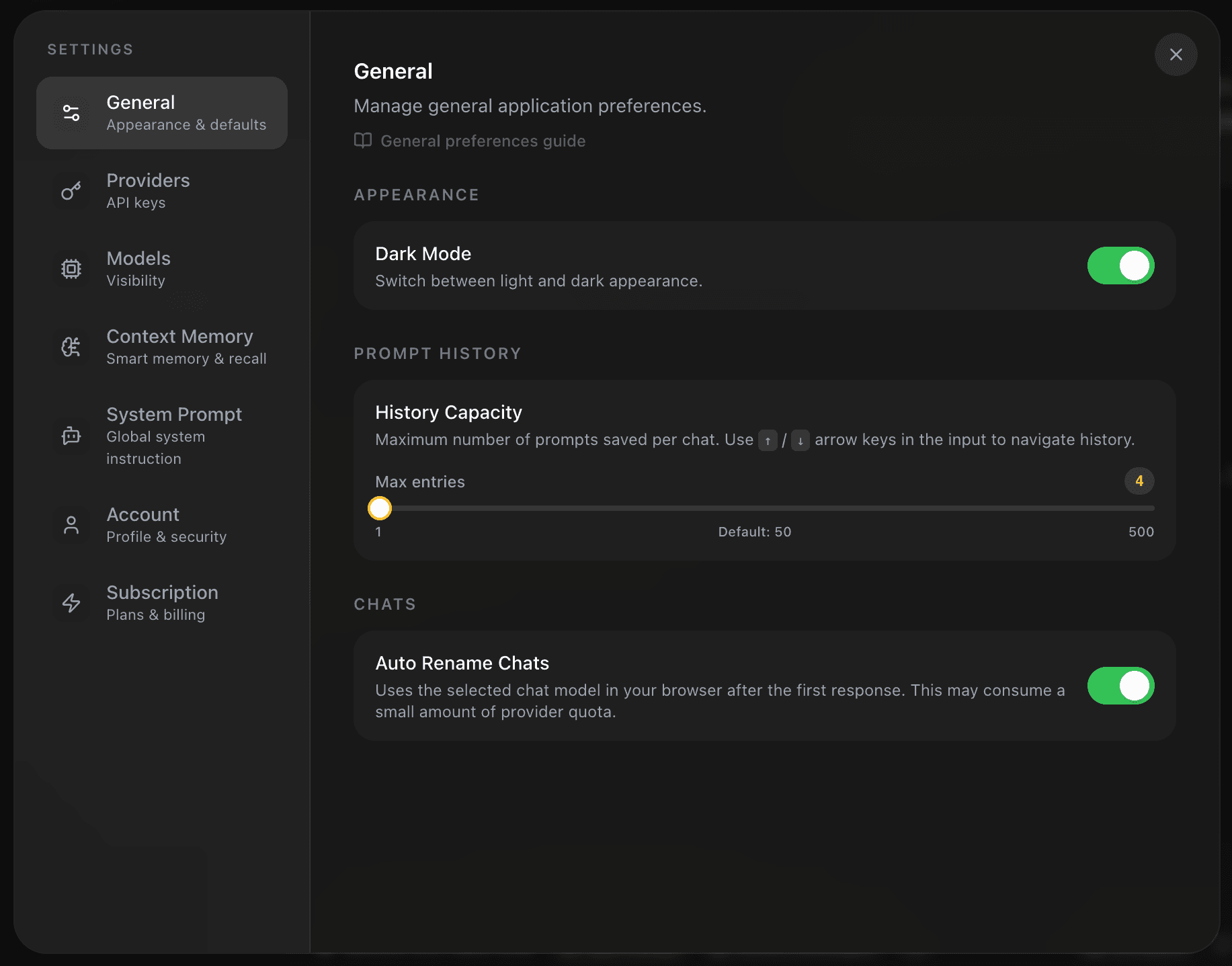
Switch light and dark appearance
Use the Dark Mode switch under Appearance to change between light and dark presentation. This is a display preference only: it does not alter chats, model selections, provider keys, or how a prompt is sent.


Choose the appearance that gives you the best contrast for reviewing long responses and usage charts. Documentation and workspace controls are designed to work in either theme, so there is no feature difference between the two modes.
Set prompt-history capacity
The History Capacity control sets the maximum number of prior prompts saved for each chat’s input-history navigation. EidoStack defaults to 50 entries and supports a capacity from 1 to 500.
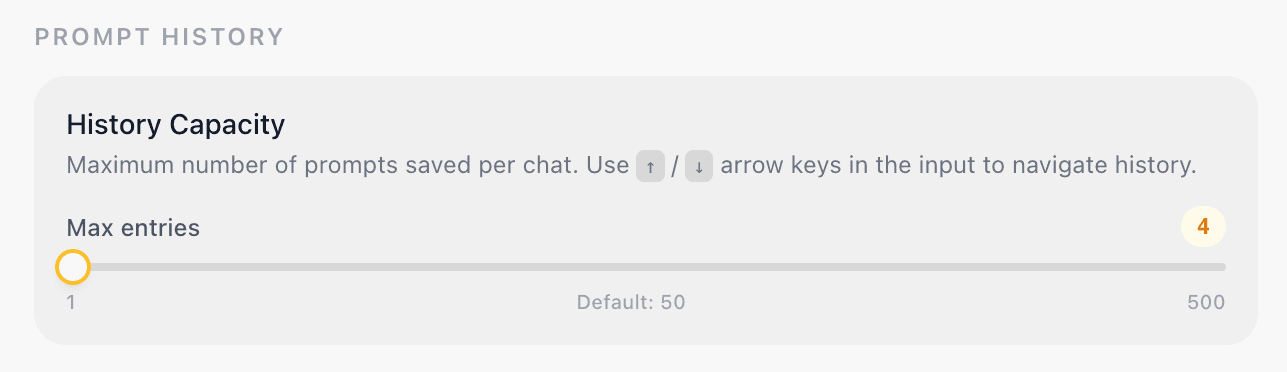
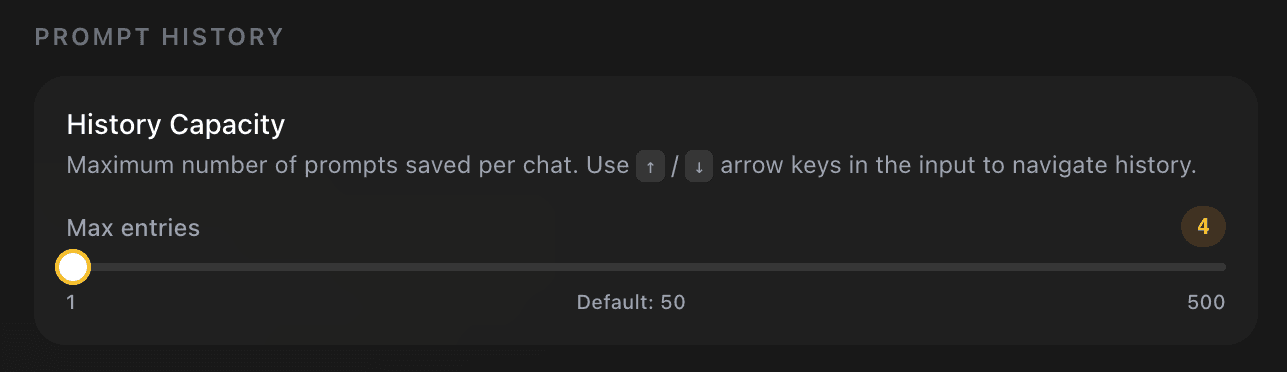
After a chat has saved prompts, use the up and down arrow keys in an empty or active prompt input to cycle through its saved prompt history. This is an input convenience feature; it is separate from the visible conversation and from Context Memory.
When a chat reaches its history capacity, EidoStack removes the oldest saved prompt entry before keeping a new one. Increase the limit when you regularly revisit many draft prompts in a chat, or lower it when you want a shorter recall list.
Do not confuse the two histories: prompt history helps you recall previously typed prompts with the keyboard. Context memory controls which conversation messages are sent to a model. See Context memory for the latter.
Control automatic chat naming
With Auto Rename Chats enabled, EidoStack asks the selected chat model to create a concise title after the first successful response in a chat. The request is made in the browser and can consume a small amount of the selected provider’s quota.
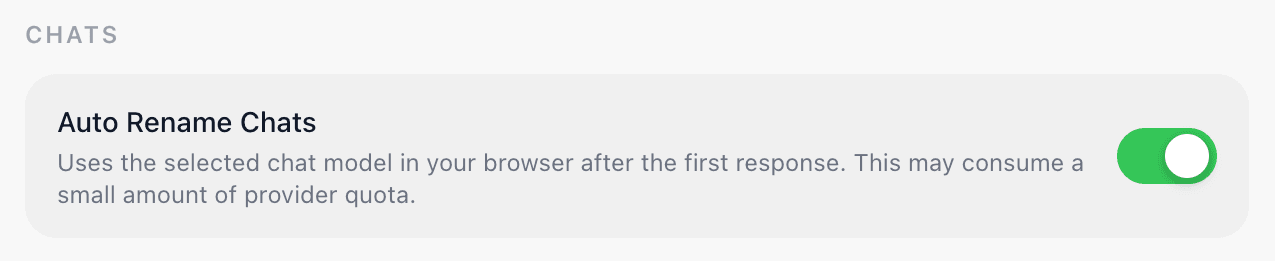
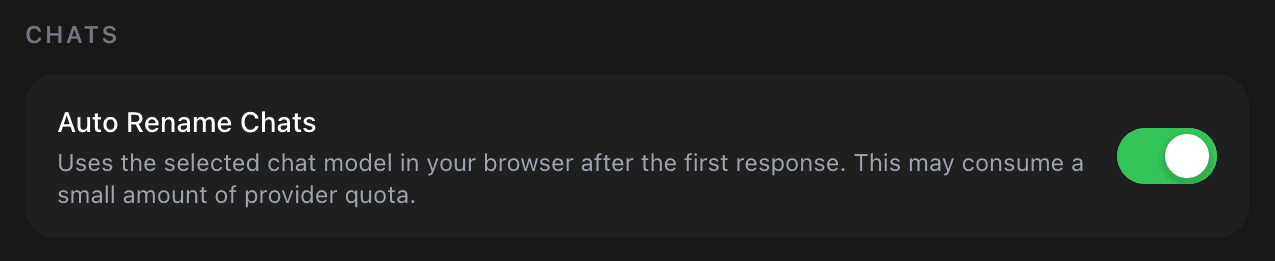
Turn the switch off if you want all new chats to keep their initial names until you rename them yourself. You can manually rename any chat from the workspace header or the chat’s sidebar options. A manual title takes precedence over automatic naming, so it is safe to give an important evaluation an explicit descriptive name.
Choose defaults that support evaluation
For a low-friction evaluation workflow, keep a prompt-history capacity large enough to recover repeated test prompts and leave automatic naming enabled for exploratory chats. For a controlled test set, create a clearly named chat or rename it manually before you share or pin it.
Next, see Organize chats and folders for retaining useful evaluation evidence, or System prompts to establish the default instruction for new chats.