Getting Started · First workspace
Configure your first AI provider
Connect a supported AI provider in the browser and run a first request with your own API key.
Updated July 21, 2026
EidoStack connects to models through your own OpenAI, Anthropic, or Google AI API key. The key stays in the local browser vault and is used to make requests to the provider you select. EidoStack does not issue provider credentials, and a Google or GitHub sign-in account does not count as a Google AI connection.
Before you add a key
Sign in to EidoStack and obtain an API key from the provider account that should receive the usage charges. You need a browser vault before keys can be stored. If this is your first session, use Complete workspace setup first.
| Provider | Models available through the connection | Key format shown in EidoStack |
|---|---|---|
| OpenAI | GPT models | sk-... |
| Anthropic | Claude models | sk-ant-... |
| Google AI | Gemini models | AIza... |
The prefixes are only examples of the input placeholders. EidoStack saves the value you provide and asks the selected provider to validate it when a model request is made.
Add or replace a provider key
- In the workspace, select the settings button in the top-right corner.

- Select Providers in the settings navigation.
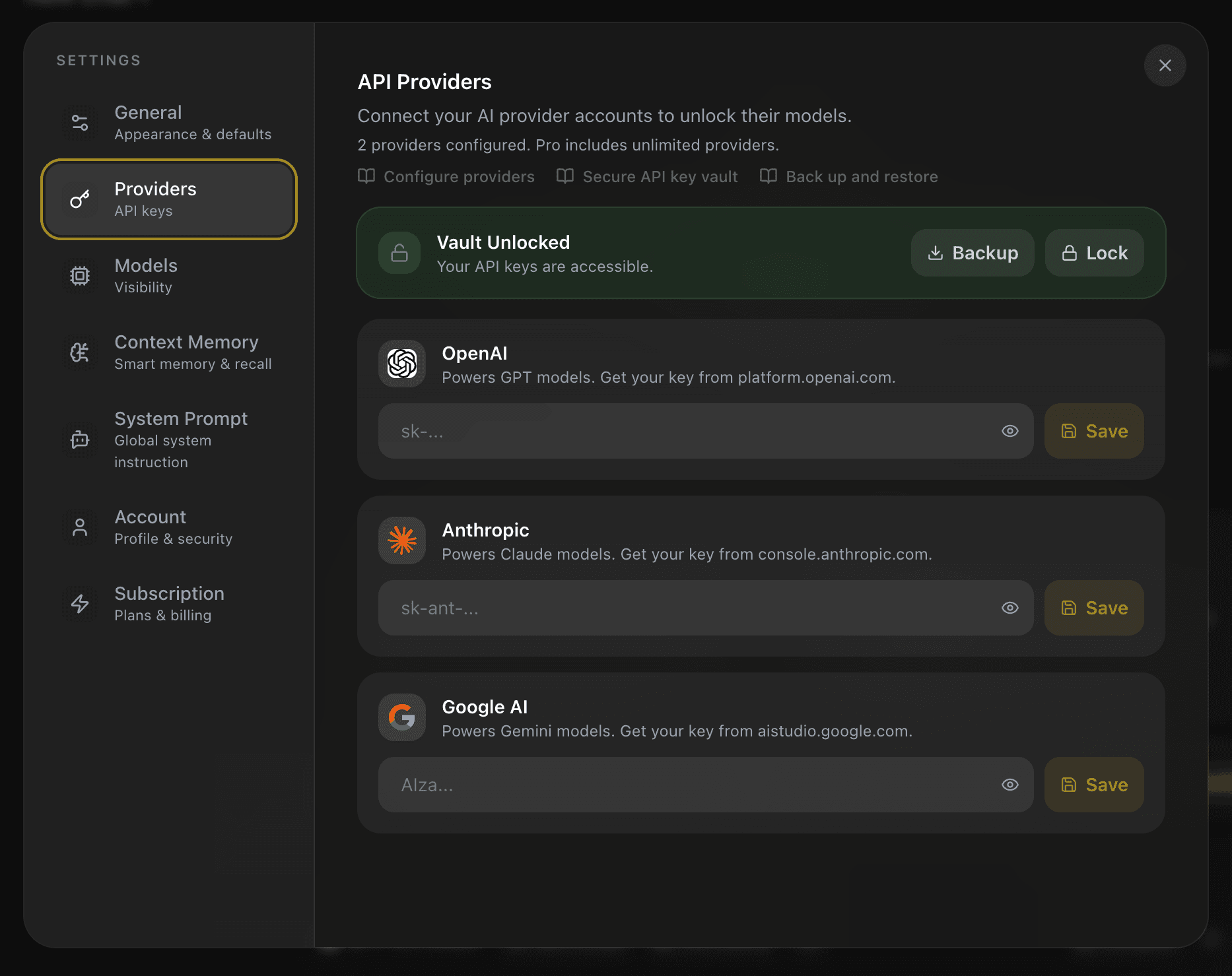
- Create or unlock the vault. The provider fields remain unavailable while it is locked.
- Find OpenAI, Anthropic, or Google AI, paste the key in its field, and select Save.
- Wait for the Keys saved locally confirmation.
Saving encrypts the configured provider-key record in browser storage for the signed-in account. EidoStack also records which provider families are configured so that plan limits can be applied, but the application database does not receive the provider-key value itself. Read API key vault before using a shared or unmanaged device.
To replace a key, enter the replacement value and select Save again. There is no separate “test key” action: choose a model from that provider and send a small request to confirm that the key works.
Choose a model from the connected provider
After saving a key, open a chat and select the model name in the prompt toolbar. The selector shows enabled models from the EidoStack catalog; use its provider filter or search box to find the model you need. A saved key is required for the provider of the selected model, not for every model shown in the selector.
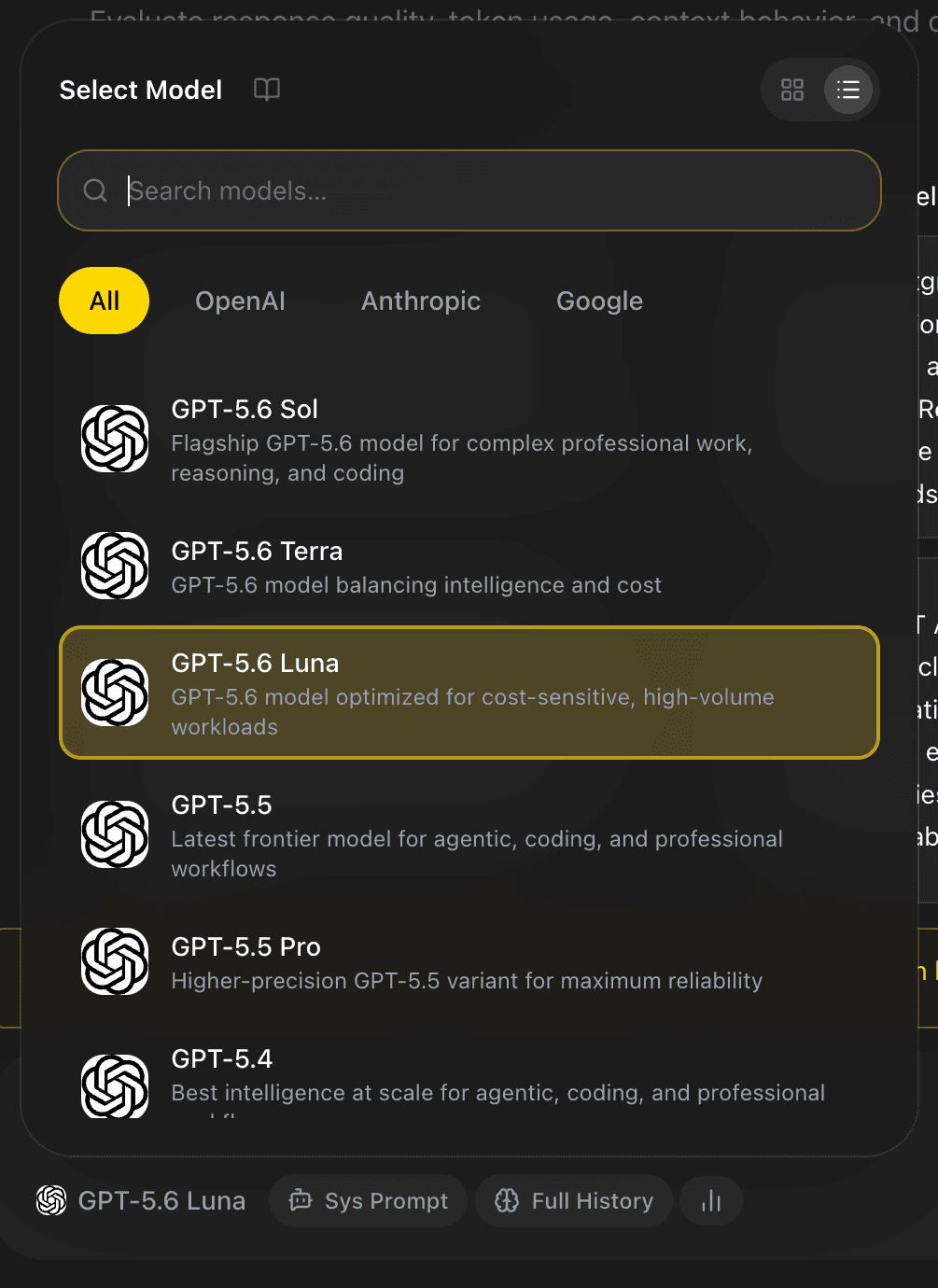
If the desired model is hidden, open Settings > Models and enable it. Select and manage models explains the visibility controls.
Understand provider limits and charges
EidoStack uses a bring-your-own-key model. Each request is sent with your chosen provider credential, so provider usage and quota are associated with that provider account. The token and cost figures shown in EidoStack are estimates based on the selected model’s catalog pricing; they do not replace the provider invoice.
Your EidoStack plan controls workspace limits independently of provider billing. The Free plan permits one configured provider and comparison in up to five chats, while Pro access permits unlimited configured providers, chats, and messages. See Plans, limits, and billing for the current workspace limits.
Resolve common connection problems
The field is disabled
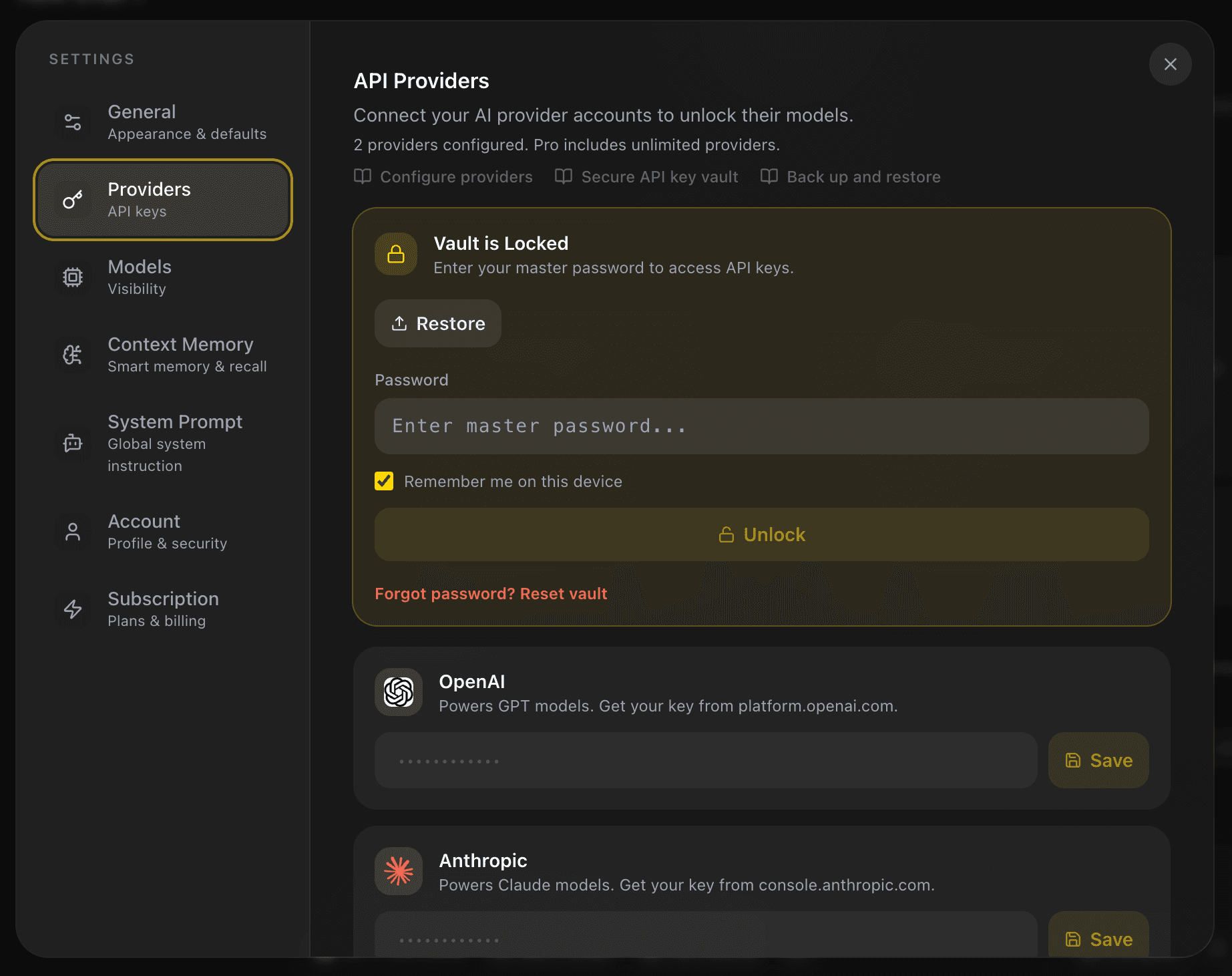
The browser vault is locked or has not been created. Use Create Master Password or Unlock in the Providers settings section, then save the key.
The chat says the selected model requires a key

The active model belongs to a provider that does not have a saved key in the unlocked vault. Select Open Provider Settings, save the matching provider key, or select a model from a configured provider.
A provider-limit message appears when saving

The configured provider would exceed the current plan’s limit. On Free, keep one configured provider or request Pro access from the Subscription settings section. The existing saved key remains available until you replace or remove it.
Once a request succeeds, continue with Use the chat workspace or run a controlled model comparison.