Getting Started
Create an EidoStack account
Create an account and get ready to run your first model evaluation in EidoStack.
An EidoStack account gives you access to the workspace where you can configure your own AI provider credentials and evaluate model responses. Creating an account signs you in and opens the first-time workspace setup; it does not connect an AI provider or add an API key by itself.
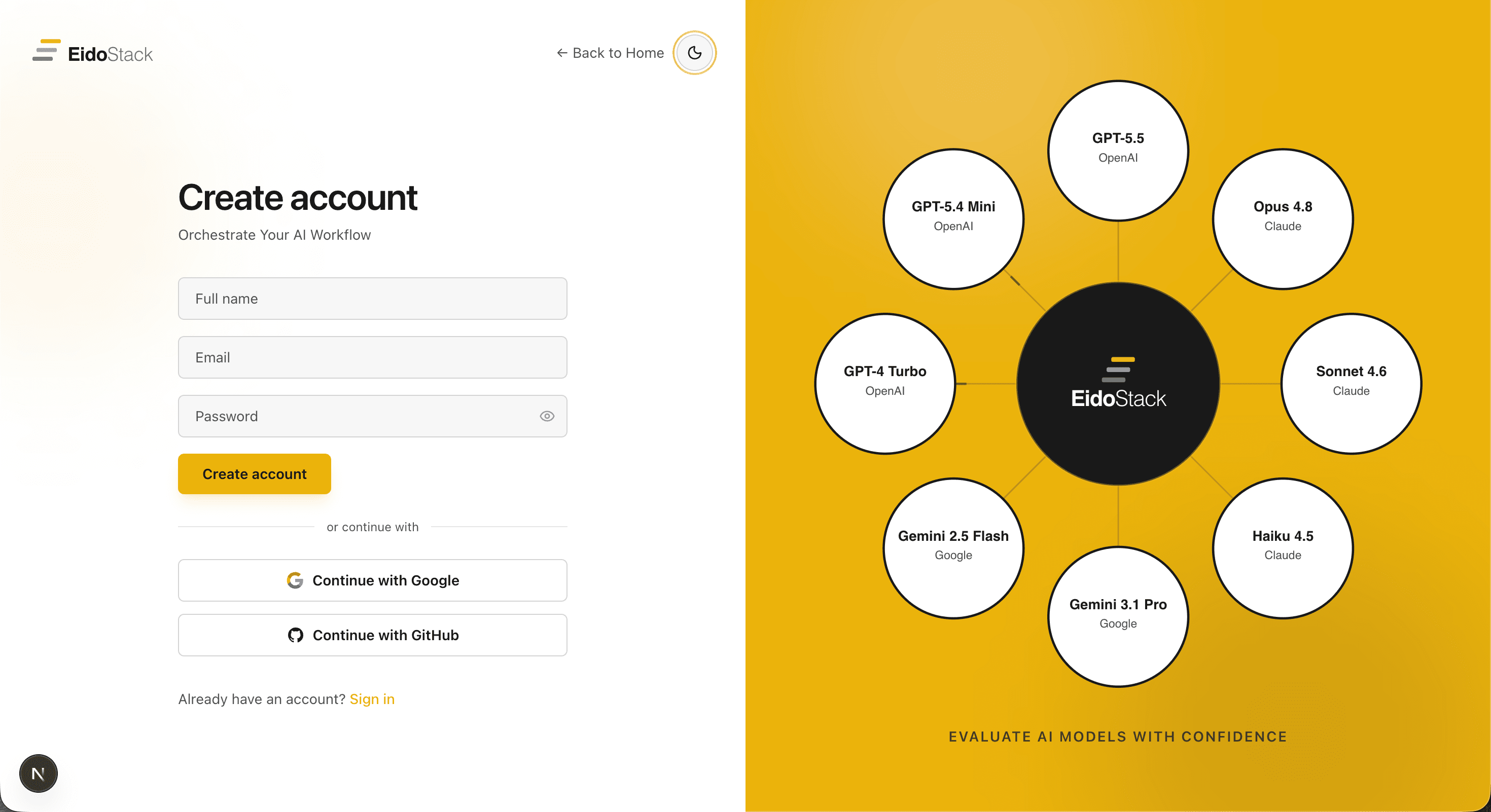
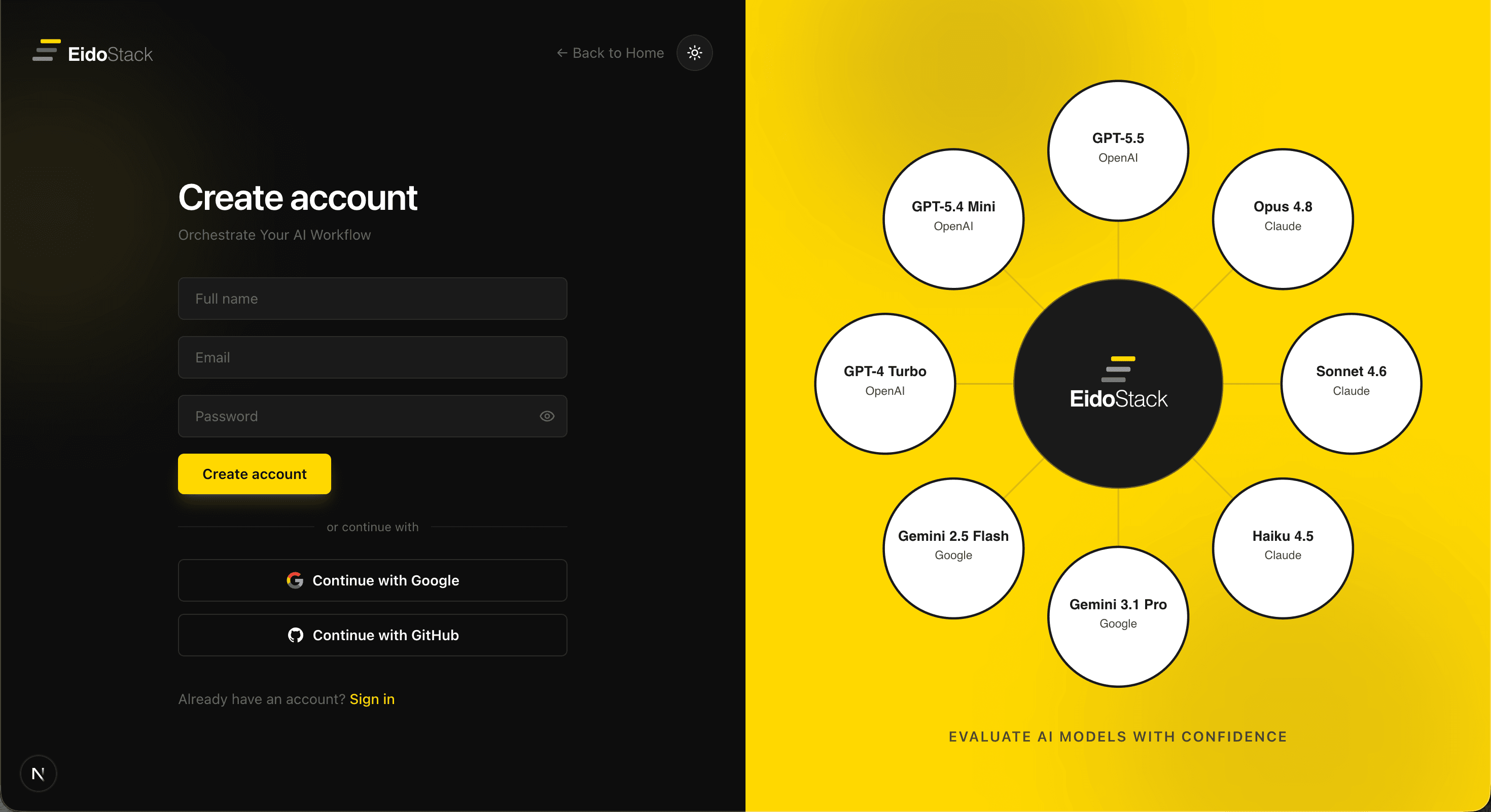
Before you begin
Choose the sign-up method you want to use. You can create an account with an email address and password, or use Continue with Google or Continue with GitHub. For a social sign-up, the selected provider must return a verified email address.
Your EidoStack account password and your provider API keys serve different purposes. The sign-up form does not ask for an API key. You will create an encrypted local vault and add at least one provider key during workspace setup, after your account has been created.
Keep this distinction clear: Google and GitHub on this screen are sign-in methods. They do not connect Google AI, OpenAI, or Anthropic models to your workspace.
Create an account with email and password
- Open the EidoStack sign-in screen and select Create one under “Don’t have an account?”. The page is titled Create account.


- Enter your name in Full name and the email address you want to use in Email.
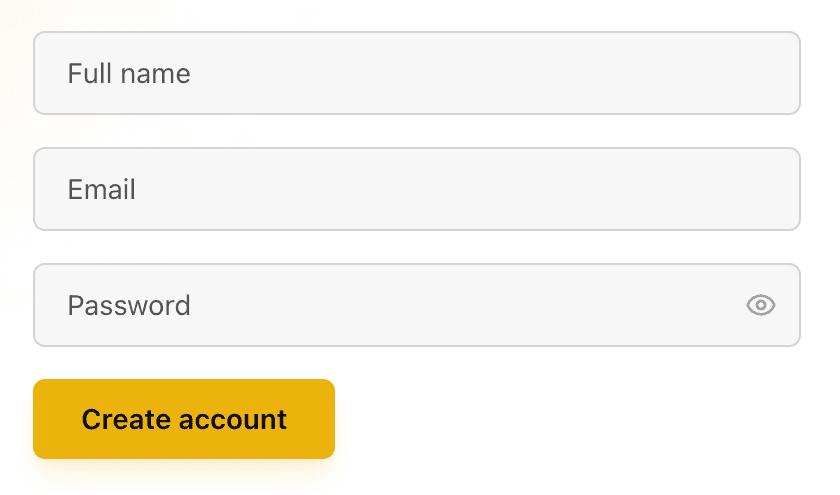
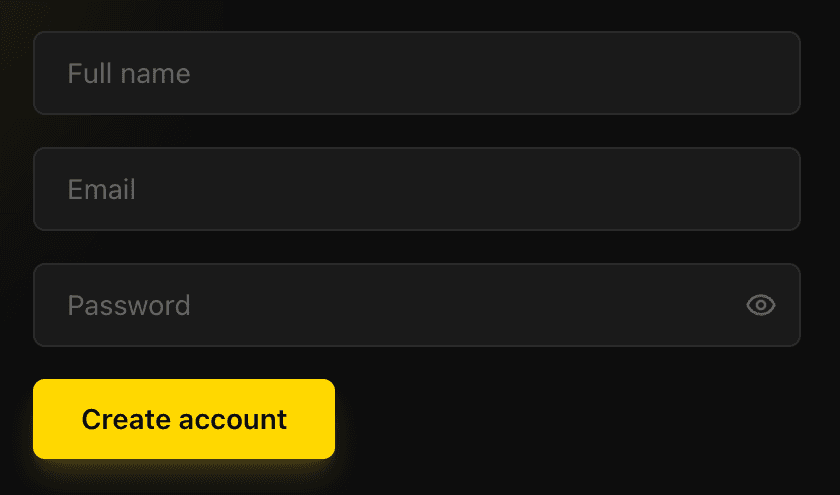
- Enter a password in Password. It must contain at least eight characters; the password-strength indicator appears once you begin entering it.
- Select Create account.
If the details are valid, EidoStack creates the account, signs you in, and opens your workspace. The setup dialog appears automatically so that you can configure the essentials needed to send a first model request.
Create an account with Google or GitHub
Use a social sign-up when you want to authenticate with an existing Google or GitHub account instead of setting an EidoStack password.
- On the Create account page, select Continue with Google or Continue with GitHub.
- Complete the authorization steps with the selected provider.
- Return to EidoStack when the provider finishes. If the provider supplies a verified email address that is not already used by an EidoStack account, EidoStack creates the account, signs you in, and opens the workspace setup.
If the email is already associated with an EidoStack account, use the existing sign-in method instead. Do not create a second account for the same email address. See Sign in and recover access if you need to return to an existing account.
Complete the first-time setup
After either sign-up method succeeds, the Welcome to EidoStack dialog guides you through four steps. You can optionally set a global system prompt, then create or unlock the local vault and enter an API key for OpenAI, Anthropic, or Google AI. At least one provider key is required before you can continue past the model-connection step.
Choose Start Using EidoStack on the final step to save the setup and begin using the workspace. If you close the dialog or select Skip, you can return to setup later; selecting “Don’t show this dialog again” completes onboarding without showing it again.
For the exact setup sequence and vault considerations, continue to Complete workspace setup. Then use Configure your first AI provider for provider-key guidance and Start your first chat to run your first prompt.
If you cannot create an account
Check the information on the form first: your name cannot be empty, the email must be valid, and an email-and-password account needs a password of at least eight characters. If the request cannot reach the service, try again after confirming your connection.
For Google or GitHub sign-up, make sure you select the intended provider account and that it has a verified email address. If EidoStack reports that an account already exists, sign in rather than registering again. If you no longer know the password for an email-and-password account, use the password-recovery instructions in Sign in and recover access.