Models and Providers
Select and manage models
Search and filter models, choose models for chats, and control which models appear in the selector.
Model visibility keeps the chat selector focused on the candidates your team actually wants to evaluate. It does not create provider access, change a provider’s entitlement, or remove a model from the EidoStack catalog. It only controls whether the model appears in the selector on your workspace.
Select a model in a chat
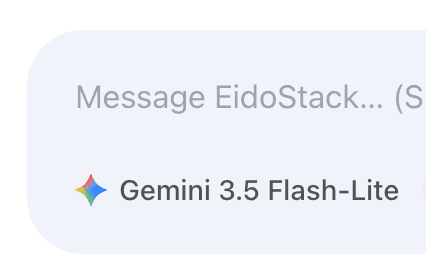
- Open a chat and select the current model name in the prompt toolbar.

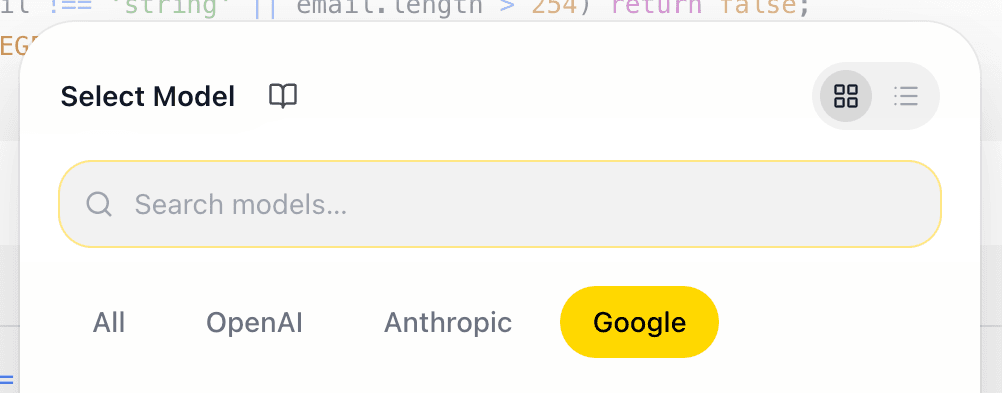
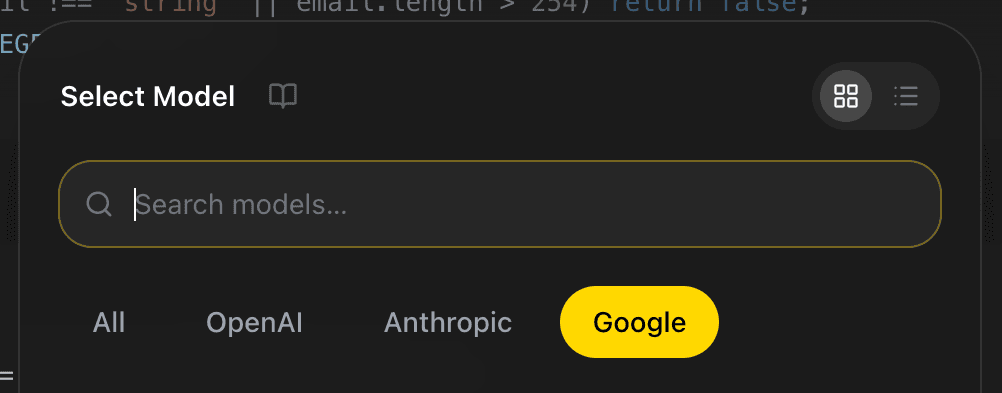
- Use Search models… to find a name or use All, OpenAI, Anthropic, or Google to filter by provider.
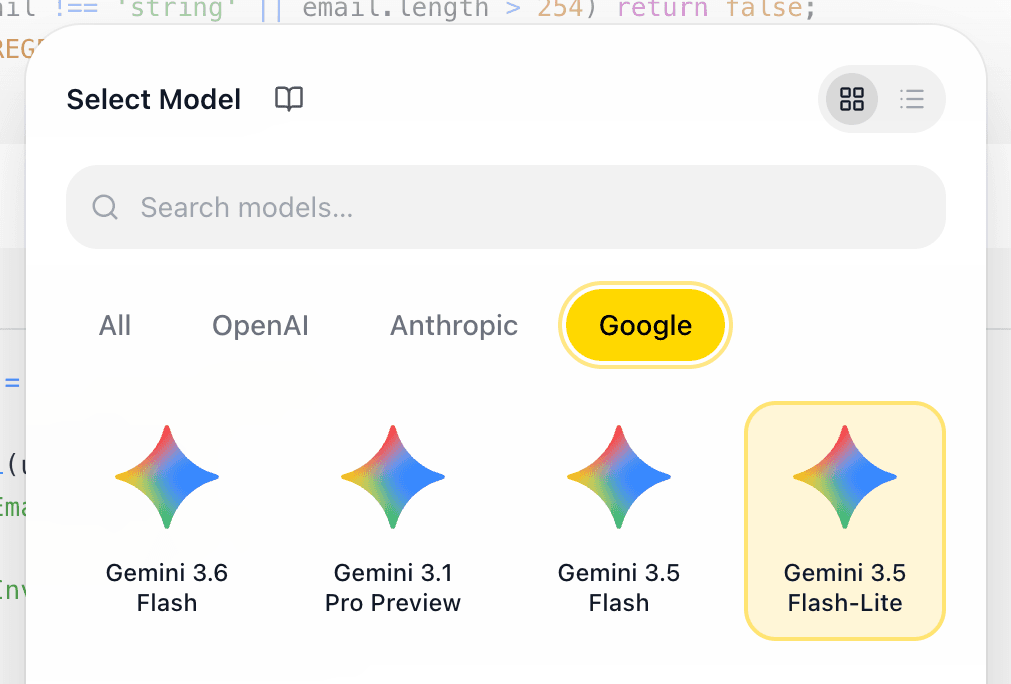
- Select a model card in grid view, or choose a row in list view.
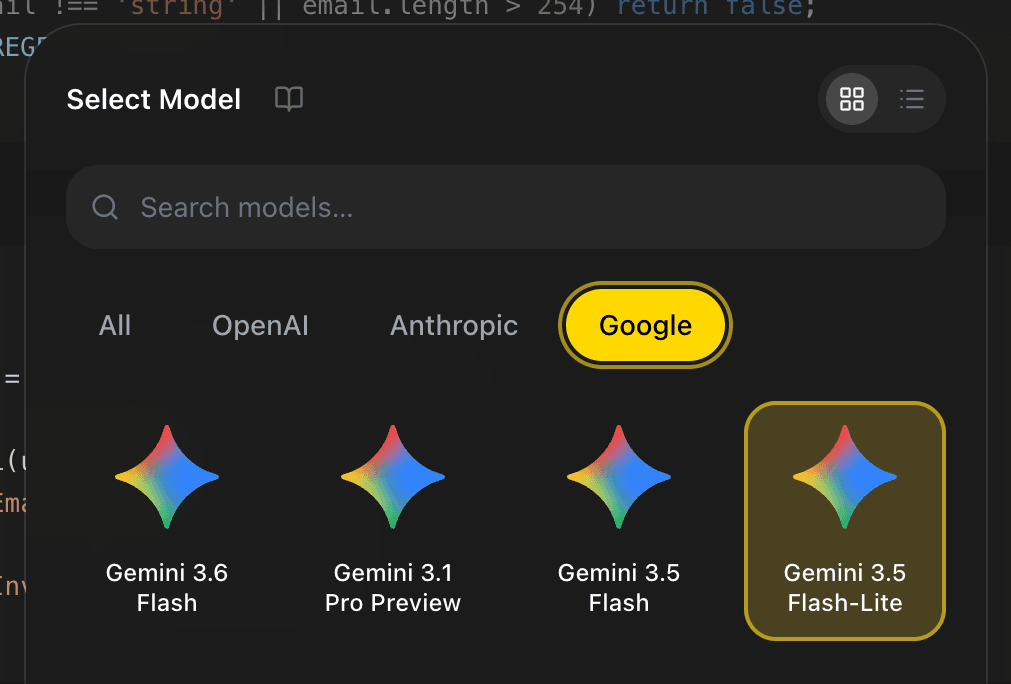
- Send a prompt when the matching provider key is configured and the vault is unlocked.
The selector opens with a search field focused, resets to All when reopened, and can be closed with Escape or by selecting outside the panel. Its grid/list preference is retained in the browser. The active model is highlighted so you can confirm the selection before sending a request.
Changing the model is a chat-level decision. It lets you test another candidate in the conversation, but it does not change every chat in the workspace. Use a new chat when you need a clean comparison with no inherited conversation history.
Control which models appear
- Open the workspace settings and select Models.
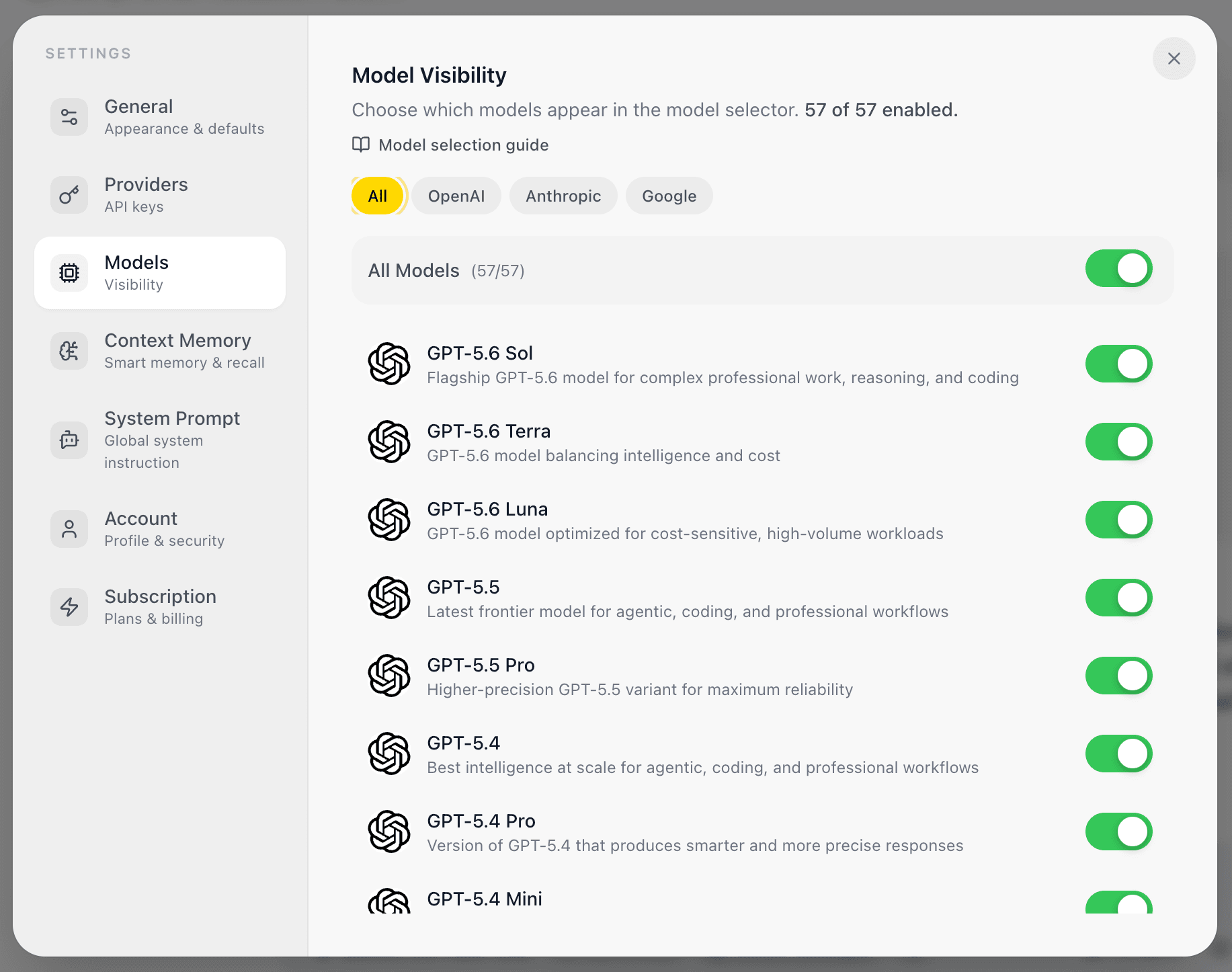
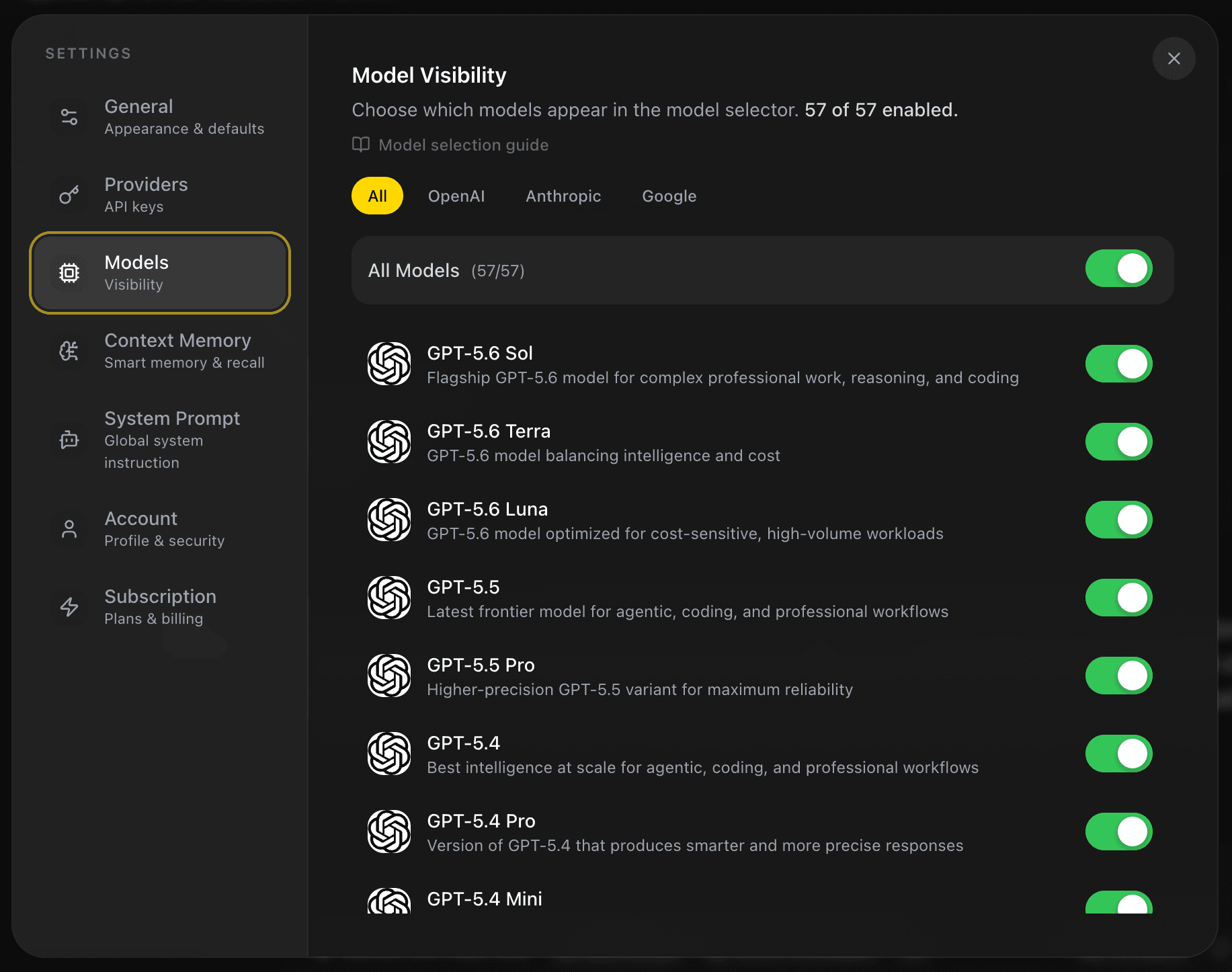
- Choose All or a provider filter.


- Use the switch beside an individual model to show or hide it.


- Use the All Models switch, or the selected provider’s switch, to enable or disable a group at once.


The header shows how many catalog models are enabled. The chat selector hides disabled models and only shows provider filter pills for providers that still have at least one enabled model. If the current selection is disabled while you are in a chat, EidoStack moves the active selection to an enabled fallback when one is available.
Handle deprecated models
Some catalog entries display a warning icon. Hover or focus it to see the scheduled shutdown date. A deprecated entry can remain visible for review, but it is a poor default for a new production decision because provider availability may end on the displayed date.
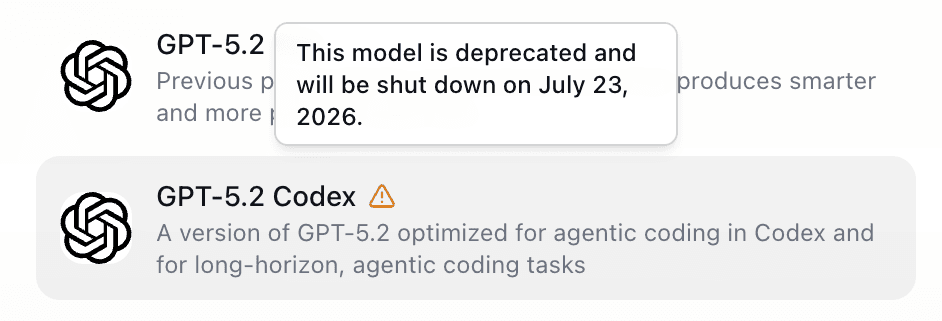
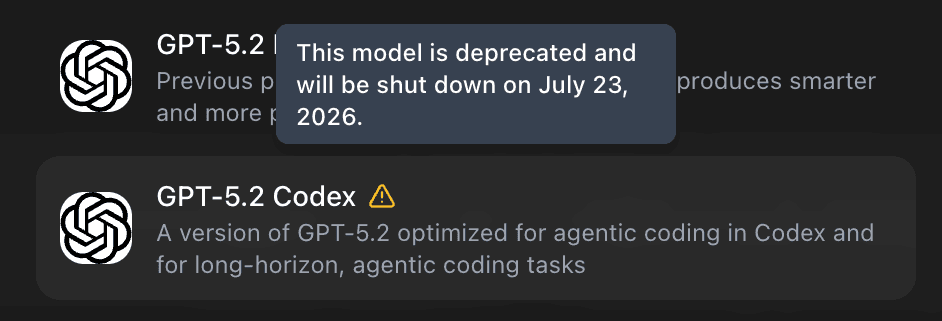
Keep a successor model enabled while you test the replacement against your representative prompts. This makes it possible to compare the behavior and estimated cost before the retired model becomes unavailable.
Resolve selection issues
The model does not appear
Open Settings > Models, select the appropriate provider filter, and enable the model. If the entire provider is absent from the selector, it has no enabled catalog models.
The model appears but cannot send a request
Visibility is separate from credentials. Save a key for that model’s provider in Settings > Providers, then unlock the vault. See Configure your first AI provider.
The list is too broad
Disable models that are not candidates for the current evaluation and leave a small, intentional set enabled. You can re-enable the rest later; hiding a model does not delete chats that previously used it.
When two enabled candidates are ready, use Compare model responses to send the same prompt to both under the same chat context.