Security and Data · Your data
Manage your data and delete your account
Understand account data, local provider-key records, and the permanent account-deletion process.
EidoStack separates workspace data stored with your account from the encrypted provider-key vault stored in your browser. Understanding that boundary helps you remove the right data when you are changing devices, rotating credentials, or permanently deleting an account.
Manage data without deleting the account
Use the workspace controls to remove or update individual items when a full account deletion is not needed:
- Rename, move, pin, or delete chats from their sidebar options.
- Delete a folder to remove the folder while returning its chats to History.
- Update profile, email, password, avatar, and linked sign-in methods in Settings > Account.
- Lock, reset, back up, or replace local provider keys in Settings > Providers.
Deleting a chat permanently removes that chat and its messages. The current product does not provide a workspace-wide chat export. The vault backup feature is not a chat backup; it contains provider keys only. Copy any messages you need to retain before removing a chat or account.
Know where the data lives
Workspace records associated with an account include its profile, default settings, chats, chat folders, messages, prompt history, and usage records. EidoStack stores these records so the workspace can reopen prior evaluations and produce usage views.
Provider API keys are different. Their encrypted record is browser-local and scoped to the signed-in account email. The EidoStack application database does not hold the provider-key value. Downloaded vault backups are also independent files under your control.
Provider responsibility: deleting an EidoStack account never revokes an OpenAI, Anthropic, or Google AI key. Revoke or rotate a key through the relevant provider if you no longer want it to be usable or if it may have been exposed.
Remove local provider access before deleting
If you want to remove the browser-local encrypted vault record through the product before deleting the account, reset it while you are still signed in.
- Open Settings > Providers.
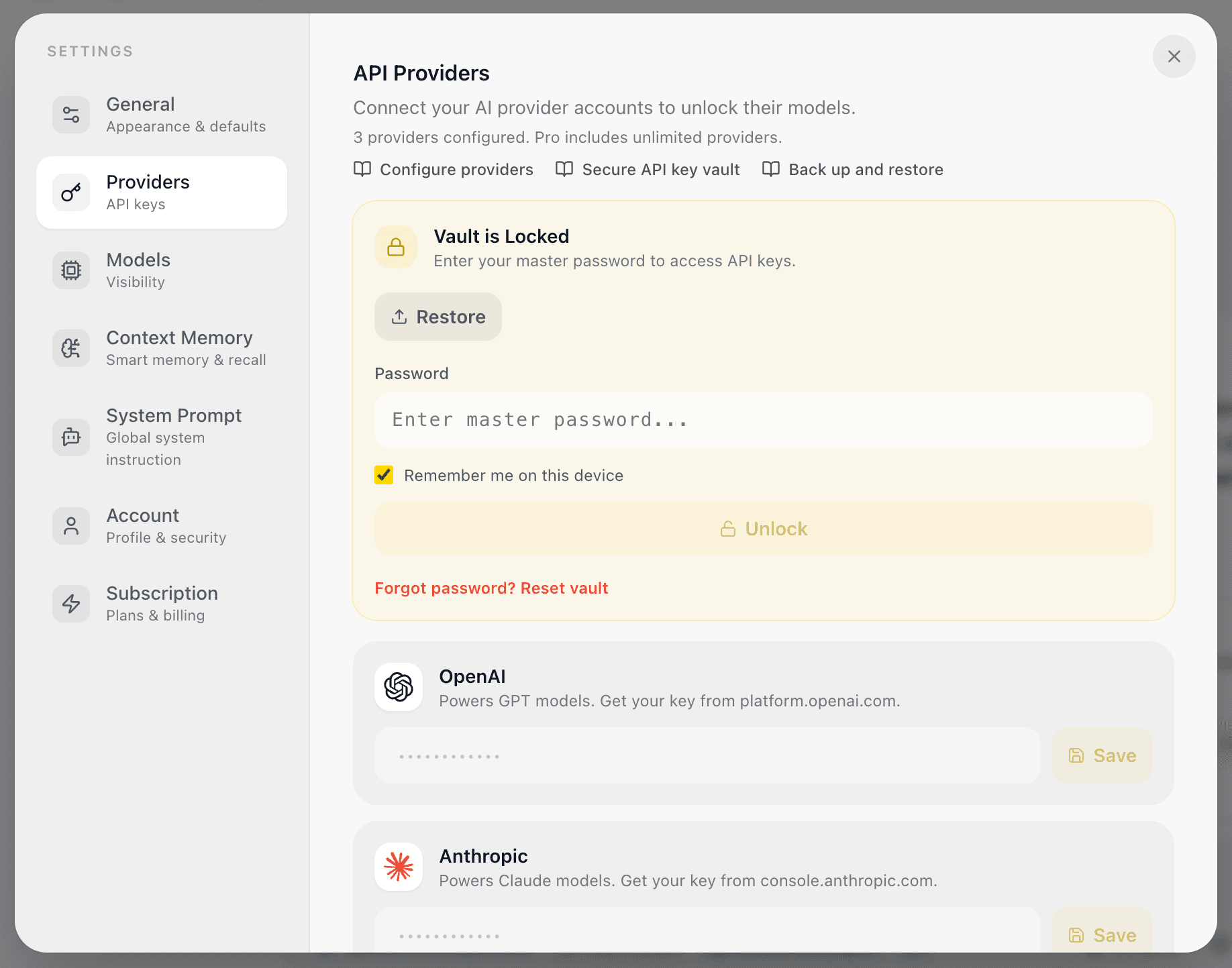
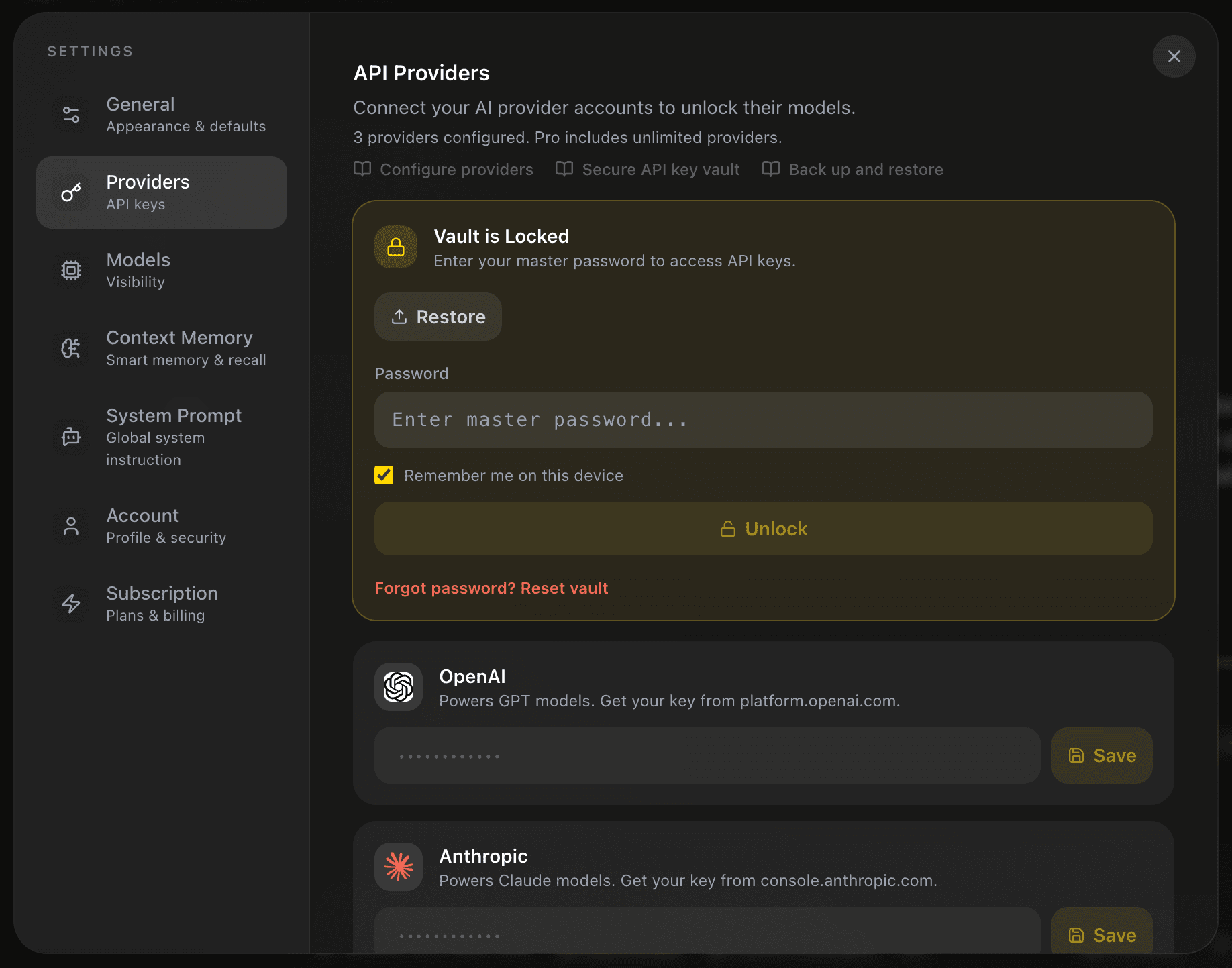
- Lock the vault if it is currently unlocked.
- Select Forgot password? Reset vault.


- Confirm Yes, Reset Vault.
This permanently removes the encrypted provider keys from that browser and resets the vault state. It cannot recover keys, and it does not delete provider keys that may exist elsewhere, such as in another browser or an encrypted backup file. Delete any downloaded backups separately if they are no longer needed.
Permanently delete the EidoStack account
- Open Settings > Account.
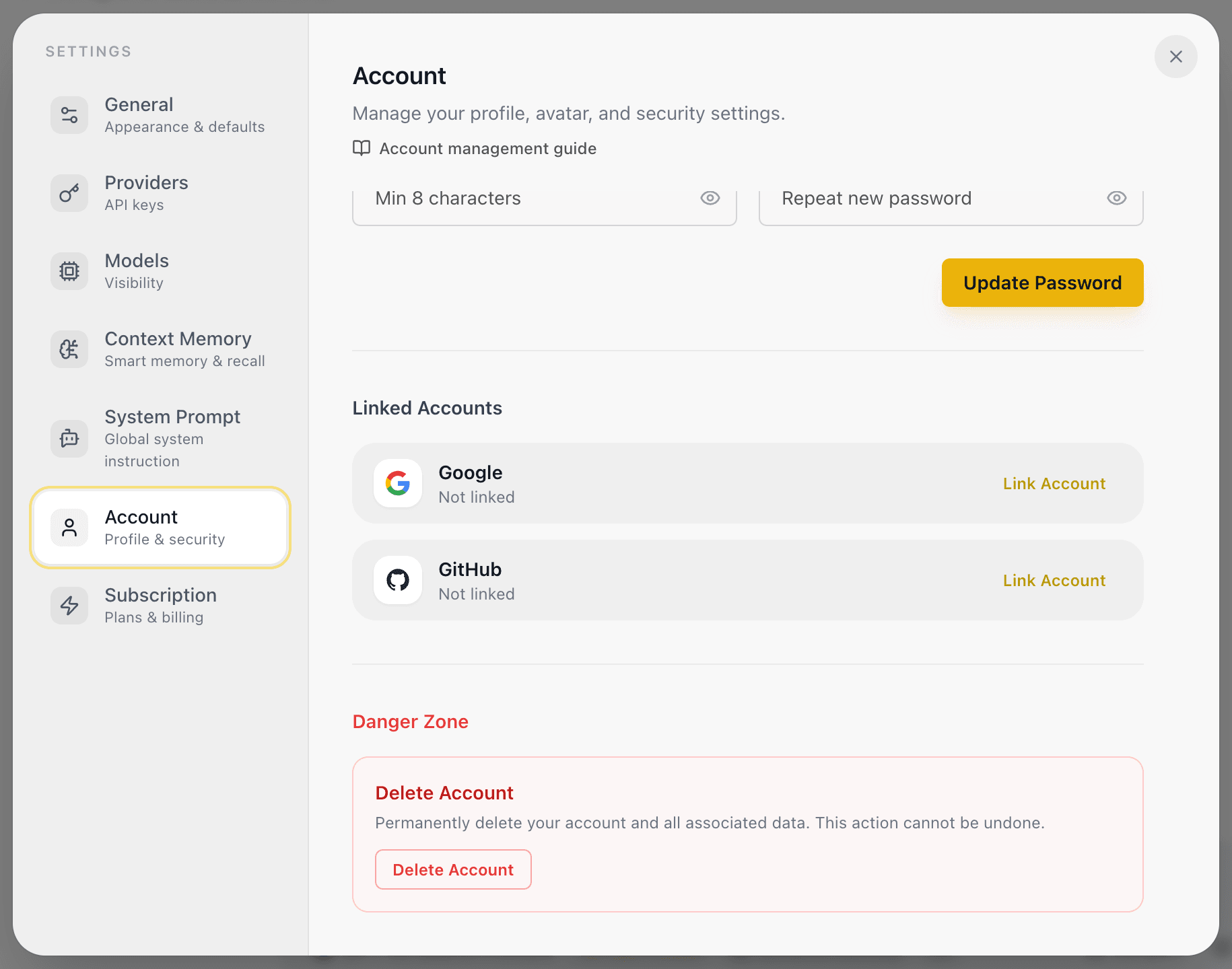
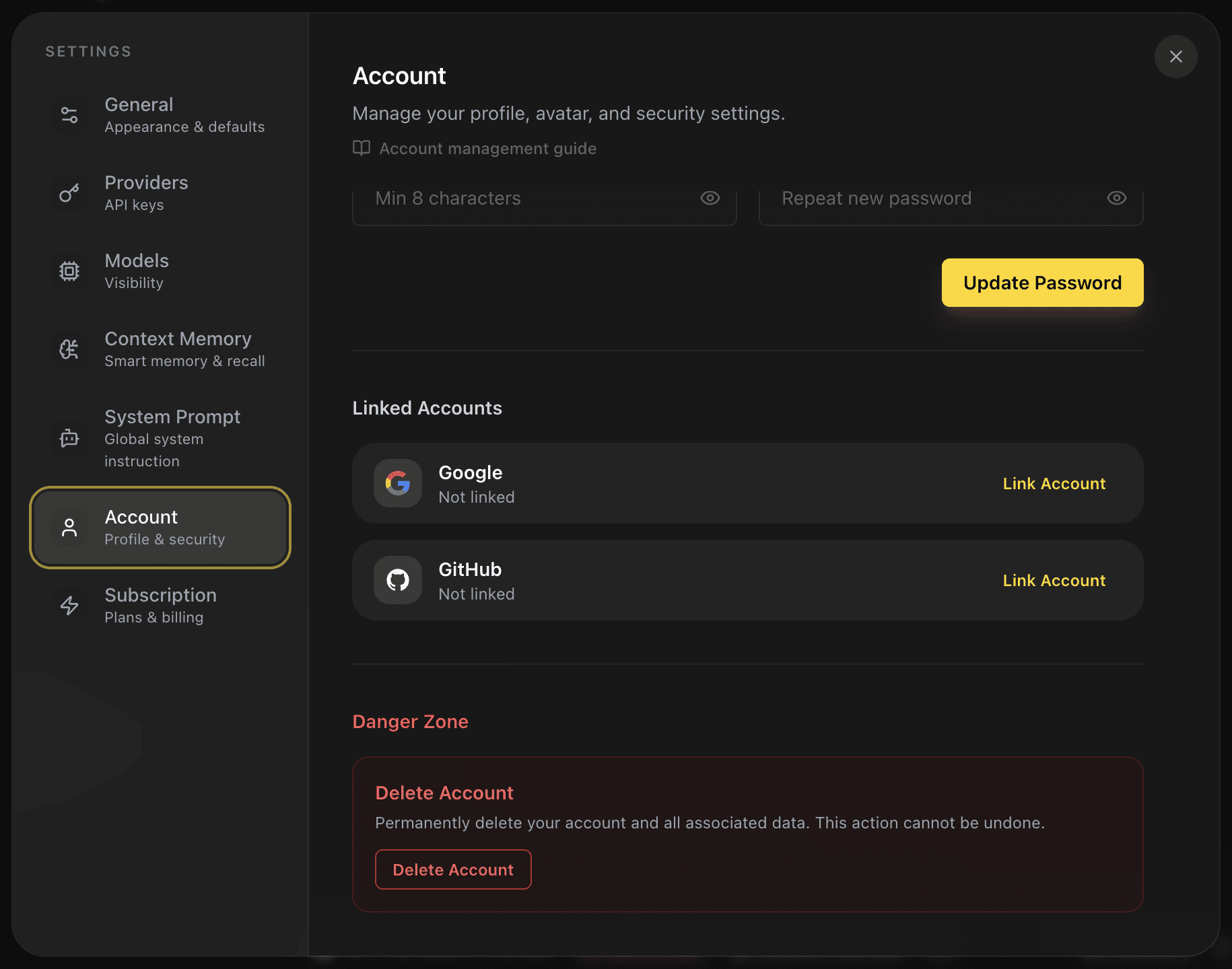
- Scroll to Danger Zone and select Delete Account.
- Review the permanent-deletion message.
- Type
DELETE MY DATAexactly in the confirmation field.
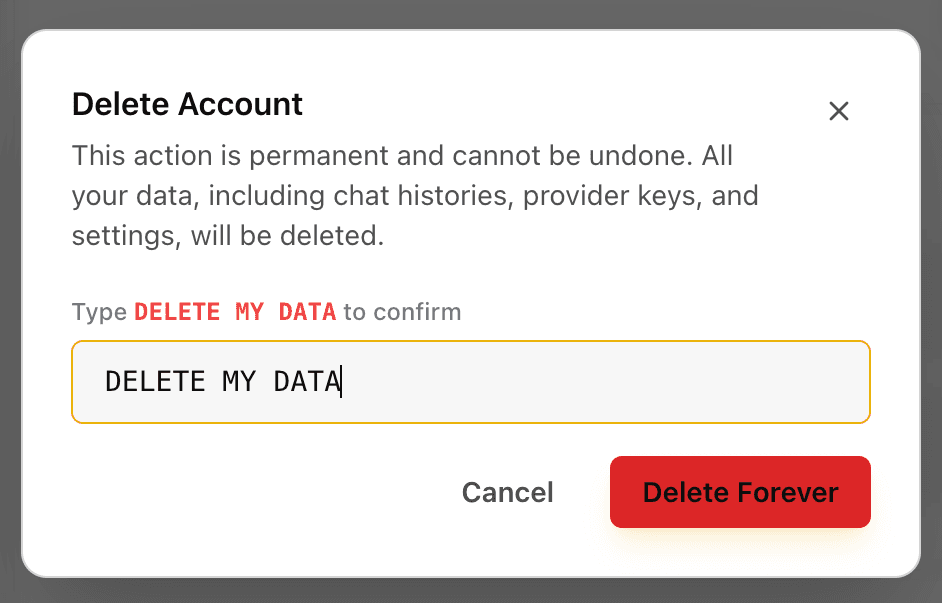
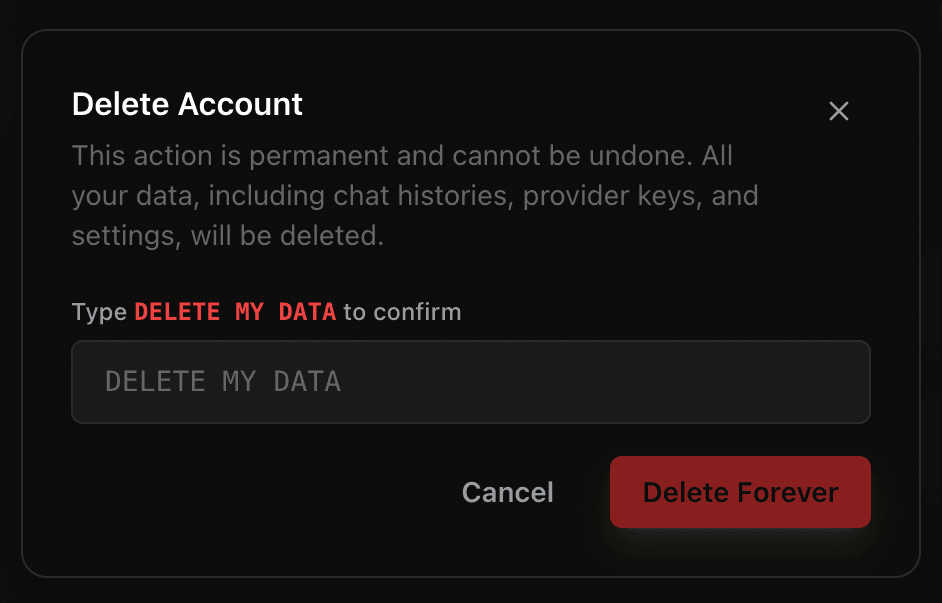
- Select Delete Forever and keep the tab open until the confirmation appears.
- Select Log Out when prompted.
The account-deletion service removes the account’s server-side workspace records and ends its sessions. This action cannot be undone. It does not cancel a provider account, remove separately downloaded vault backups, or revoke provider credentials.
Before you confirm
Review the chats you may need and copy important content because there is no workspace recovery after deletion. If you want a record of provider access for a device migration, create an encrypted vault backup before resetting or deleting the vault; do not keep a backup if your goal is to retire all provider access.
If deletion is not the right remedy for an account-access issue, use Sign in and recover access or Contact support instead.