Getting Started · First workspace
Complete workspace setup
Set a default AI instruction, create the encrypted vault, and add provider access during onboarding.
Workspace setup prepares the two things EidoStack needs before it can send a model request: a local vault for provider credentials and at least one provider API key. The onboarding dialog appears after you create an account and can be completed in a few steps. It does not create an API key or subscription for you.
What setup changes
The setup flow has four steps: Welcome to EidoStack, Set a System Prompt, Connect Providers, and Ready to Evaluate. The only required setup choice is provider access. The global instruction is optional, and the final step is an orientation to comparison, model selection, context memory, and usage statistics.
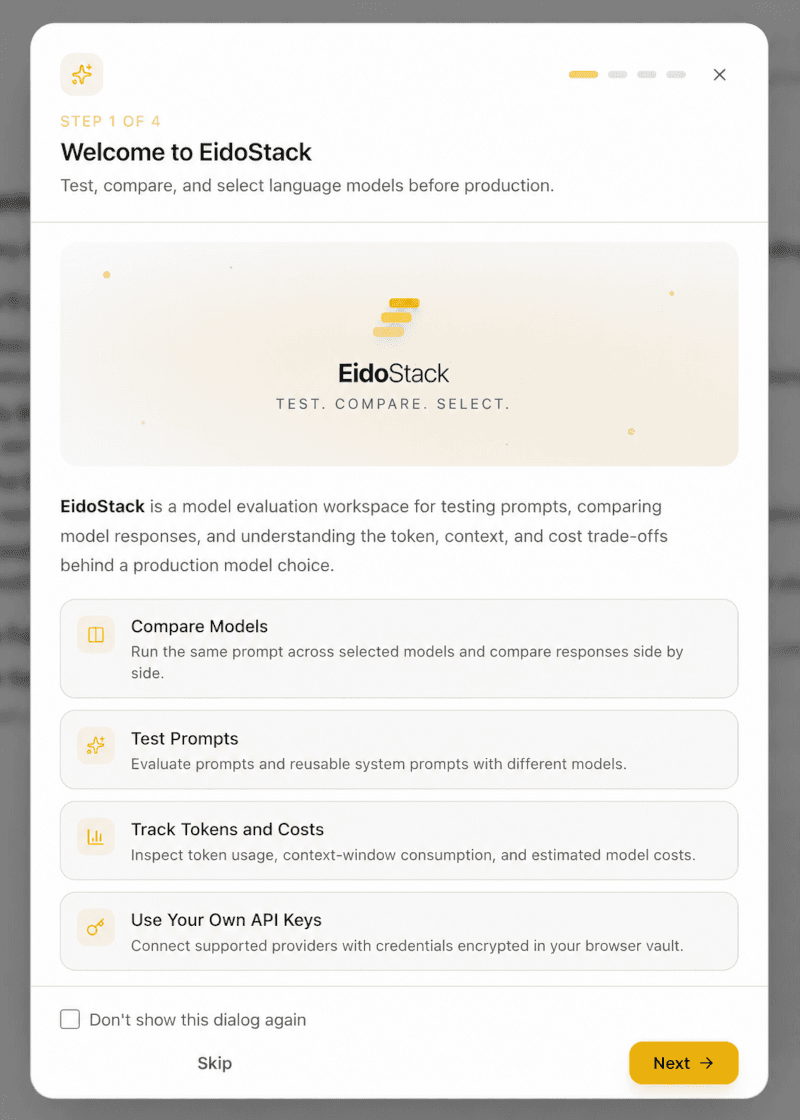
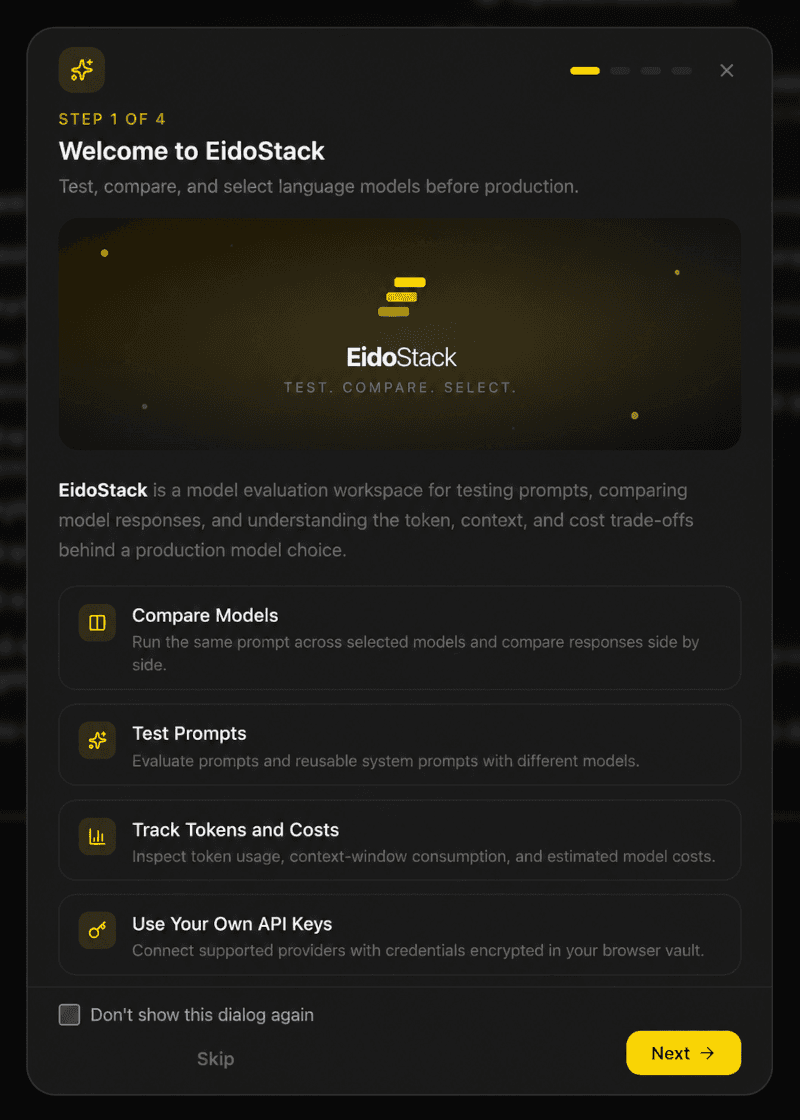
Before starting, have an API key for OpenAI, Anthropic, or Google AI ready. Provider keys are billed by their respective providers, not by EidoStack. See Supported providers and models for the available provider families.
Set an optional global system prompt
On Set a System Prompt, enter a Global System Prompt if you want every new chat to begin with the same instruction. For example, you might specify an output format, a language, or the standards that responses should follow.
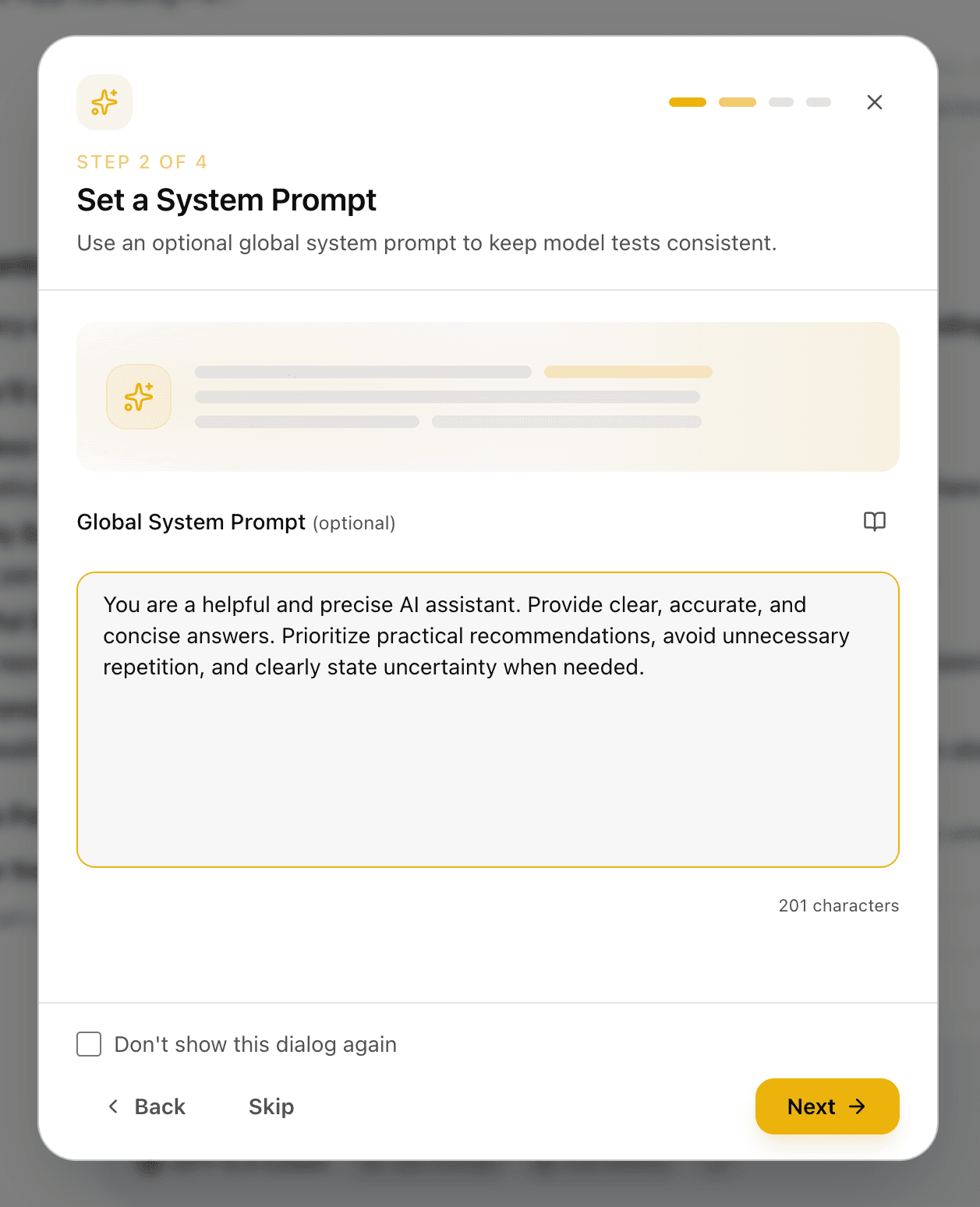
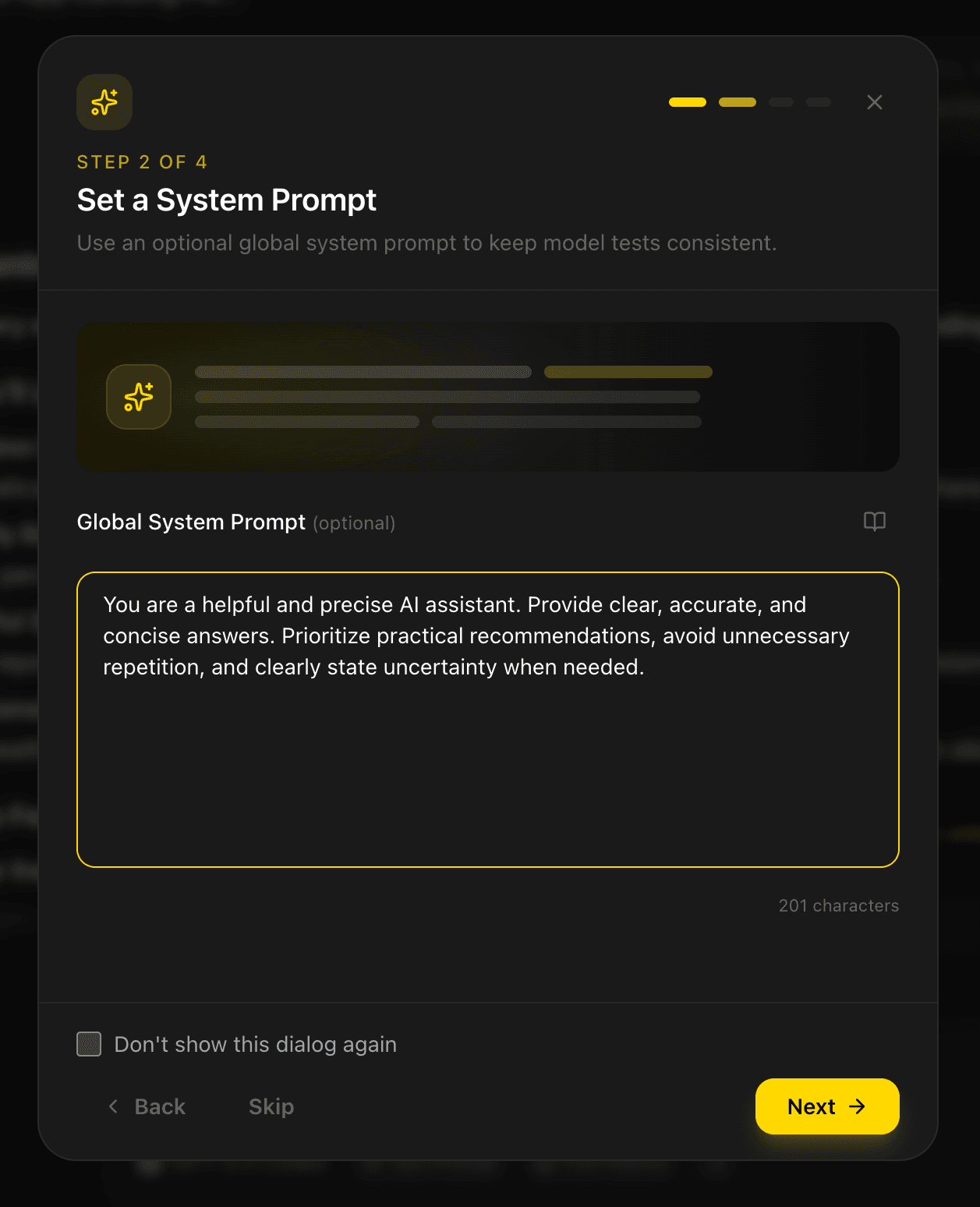
This field is optional. Leaving it blank does not prevent you from using EidoStack, and a chat can later use its own instruction. The setup value becomes the starting instruction for new chats rather than modifying chats that already exist. You can refine it later in Settings > System Prompt; see System prompts.
Create and unlock the local vault
On Connect Providers, create a vault before entering a provider key.
- In Create Master Password, enter a master password that is at least eight characters long and meets the displayed strength requirement.
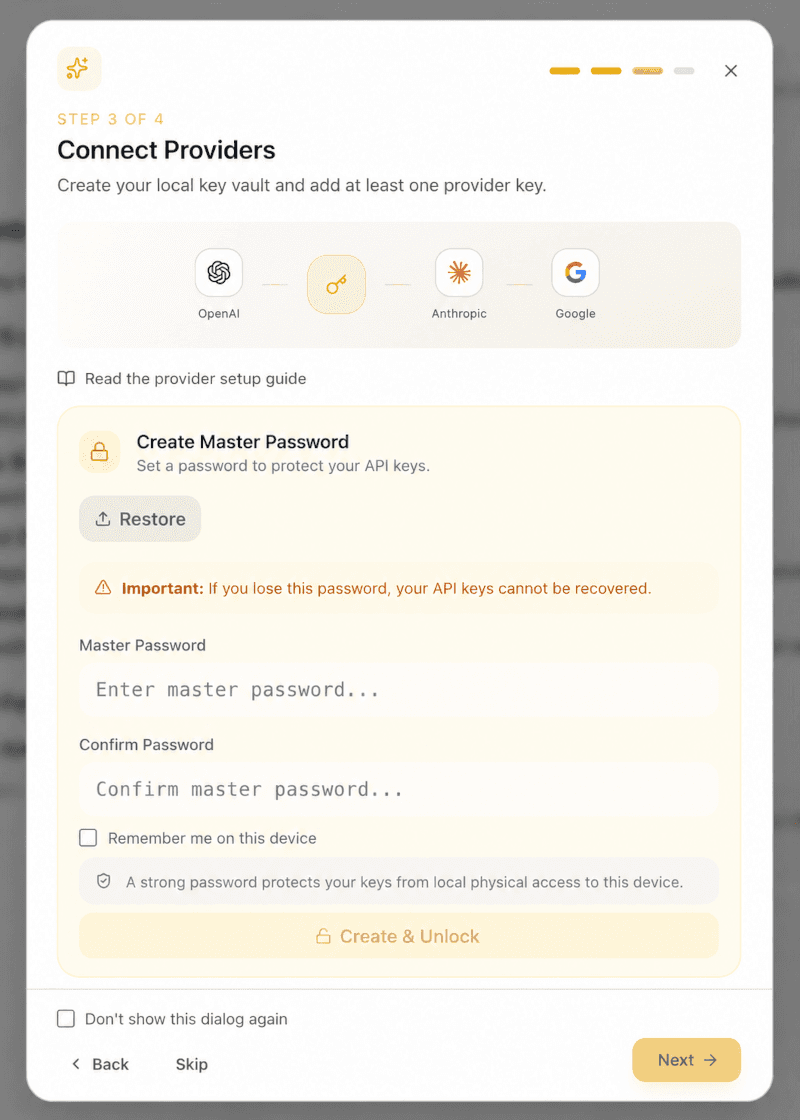
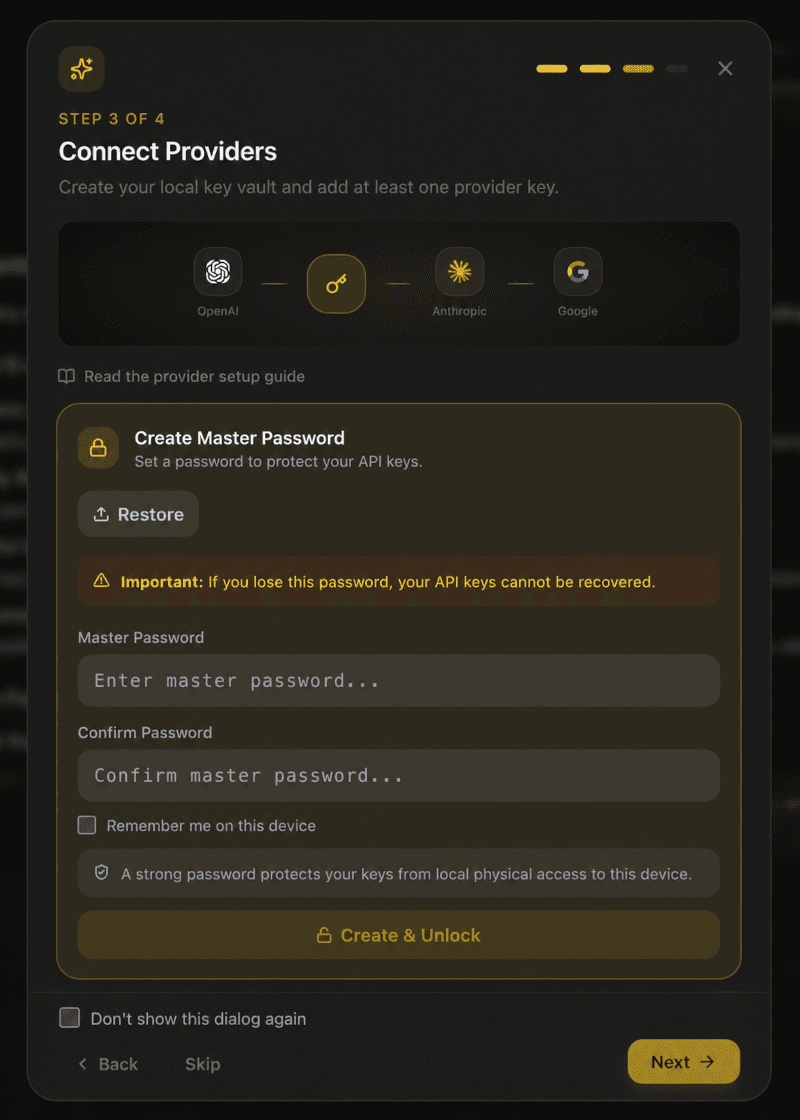
- Enter the same value in Confirm Password.
- Decide whether to select Remember me on this device. This keeps the vault available on that browser and device; leave it unchecked on a shared device.
- Select Create & Unlock.
The vault password protects the encrypted provider-key record stored for your account in that browser. EidoStack cannot recover a forgotten vault password. Keep it in a secure password manager and create an encrypted backup after you add keys if you need a recovery path.
Important: The vault password is separate from your EidoStack sign-in password. Resetting the sign-in password does not unlock or recover the browser vault.
Add provider access
Once the vault is unlocked, the setup form shows entries for OpenAI, Anthropic, and Google AI.
- Paste a key into at least one provider field.
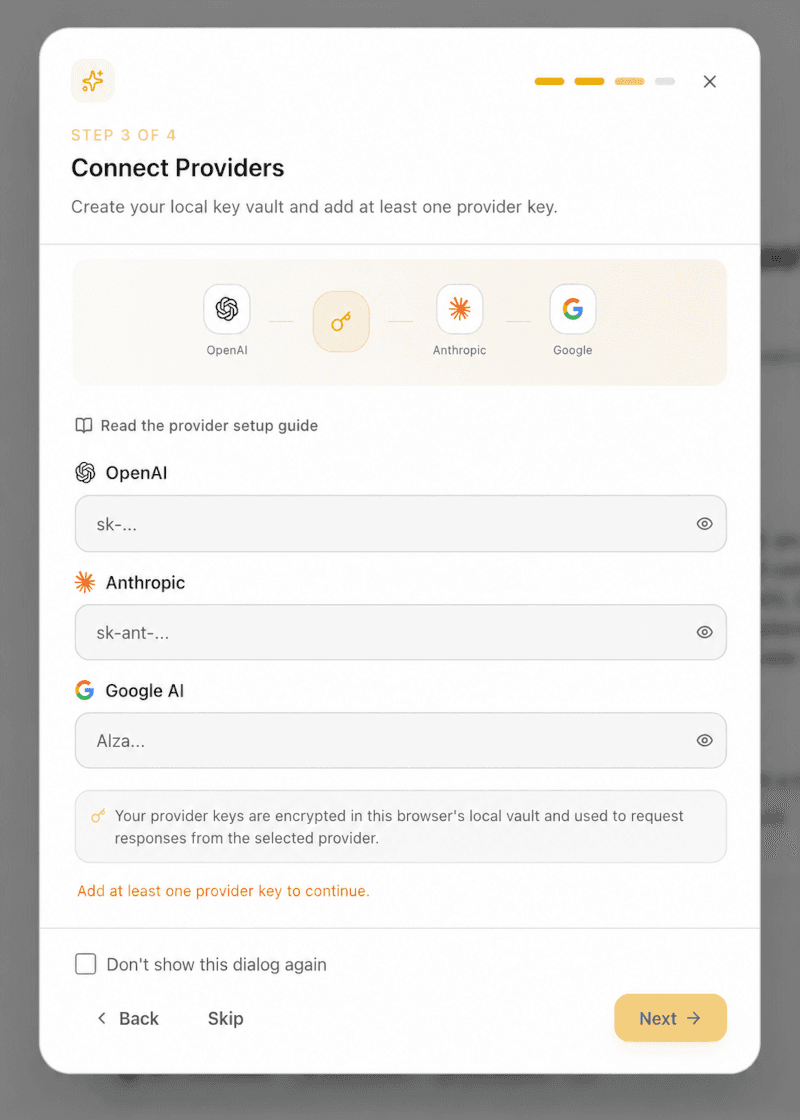
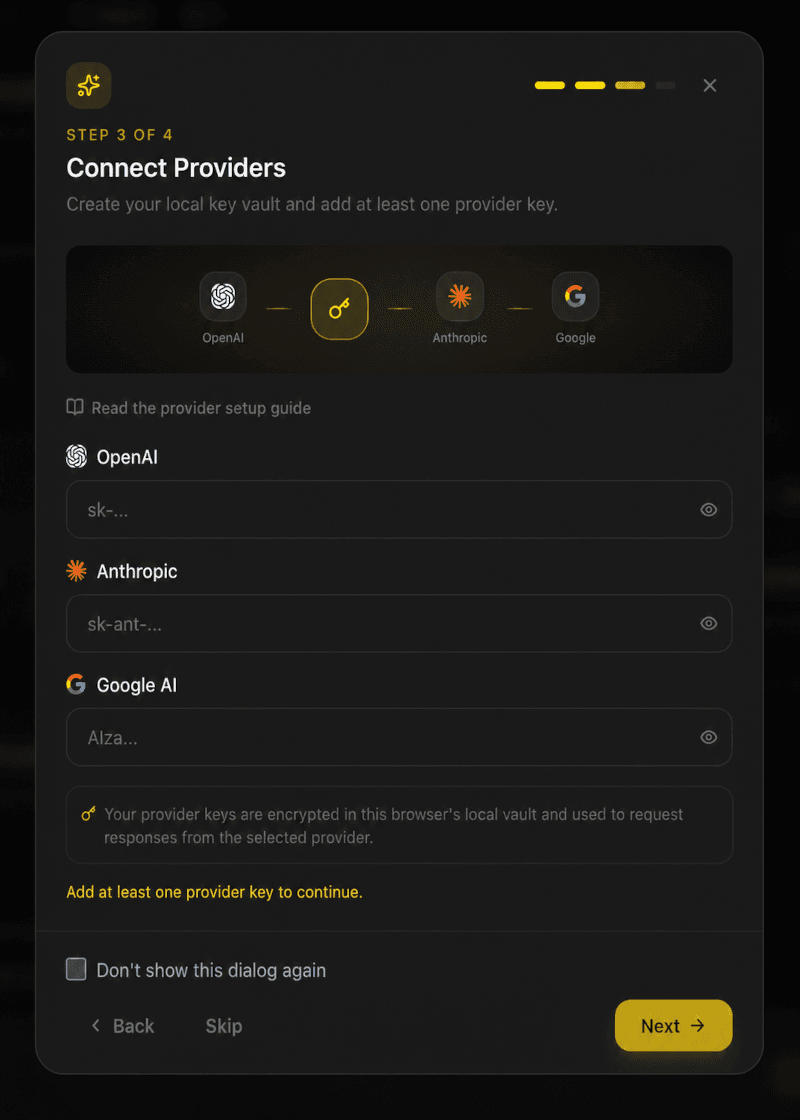
- Use the visibility control only when you need to inspect the value, then hide it again.
- Continue after EidoStack recognizes that at least one key is present.
- On Ready to Evaluate, select Start Using EidoStack to save the setup and mark onboarding complete.
The key is encrypted for local browser storage and is used when you select a model from that provider. Adding a key does not make every provider available: on the Free plan, one configured provider is allowed, while Pro access allows multiple providers. For a fuller provider-management workflow, continue to Configure your first AI provider.
If you leave setup unfinished
Closing onboarding without selecting Don’t show this dialog again leaves it incomplete, so it can appear again when the workspace loads. Selecting that option dismisses future onboarding prompts but does not add a key or configure the vault; you must still finish those steps in Settings > Providers before sending requests.
If the vault is locked later, the chat workspace shows an unlock form. If the selected model has no matching key, it shows Open Provider Settings, which opens the same provider area.
Verify that the workspace is ready
You are ready to evaluate a model when all of the following are true:
- The vault reports Vault Unlocked.
- At least one provider key has been saved locally.
- A model from that provider is enabled in the model selector.
- The prompt box accepts a message without a vault or API-key warning.
Next, start your first chat and send a representative prompt. Back up the vault once the provider access is working if you may need to move to another browser.