Getting Started
Sign in and recover access
Use email/password or a connected identity provider, and recover access when you cannot sign in.
Use the sign-in method associated with your EidoStack account to return to your workspace. You can sign in with an email address and password, or with the Google or GitHub account that you used when creating or linking the account. If you have forgotten an EidoStack password, request a reset link from the sign-in page.
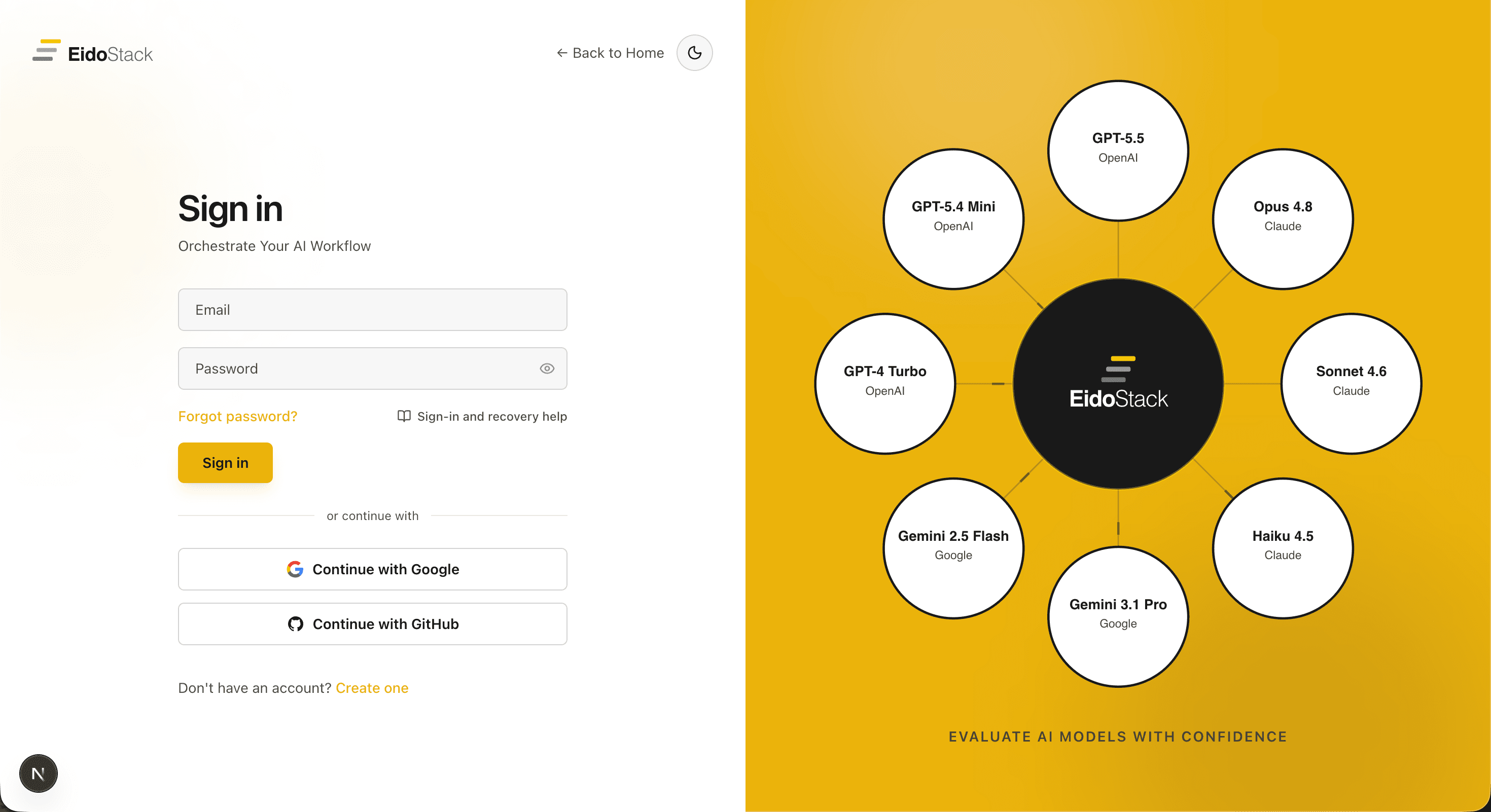
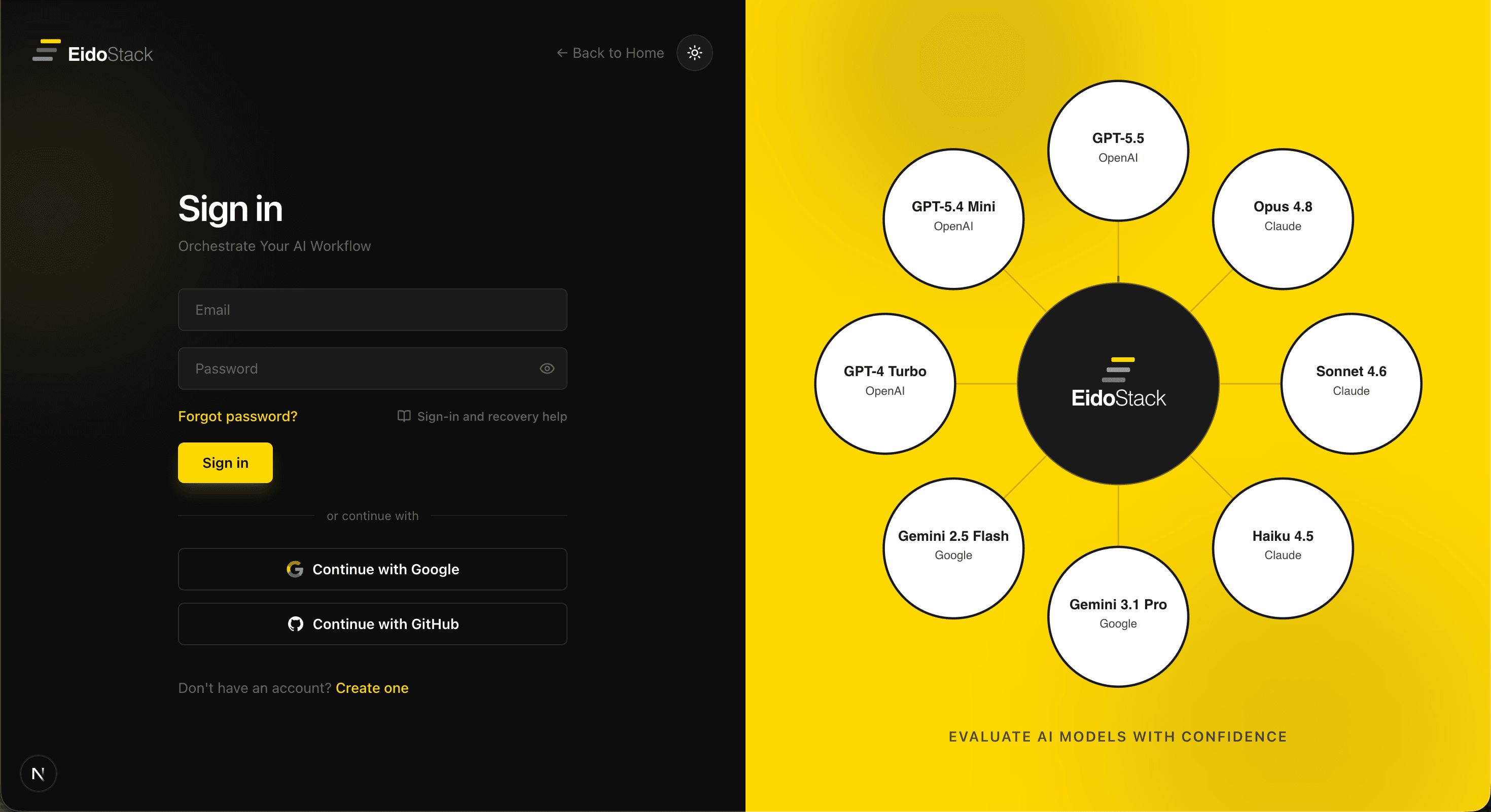
Sign-in methods are not AI-provider connections. Google and GitHub on the sign-in page authenticate your EidoStack account; they do not add access to Google AI, OpenAI, Anthropic, or any other model provider. Configure provider API keys separately after you sign in.
Choose the sign-in method linked to your account
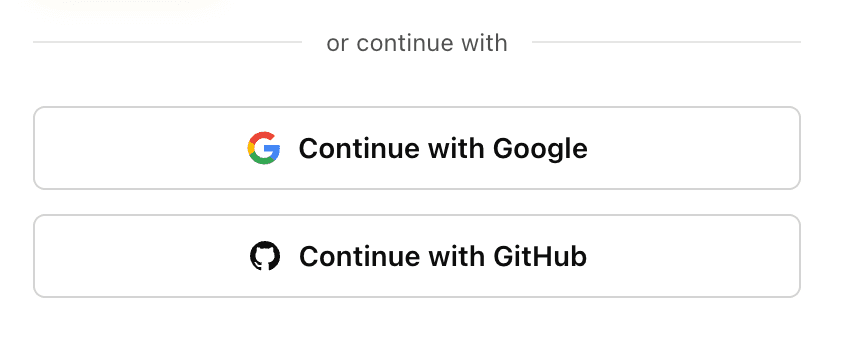
The sign-in page offers three methods: email and password, Continue with Google, and Continue with GitHub. Use the method that is already associated with the account. EidoStack does not automatically add a Google or GitHub sign-in method just because the provider uses the same email address.
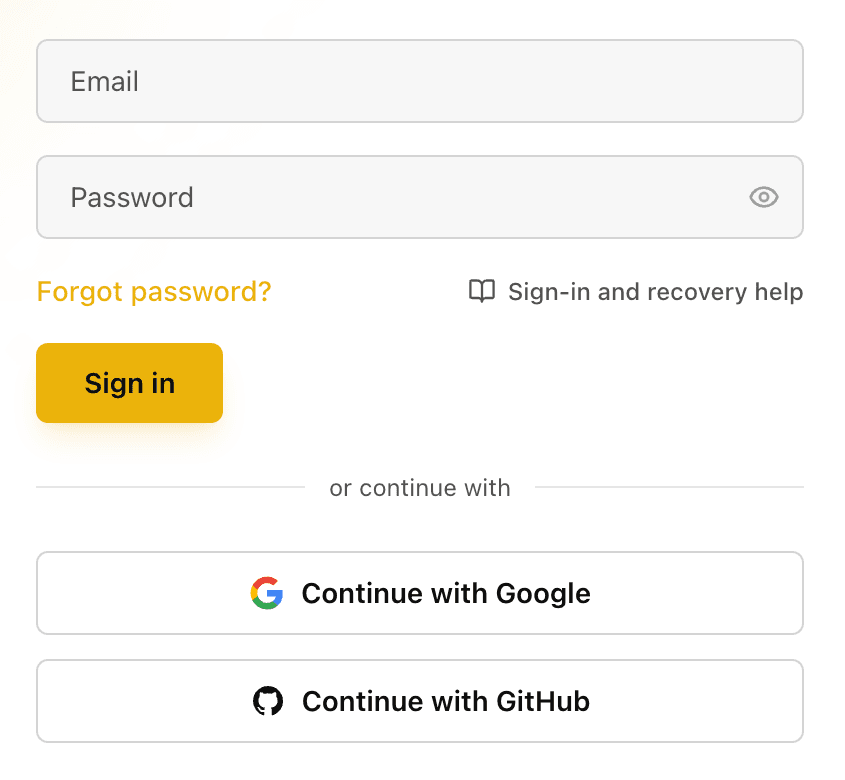
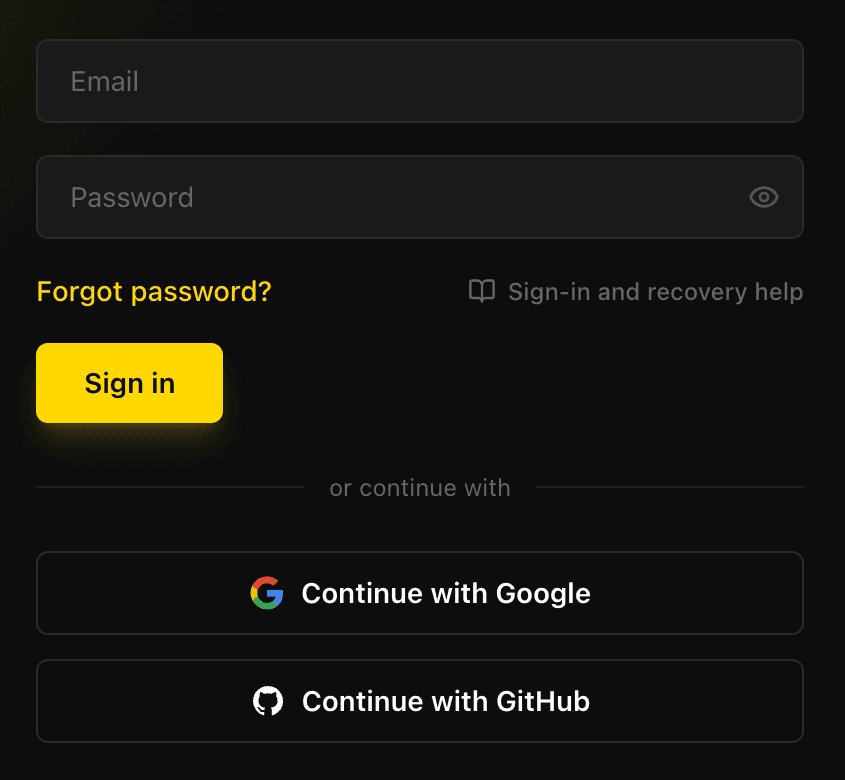
If you do not yet have an account, select Create one on the sign-in page and follow Create an EidoStack account.
Sign in with email and password
Use this method if you created an EidoStack password during registration or later selected Set Password in your account settings.
- Open the Sign in page.
- Enter the email address associated with the account in Email.
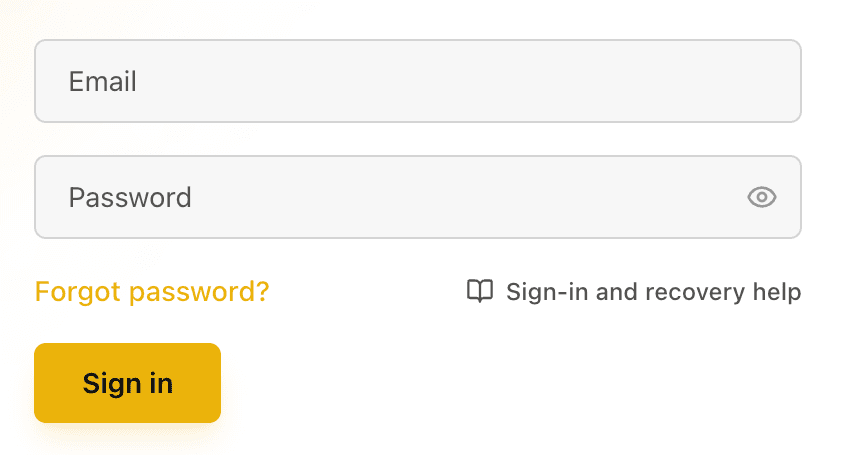
- Enter the account password in Password.
- Select Sign in.
When the credentials are valid, EidoStack signs you in and returns you to the workspace. If you see “Unable to sign in. Please check your credentials,” verify that you are using the correct email address and password, then use password recovery if you no longer know the password.
Sign in with Google or GitHub
Use a social sign-in only when that specific Google or GitHub account was used to create the EidoStack account or was linked from its account settings. The provider must return a verified email address.
- On the Sign in page, select Continue with Google or Continue with GitHub.
- Complete the provider’s sign-in and authorization steps with the intended account.
- Return to EidoStack when the provider finishes.
If EidoStack reports that no account exists for the email, create an account instead. If it reports that the social provider is not linked, first sign in using an existing method. Then open Settings, select Account, and use Linked Accounts to choose Link Account for Google or GitHub. The email address returned by the provider must match the email on your EidoStack account.
Reset a forgotten password
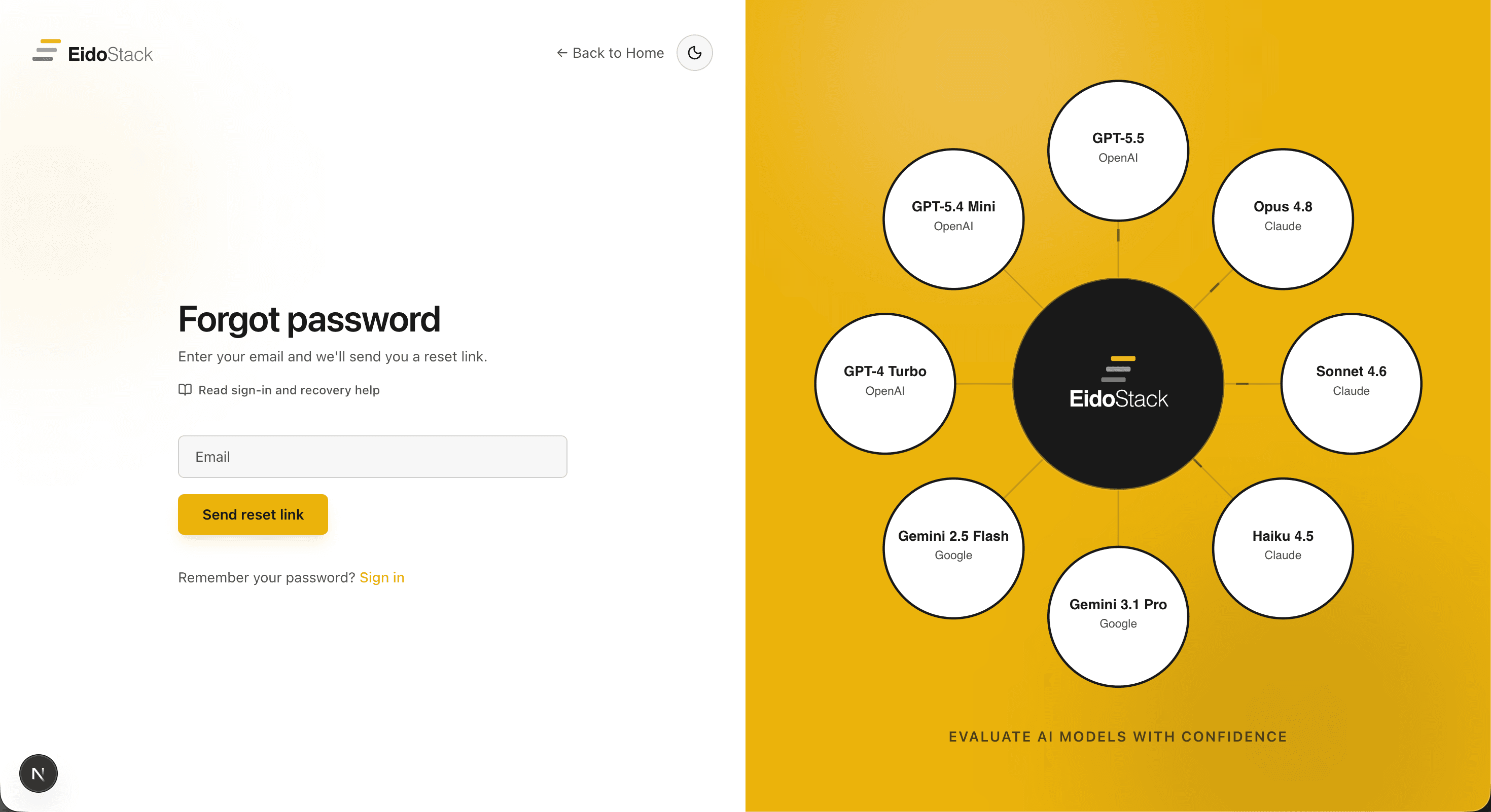
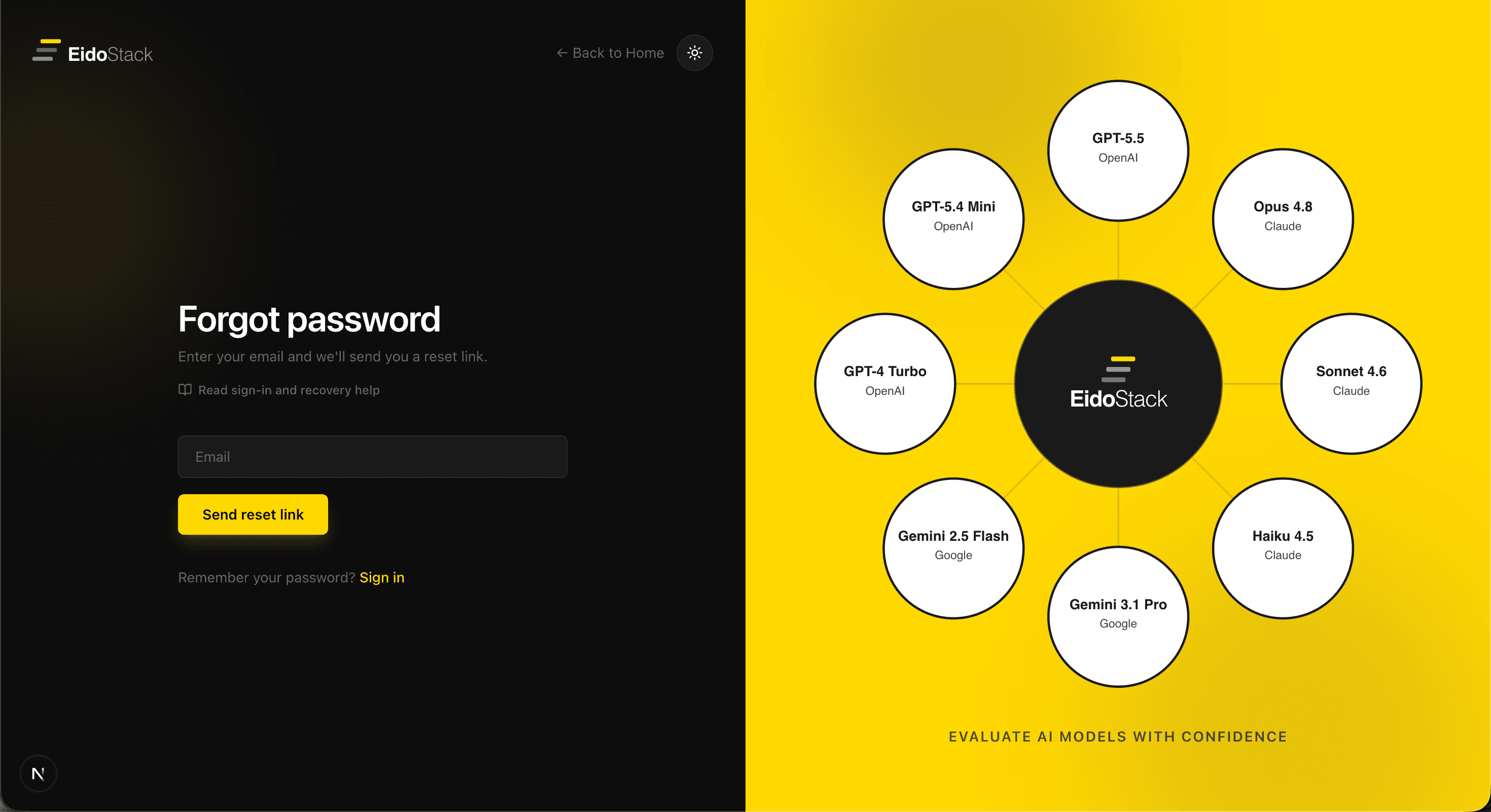
Password recovery is for accounts that have an EidoStack password. It does not reset a Google or GitHub password, and an account that only uses a social sign-in method will not receive a password-reset email. If you can still sign in with Google or GitHub, you can add an EidoStack password later from Settings > Account.
- On the Sign in page, select Forgot password?.


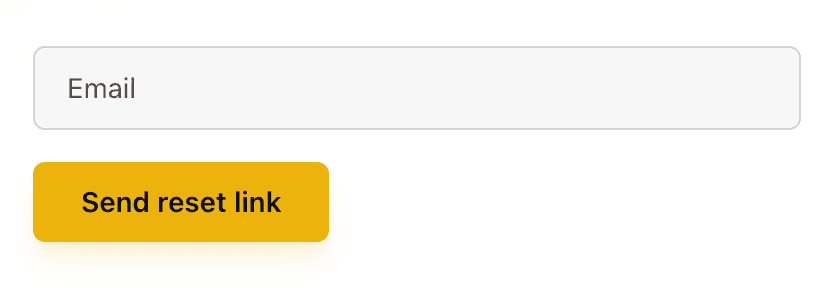
- Enter your email address and select Send reset link.
- Open the reset email and select its reset link. The link opens the Reset password page.
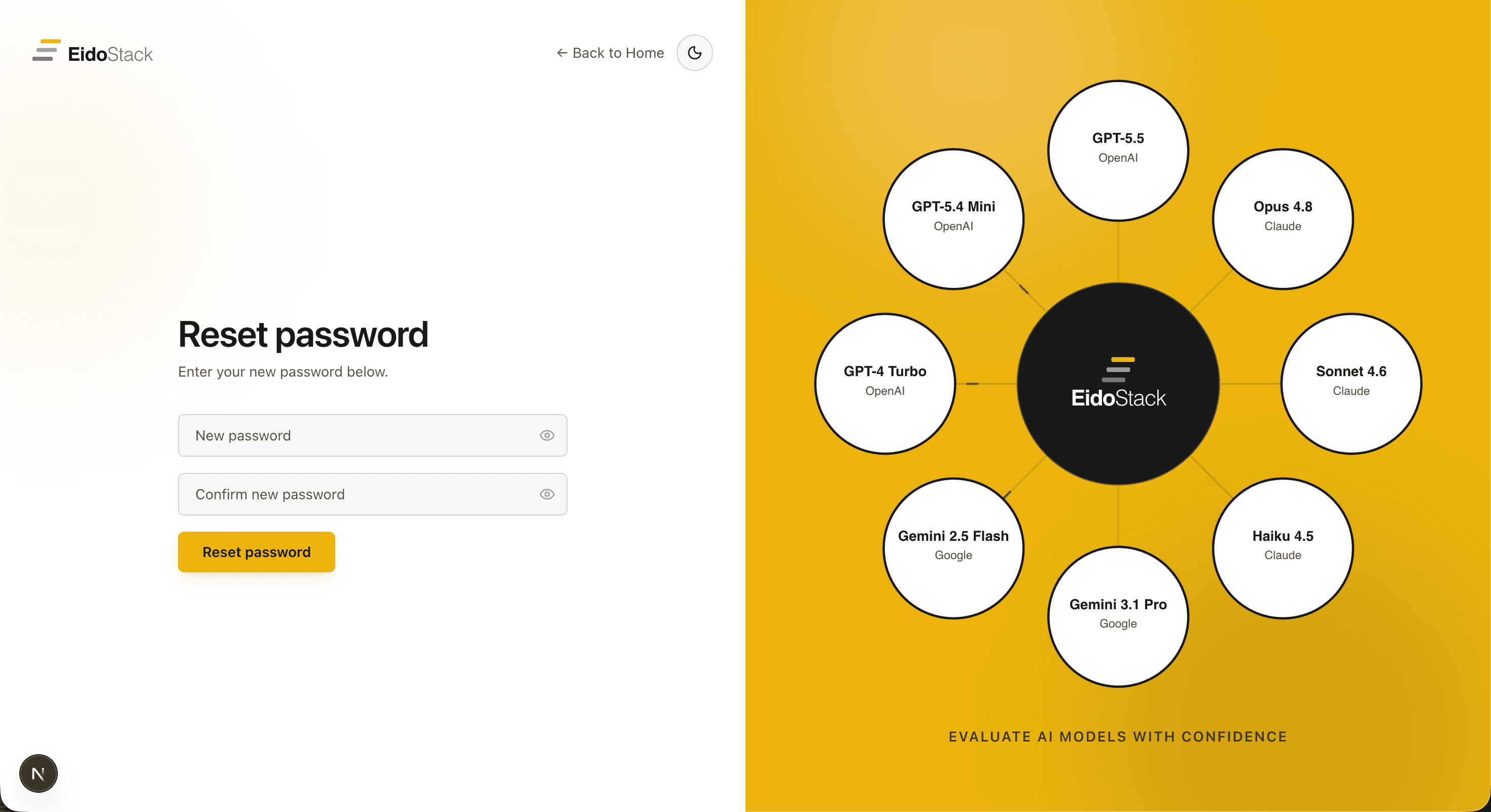
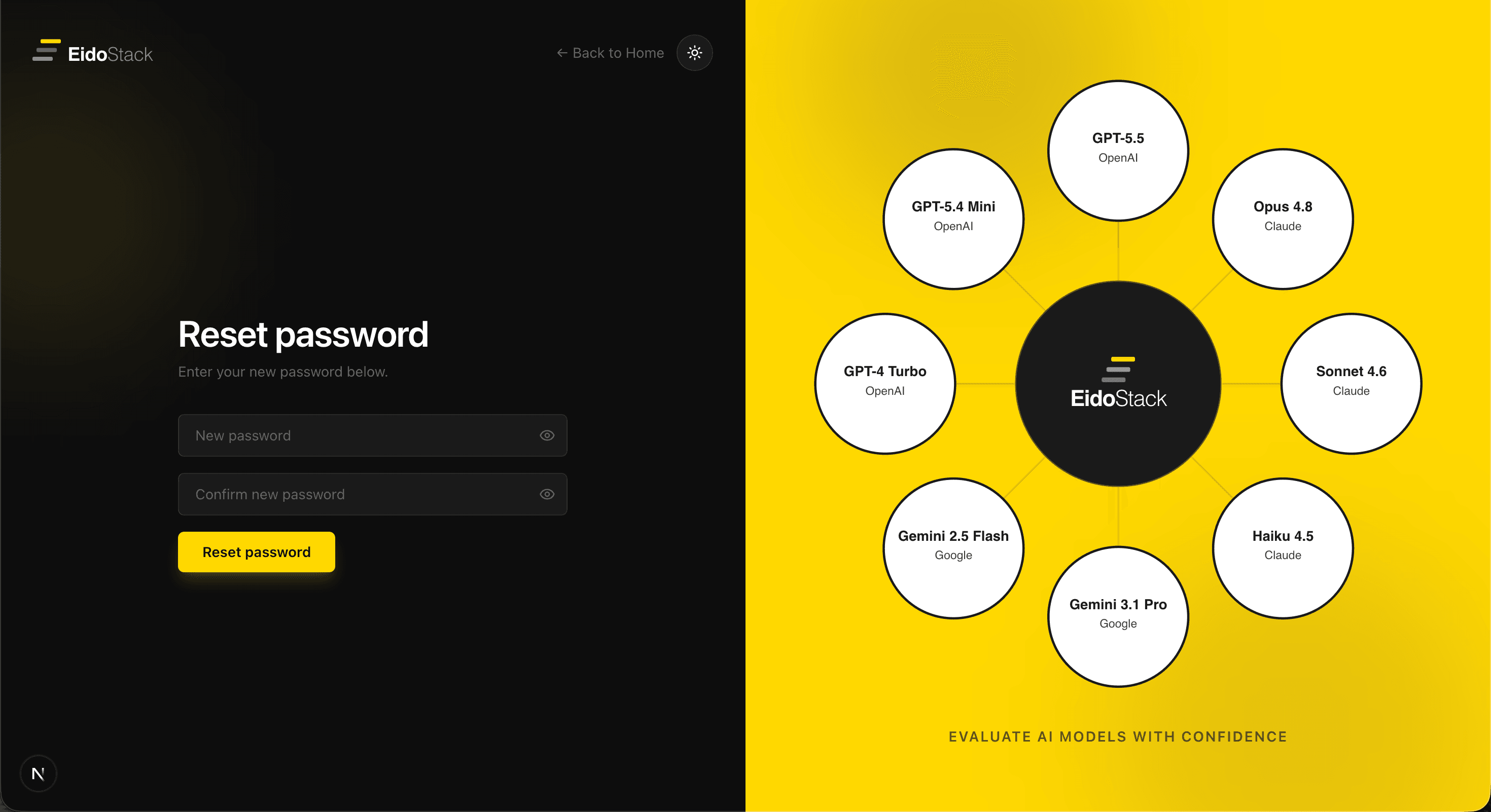
- Enter a new password in New password, then enter the same value in Confirm new password. A password must contain at least eight characters.
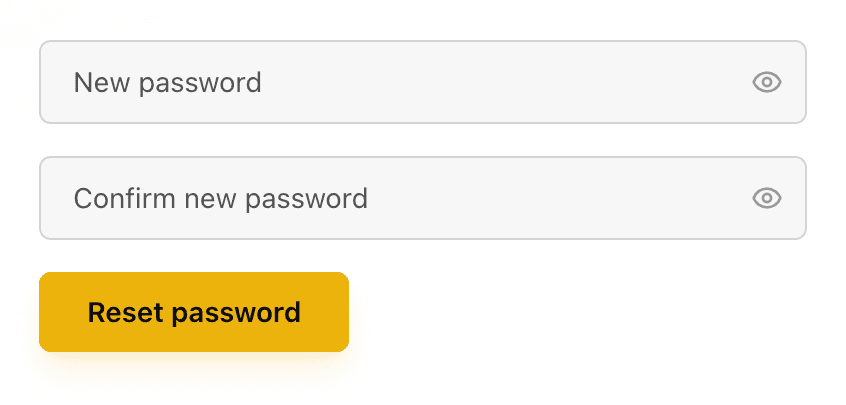
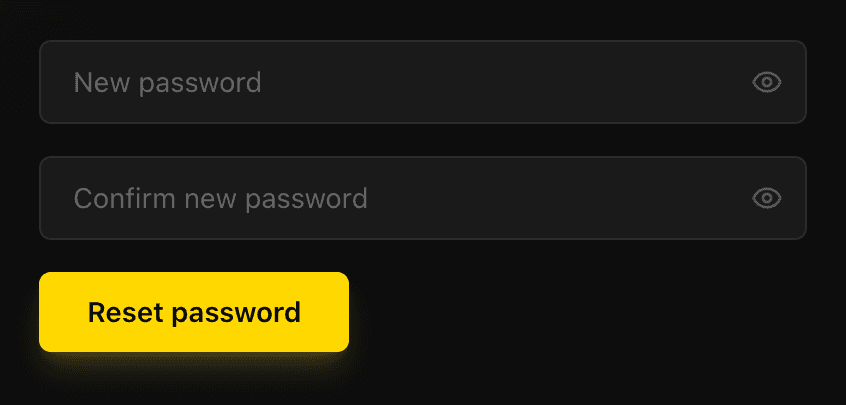
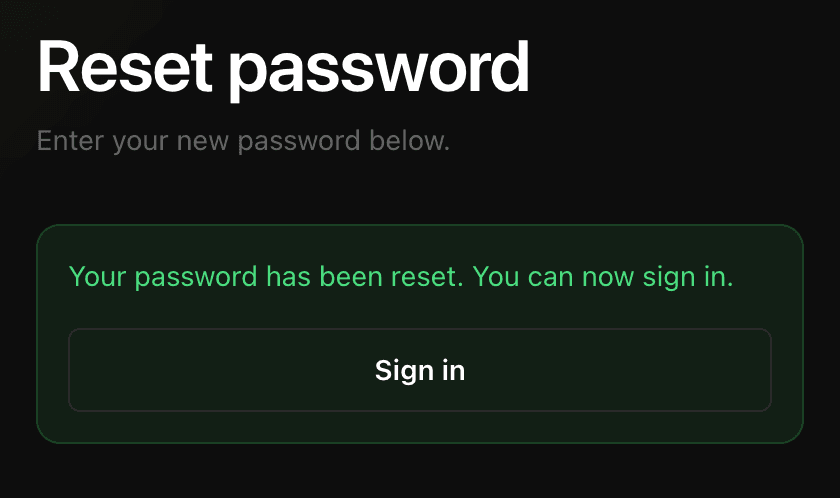
- Select Reset password, then select Sign in when the confirmation appears.
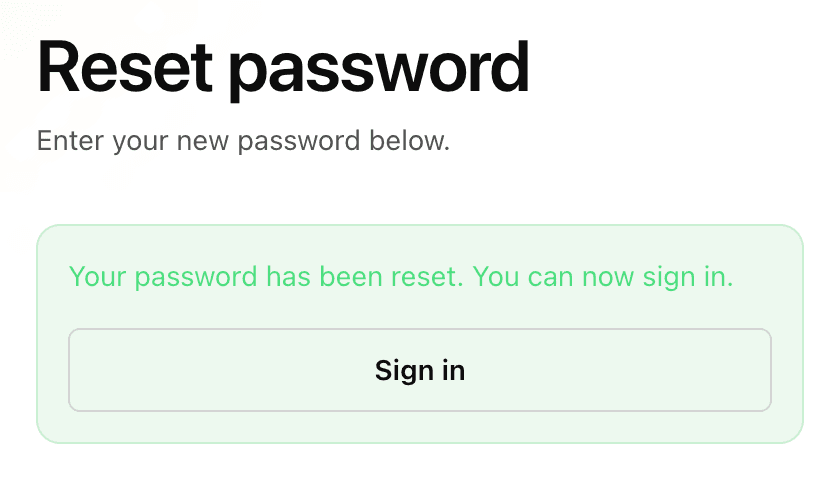
For privacy, EidoStack displays the same confirmation—“If an account with that email exists, a reset link has been sent.”—whether or not the email belongs to a password-based account. A reset link expires after one hour. Requesting another link replaces the previous one, so use the newest email.
Security result: resetting a password ends existing EidoStack sessions for that account. Sign in again with the new password on each device or browser where you want to continue.
Recover access when the usual method is unavailable
Start with the path that matches the account type and the message you see.
The reset email did not arrive
Check that the address was entered correctly and look in your spam or junk folder. The request screen will not reveal whether the address has an account, so a missing email can also mean that the address is not associated with an EidoStack password. This includes accounts created only with Google or GitHub.
If the email arrives but its link is invalid or expired, request a new link from Forgot password? and use the latest reset email. Do not share the reset link with anyone.
Google or GitHub cannot sign you in
Confirm that you selected the same provider account used for EidoStack. A social sign-in can fail when the provider does not supply a verified email address, when no EidoStack account exists for that identity, or when that provider has not been linked to the existing account.
If you can sign in with email and password or another linked provider, open Settings > Account > Linked Accounts and link the unavailable method. Keep at least two sign-in methods when practical: for example, a password and a linked provider, or both supported providers. EidoStack prevents you from unlinking your only remaining sign-in method.
Keep your recovery options current
While you still have access to the workspace, open Settings > Account to review your password and linked accounts. You can change an existing password, add one to a social-sign-in account, and link or unlink Google and GitHub. Adding a password does not remove a linked provider, so it gives you another way to return to the account if a provider sign-in is unavailable.
Once you are signed in, continue with Complete workspace setup or Configure your first AI provider.