Chat and Evaluation · Model evaluation
Compare model responses
Use a controlled comparison to see how candidate models differ in quality, token usage, and estimated cost.
Comparison mode sends one prompt to two selected models at the same time and presents their streamed and completed responses side by side. It is intended for controlled evaluation: keep the prompt, relevant context, and success criteria constant while varying the model.
Plan requirement: comparison mode is available with Pro access. On the Free plan, the Compare button explains that the feature requires Pro access.
Set up a fair comparison
Before enabling comparison, unlock the vault and save keys for the providers of both candidate models. You can compare models from the same provider or different supported providers as long as each selected model has usable provider access.
- Open or create the chat that contains the task you want to test.
- Select Compare
 in the composer toolbar.
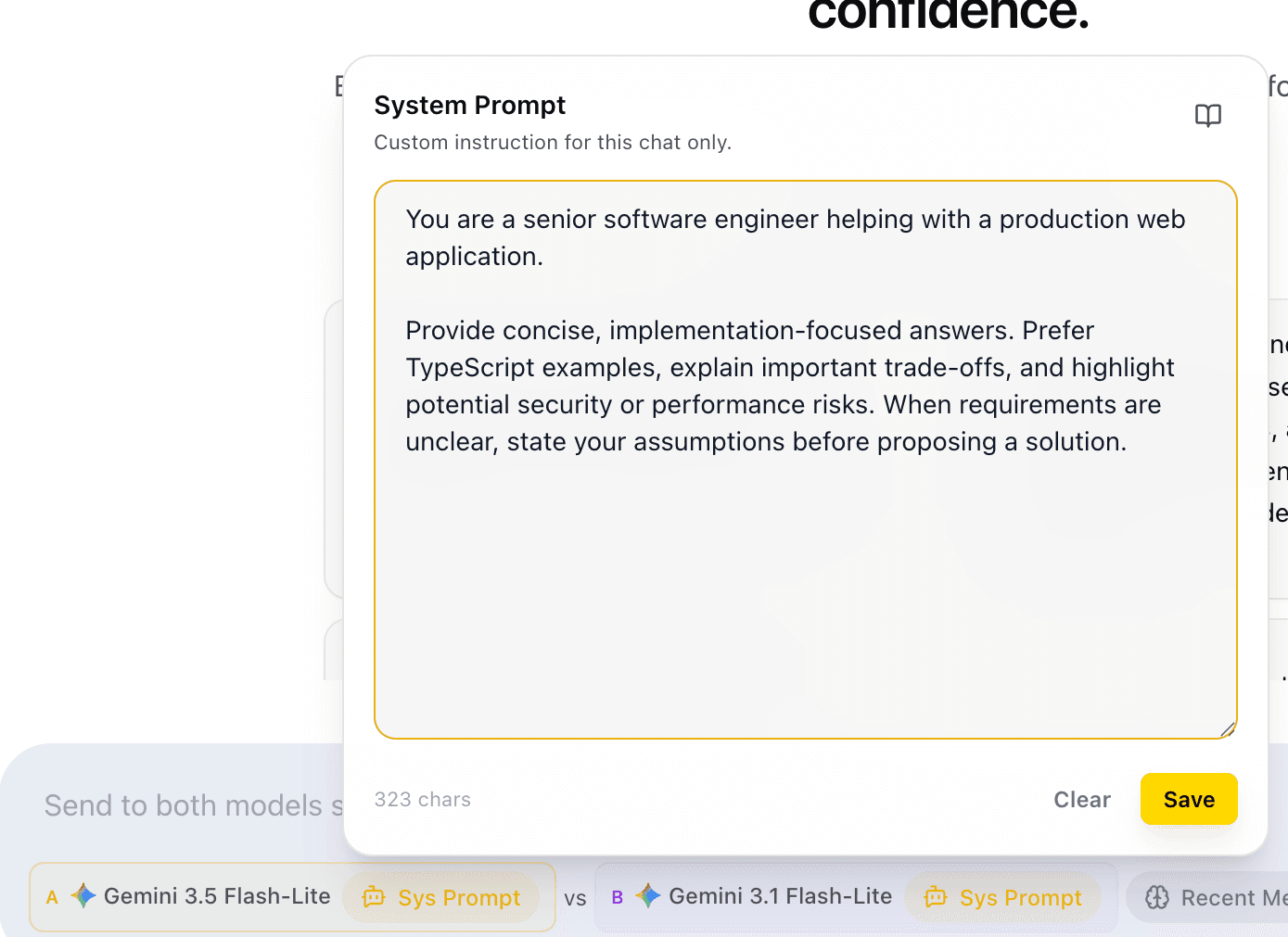
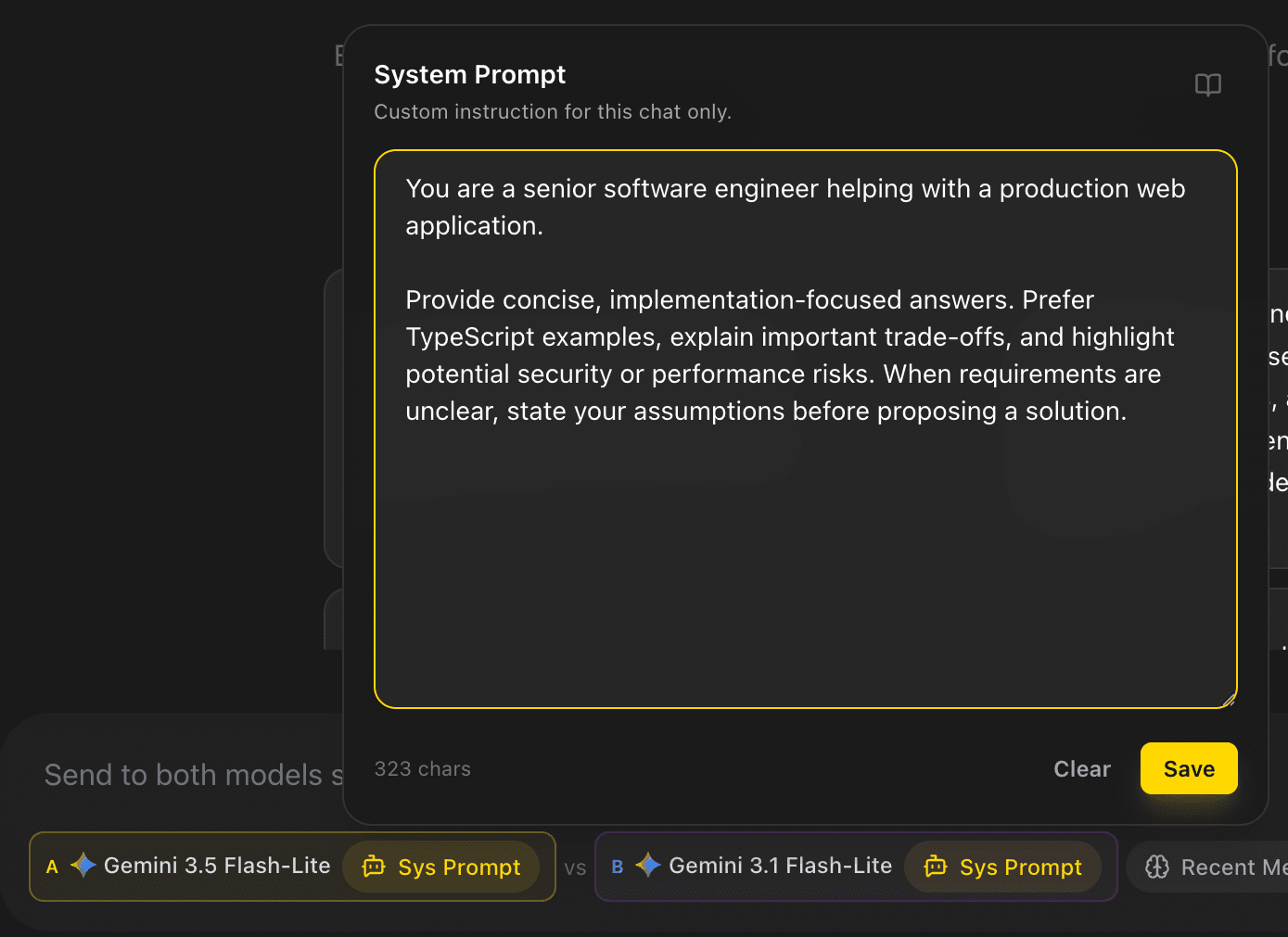
 - Select Model A and Model B using the two model controls.


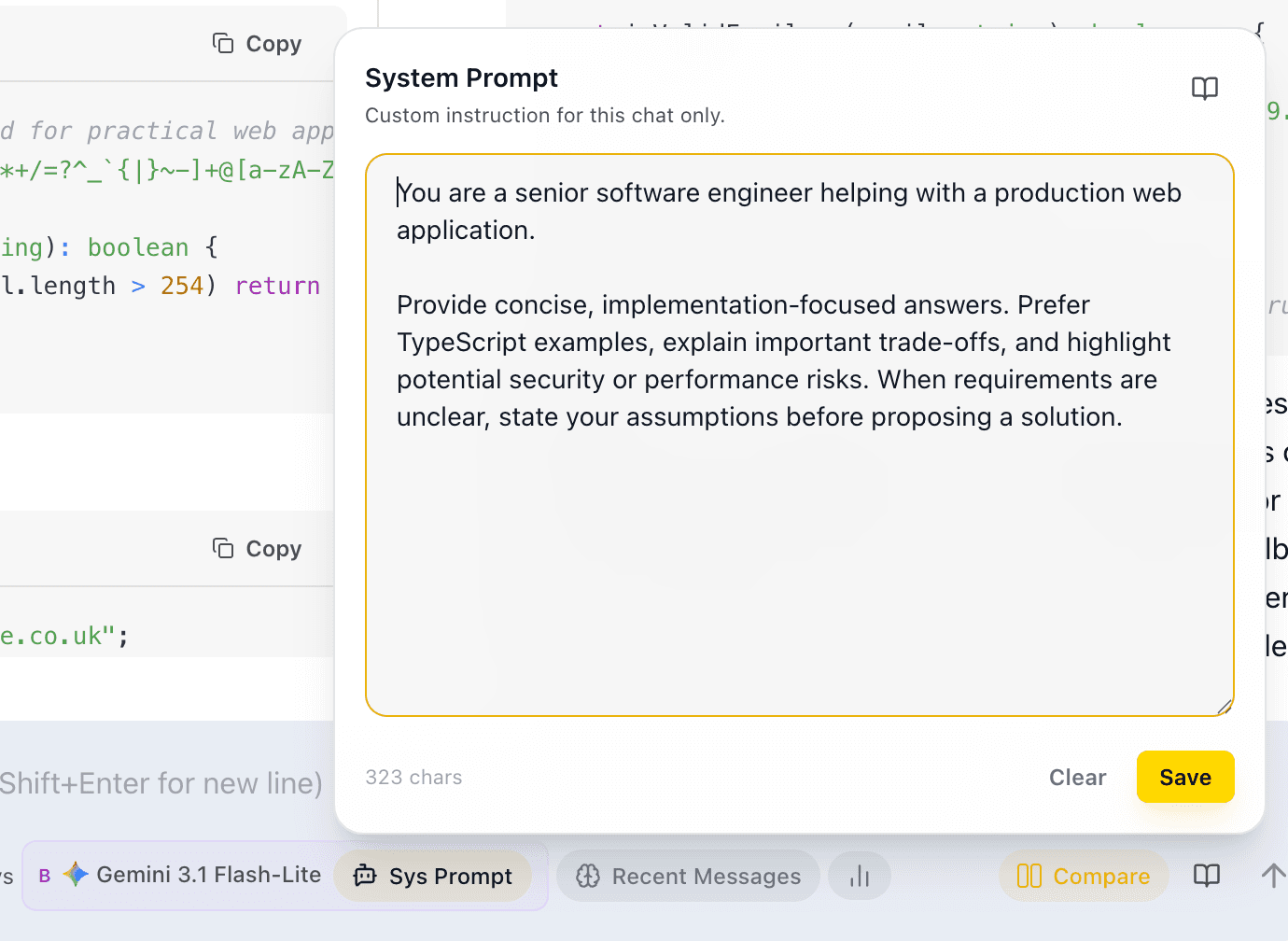
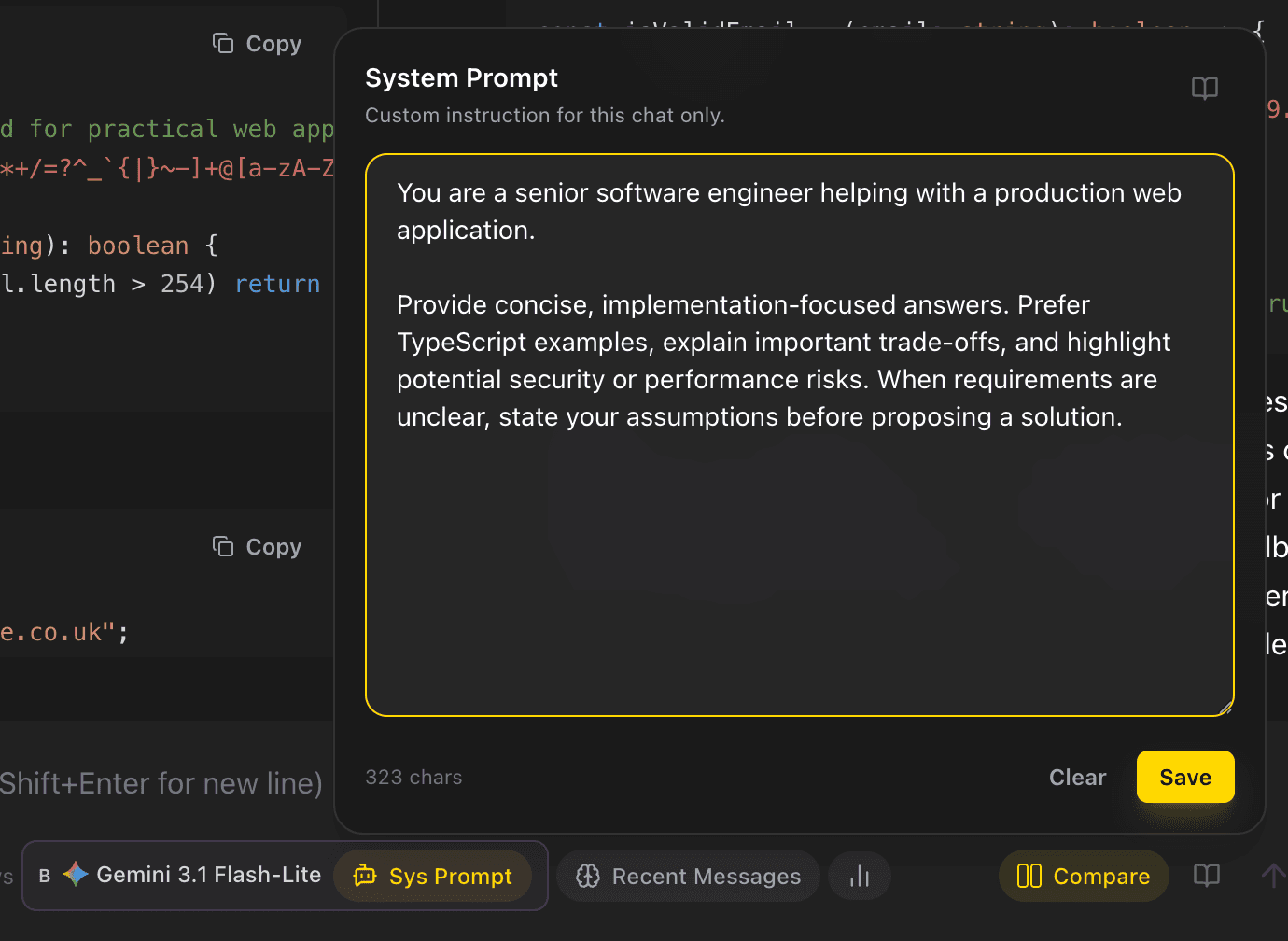
- Set the instruction for each side with its Sys Prompt control. Use the same instruction for an apples-to-apples model test, or intentionally vary the instructions when instruction design is the variable under test.
  |   |
|---|
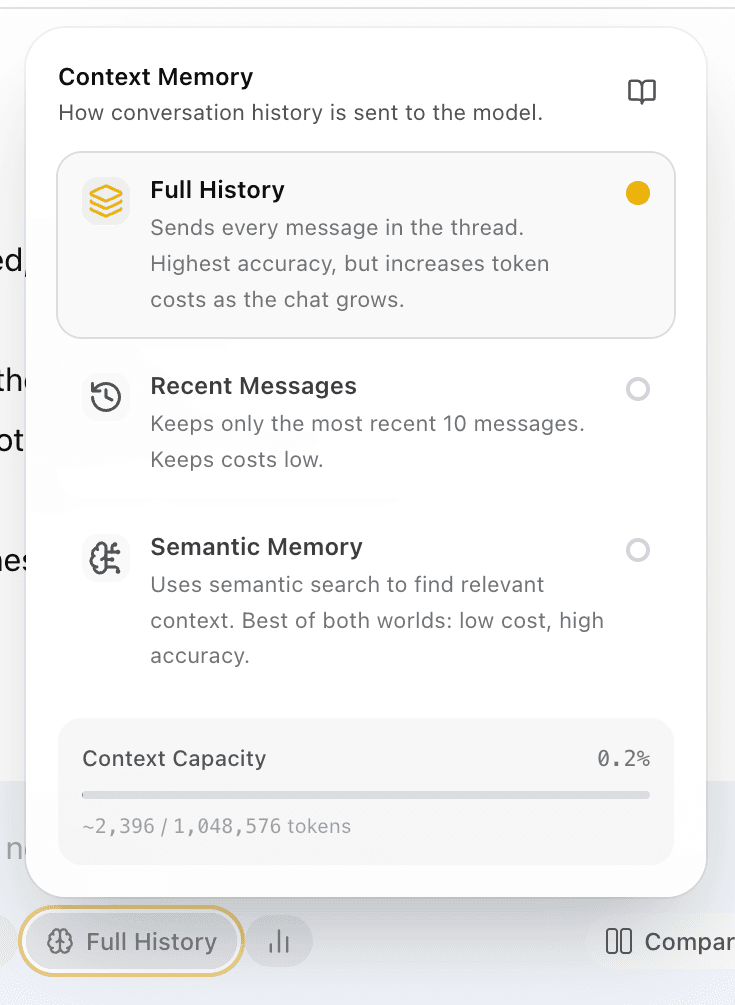
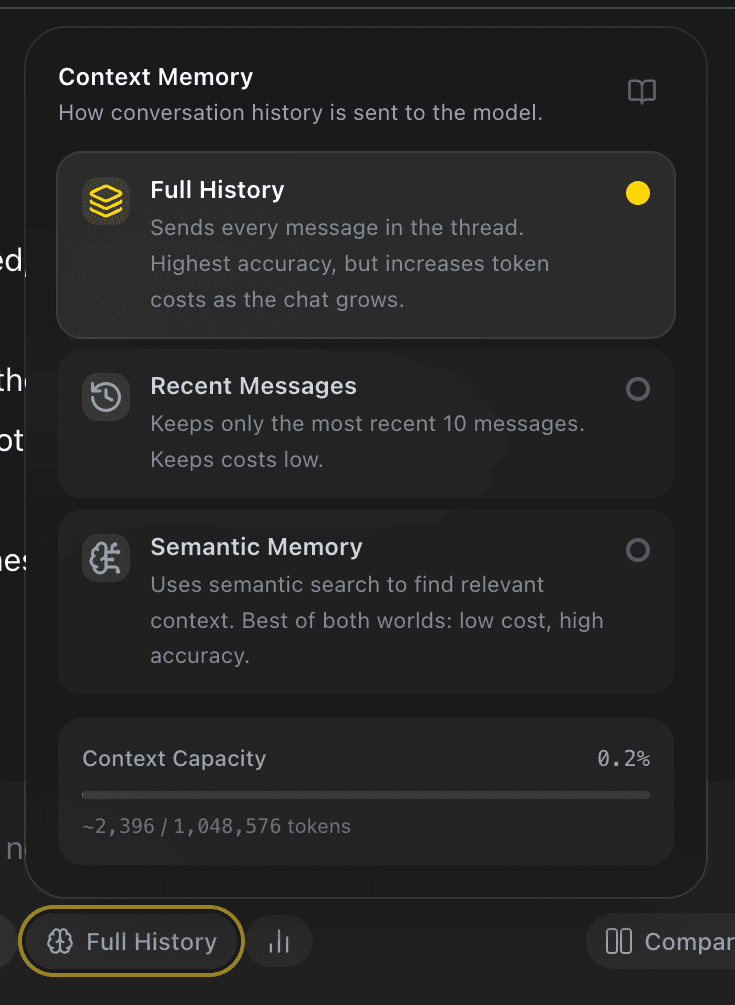
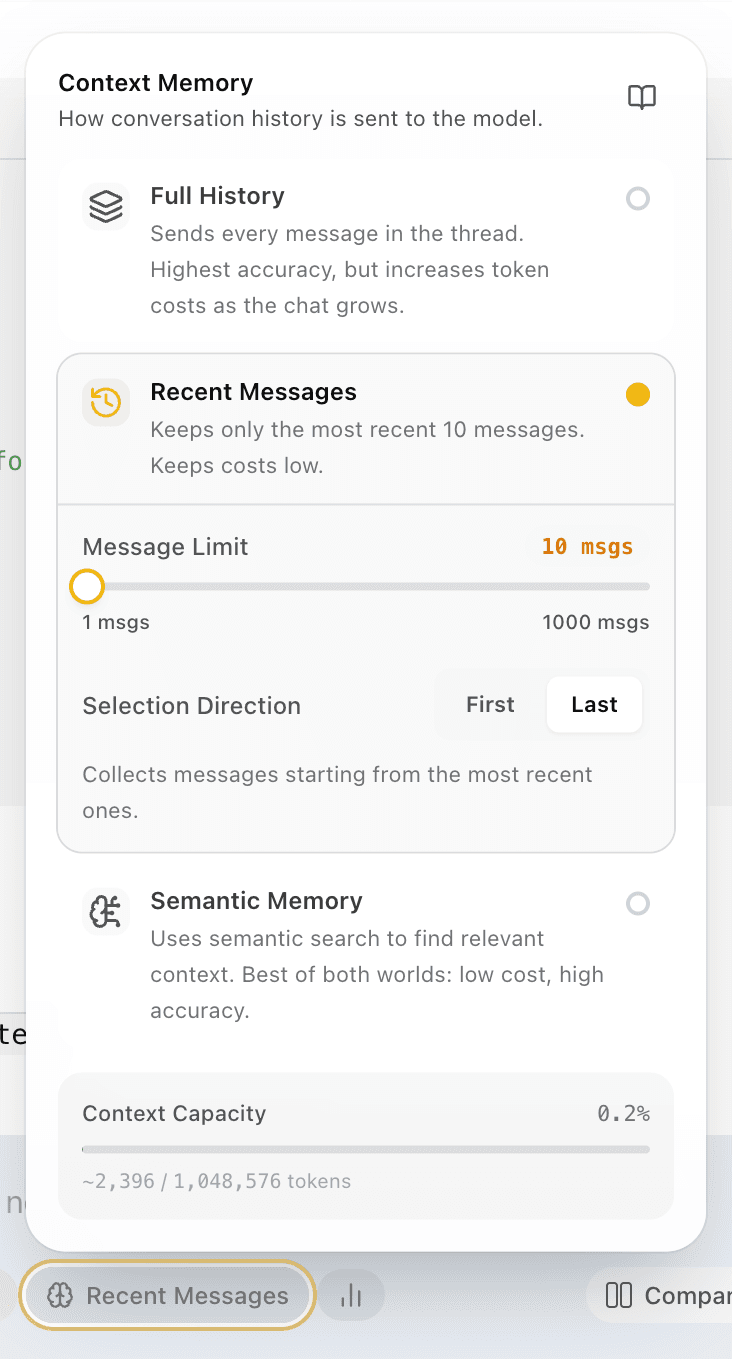
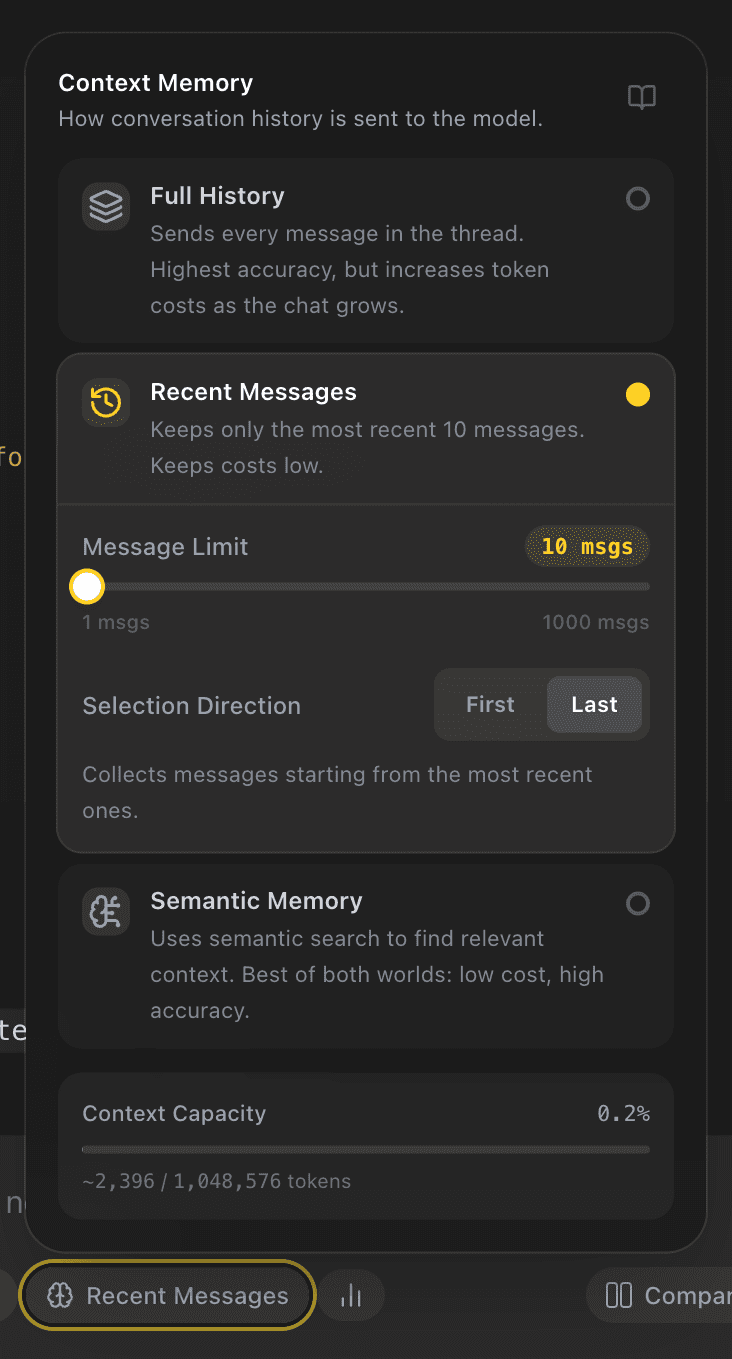
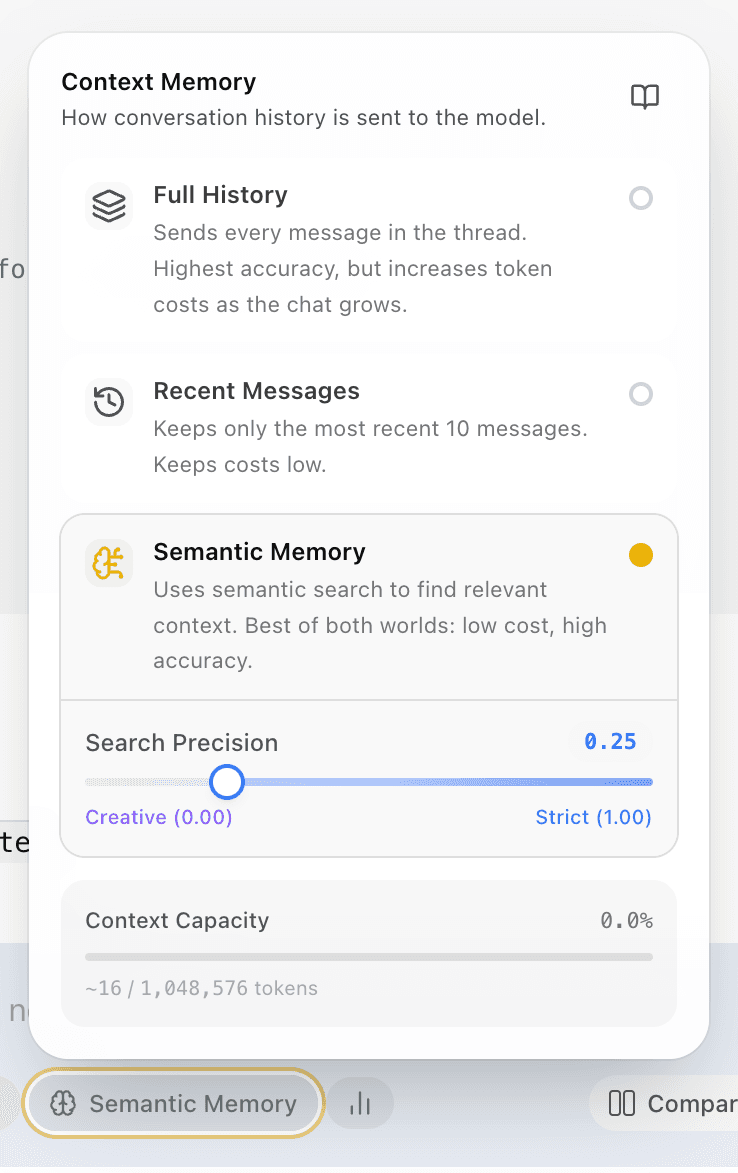
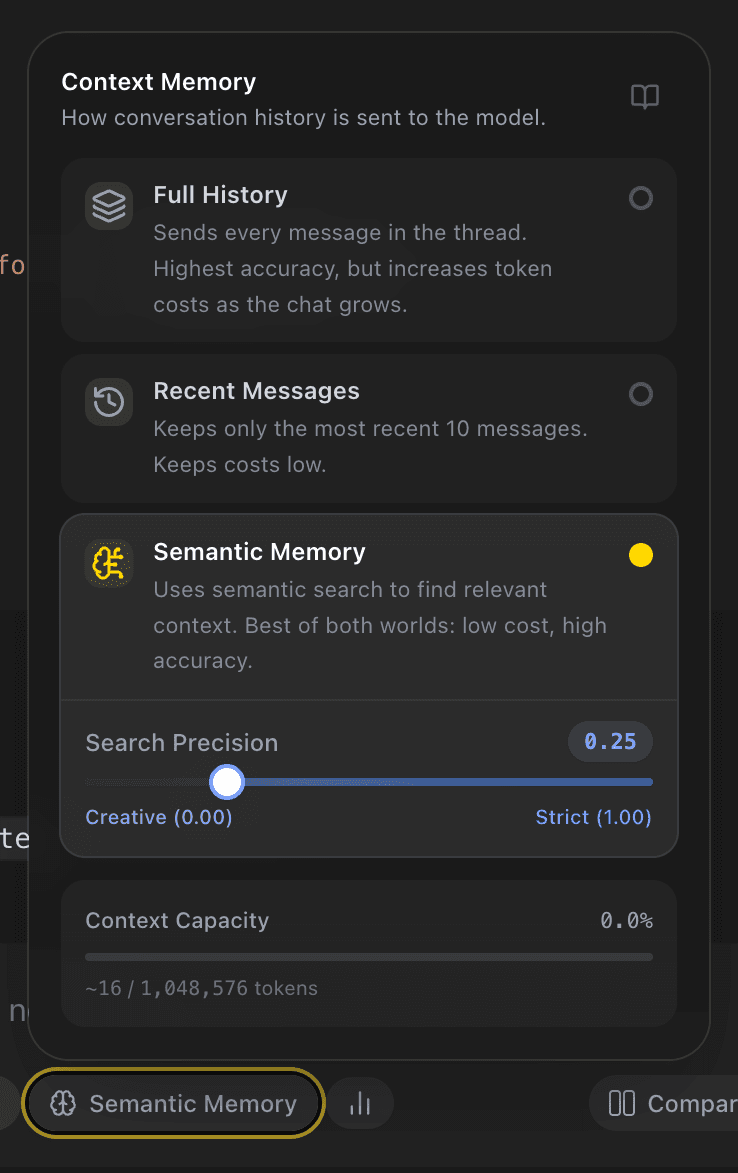
- Review the shared Context Memory setting, then enter and send the prompt.
  |   |   |
|---|
The context strategy applies to the chat, so both sides use the same selected conversation-history policy. This is usually the right baseline for a model choice. If you need to test two different context policies, run separate comparisons rather than treating them as a single model-only result.
Read the result side by side
EidoStack starts one stream for each model. The responses appear in parallel as they arrive, and completed paired answers stay together in the conversation. Compare them against a rubric such as factual accuracy, instruction following, formatting, completeness, and how they handle uncertainty or refusal.
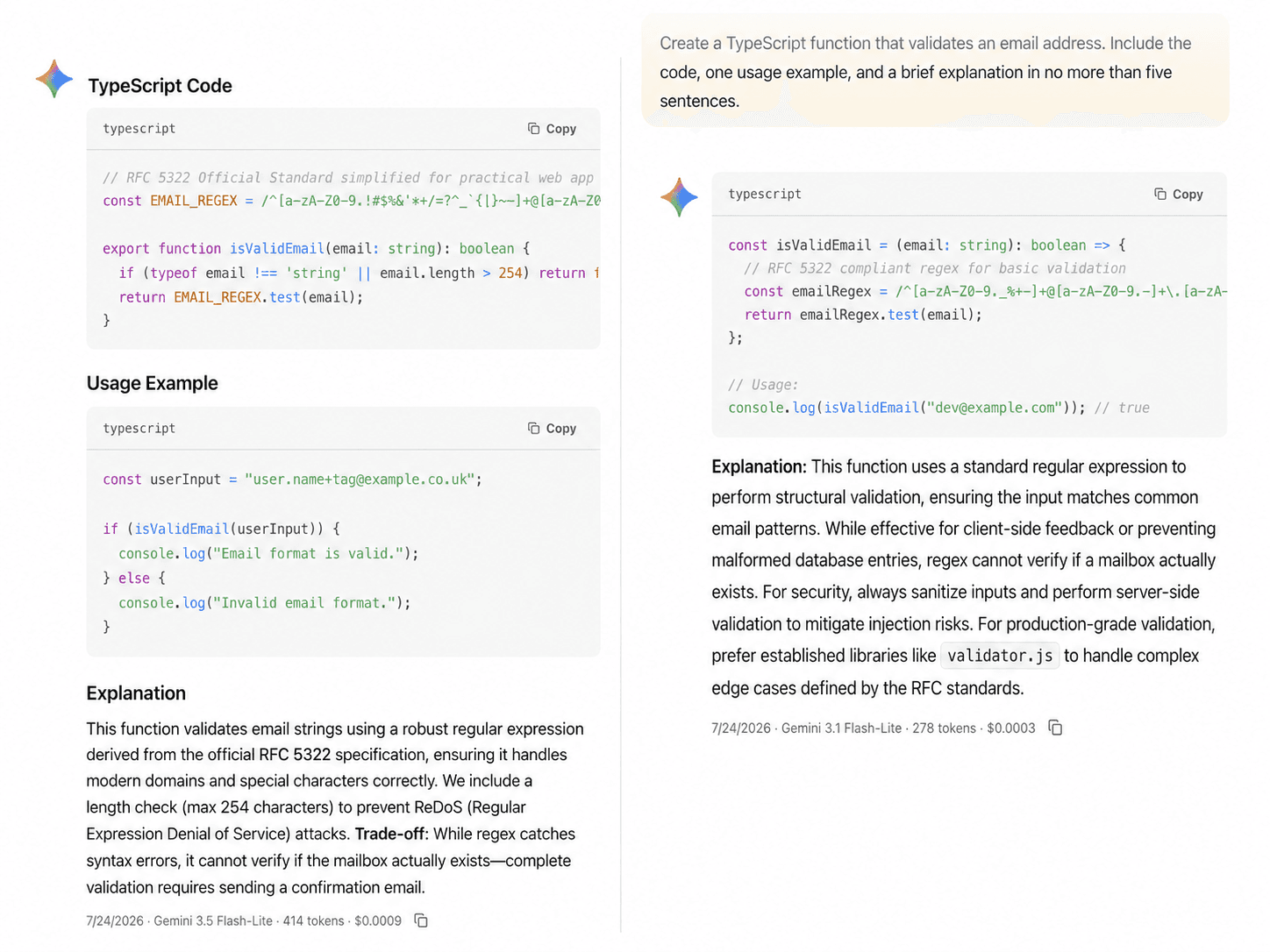
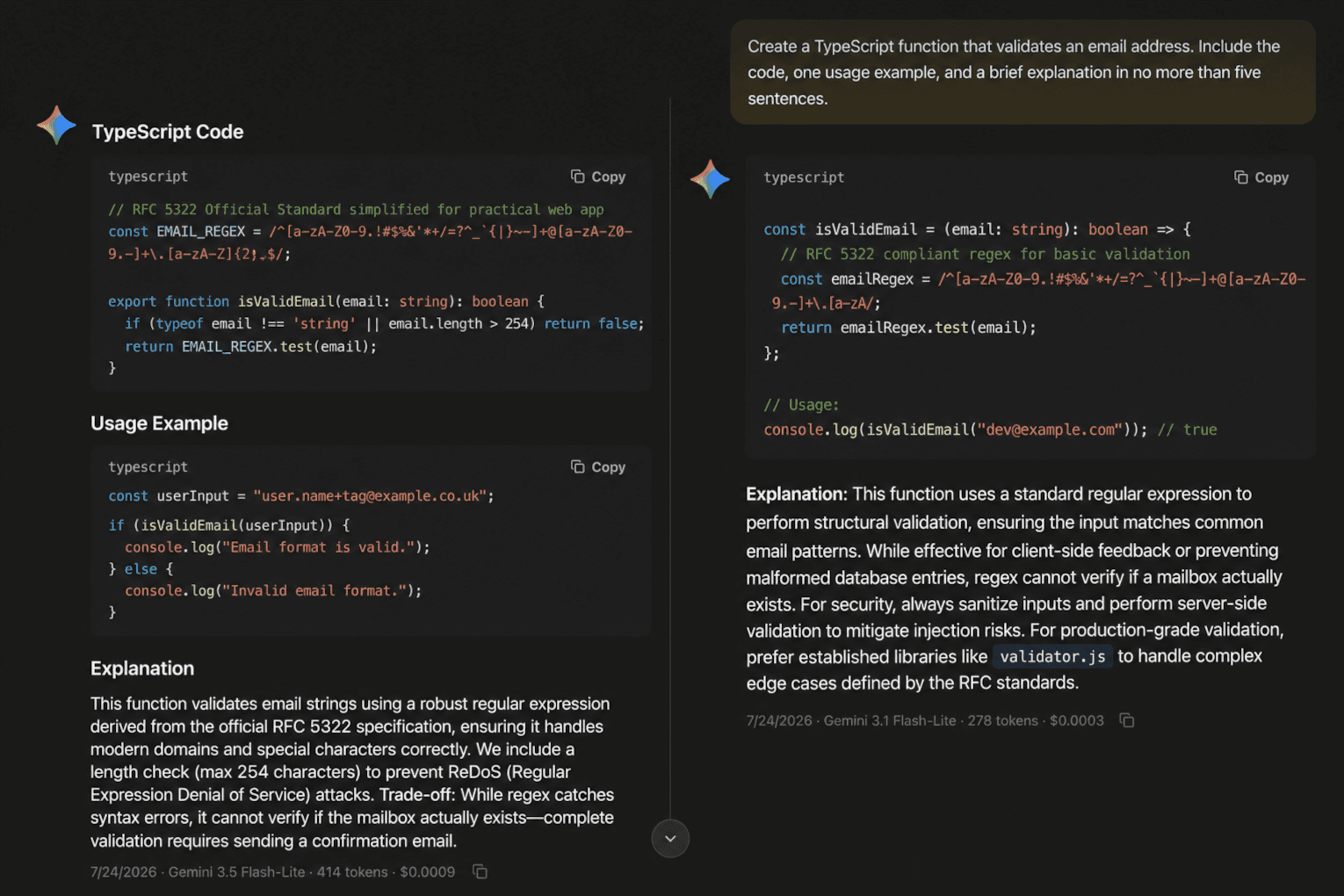
One side can fail while the other succeeds. Read the displayed error and use Try again only after checking the affected provider key, provider quota, and model access. Retrying is a new request, so do not assume it is a no-cost operation.
Check token and cost consequences
Open the usage button in the prompt toolbar after the responses complete. The chat summary combines the messages in the chat and can show a breakdown by model, including input tokens, output tokens, total tokens, and estimated cost. Comparison mode naturally sends two model requests, so the total will usually be higher than a single-model run.
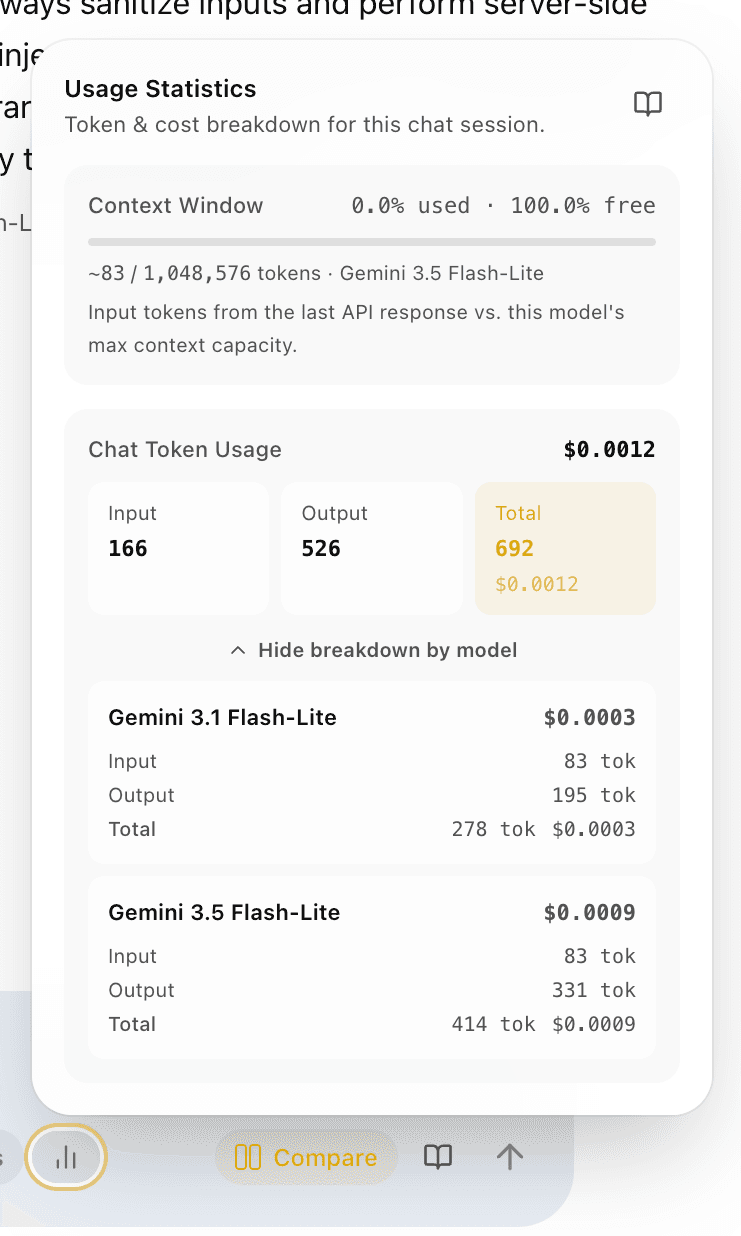
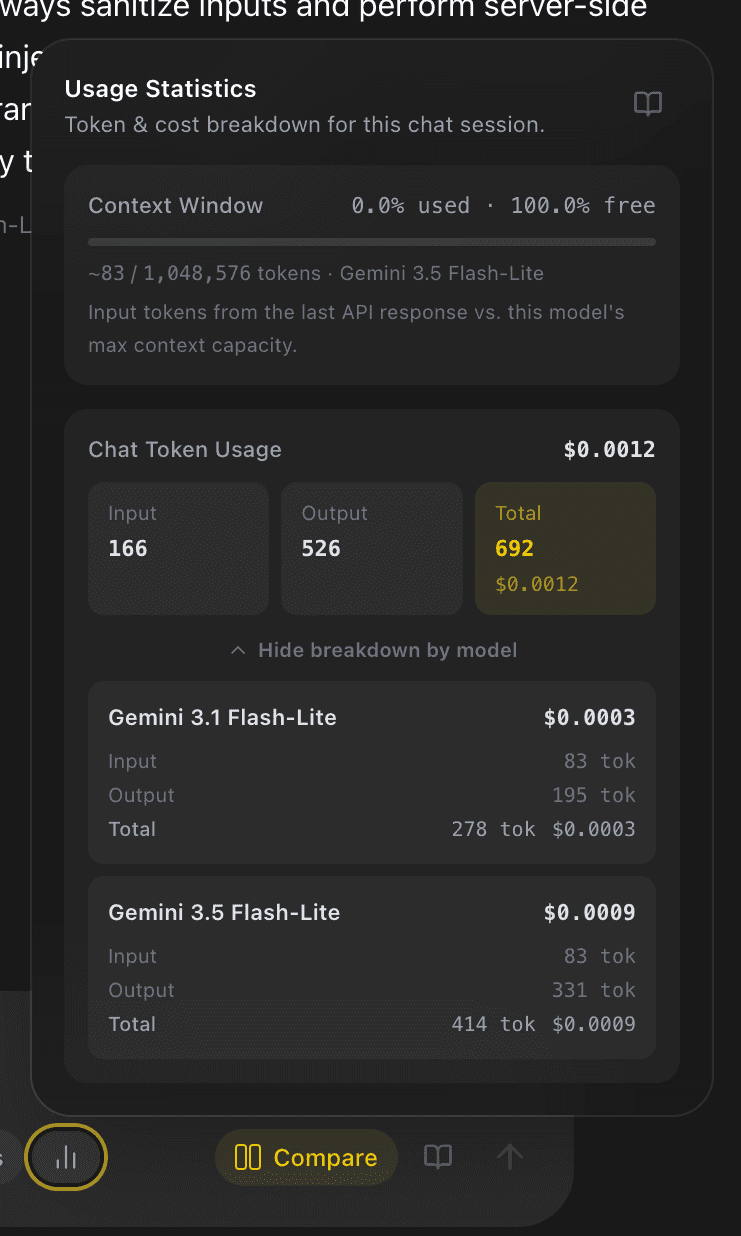
For an analysis over multiple comparisons, open Usage Metrics from the workspace header and use its Per Model and Per Chat views. Usage, tokens, and costs explains the available date filters and reports.
Keep comparison evidence useful
Run a small, representative prompt set instead of choosing a winner from one response. Name or pin the chat that contains the result, and keep edge cases in the same evaluation folder so later reviewers can see the prompts, instructions, model choices, and cost context together.
Comparison mode exposes behavioral differences; it does not declare a winner or replace a task-specific review. Use Evaluate a model to define the criteria that should govern the final choice.