Account and Billing · Account
Manage your account
Update your profile and avatar, change email or password, and manage linked sign-in accounts.
The Account settings section lets you maintain the profile and sign-in methods associated with your EidoStack account. Open workspace settings, then select Account. Provider keys, model visibility, and subscription access are managed in separate settings sections.
Update profile details and avatar
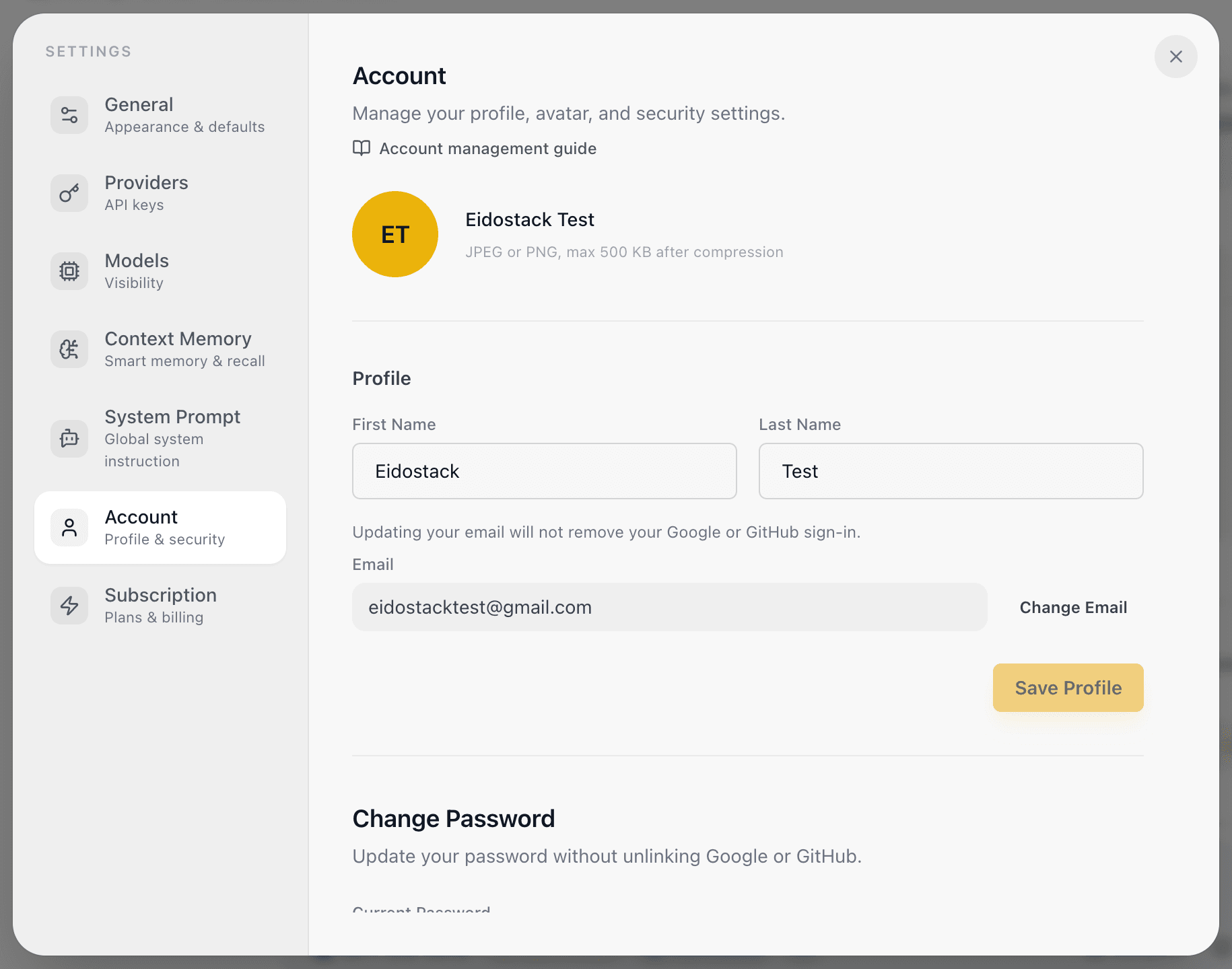
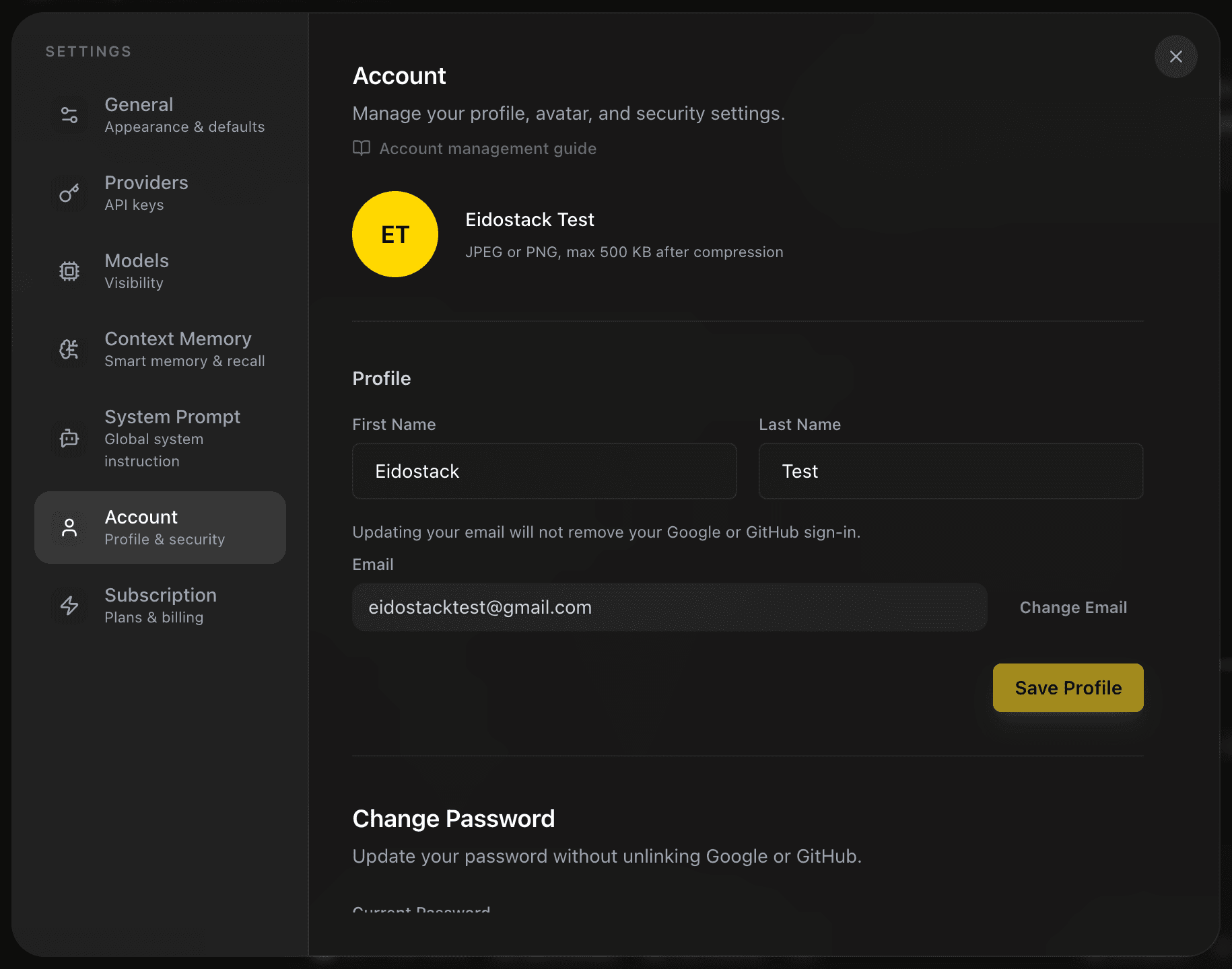
Under Profile, change your first and last name and save the form. The workspace uses these details to display your account identity. The avatar section lets you upload or remove an avatar; the accepted image formats are JPEG, PNG, and WebP.
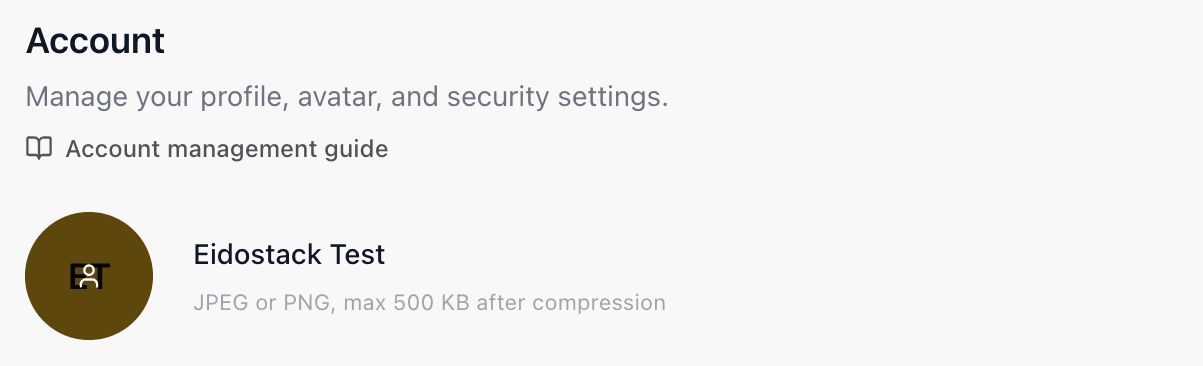
Use an image that you are comfortable associating with the account. Removing the avatar returns the account to its non-uploaded state without affecting chats or sign-in methods.
Change the account email
The email field starts a verification flow rather than changing the address immediately.
- In Profile, enter the new address in the email-change area.
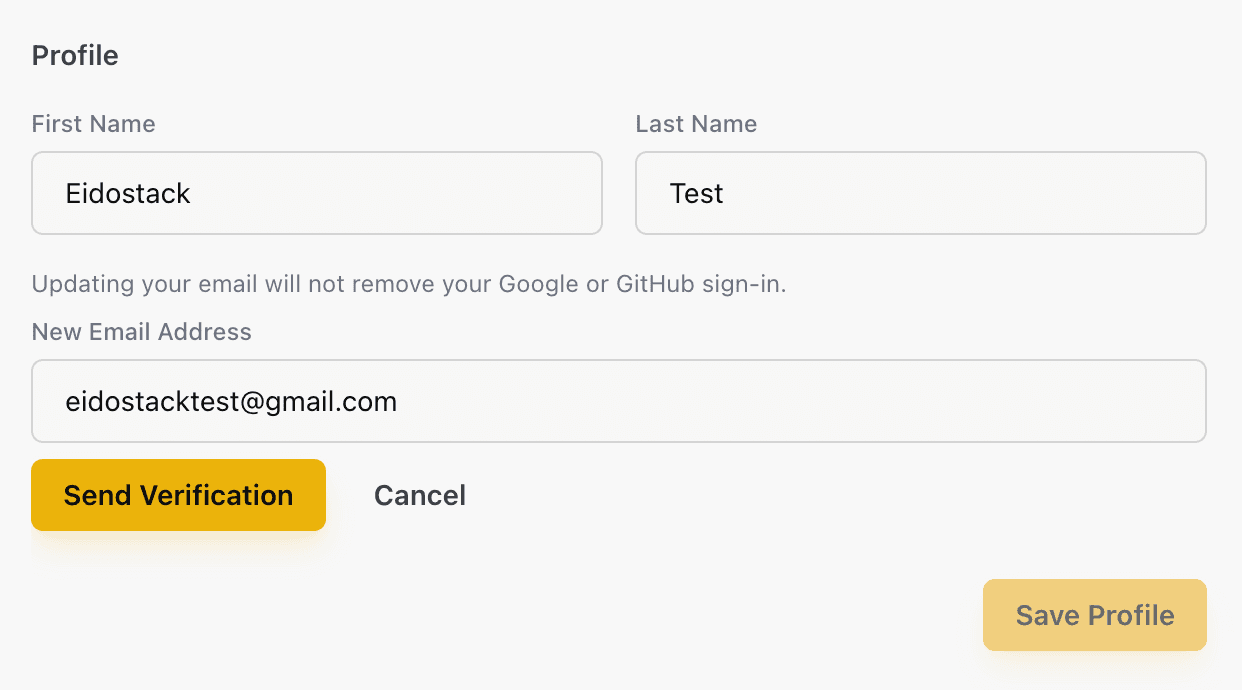
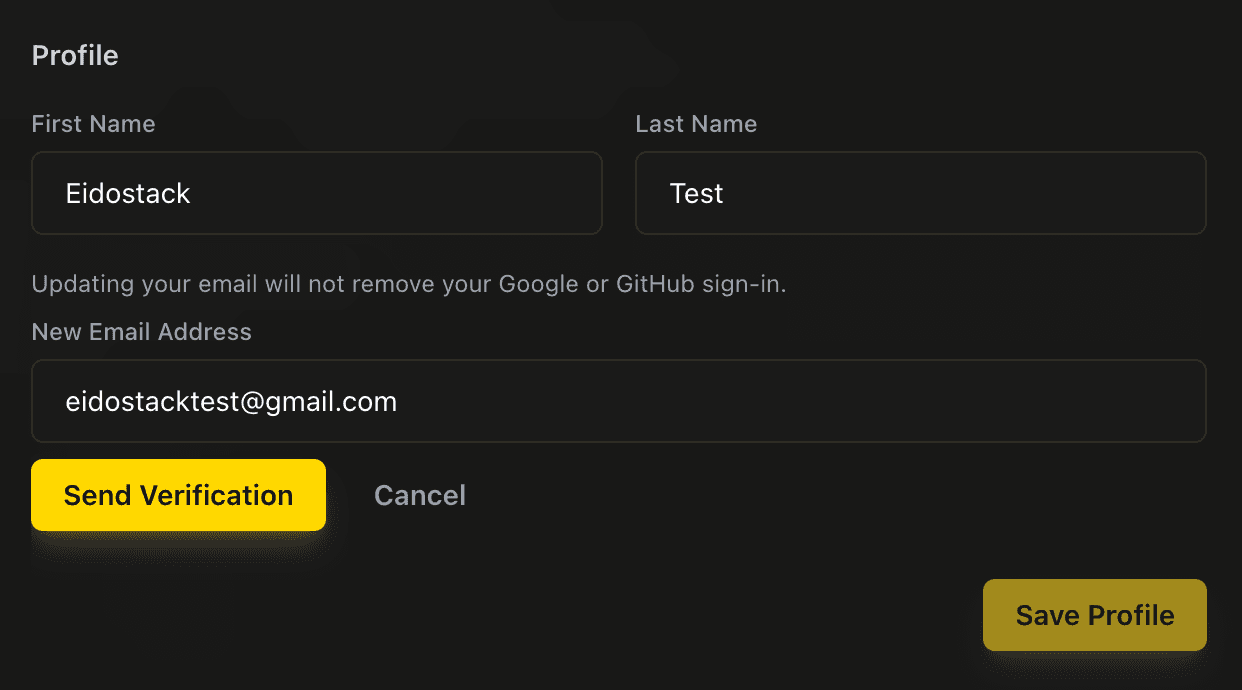
- Submit the request.
- Open the verification email sent to the new address and complete the confirmation.
Until confirmation succeeds, EidoStack keeps the existing address as the account email and displays the requested address as pending. You can cancel a pending change from the same settings area. The new address must not already be used by another EidoStack account.
Changing the email does not unlink Google or GitHub. The local vault storage is scoped to the account email in the browser, so review API key vault before changing email on a device that stores provider access.
Set or change an EidoStack password
The Change Password section is labelled Set Password when the account does not yet have an EidoStack password, which is common for an account created through Google or GitHub.
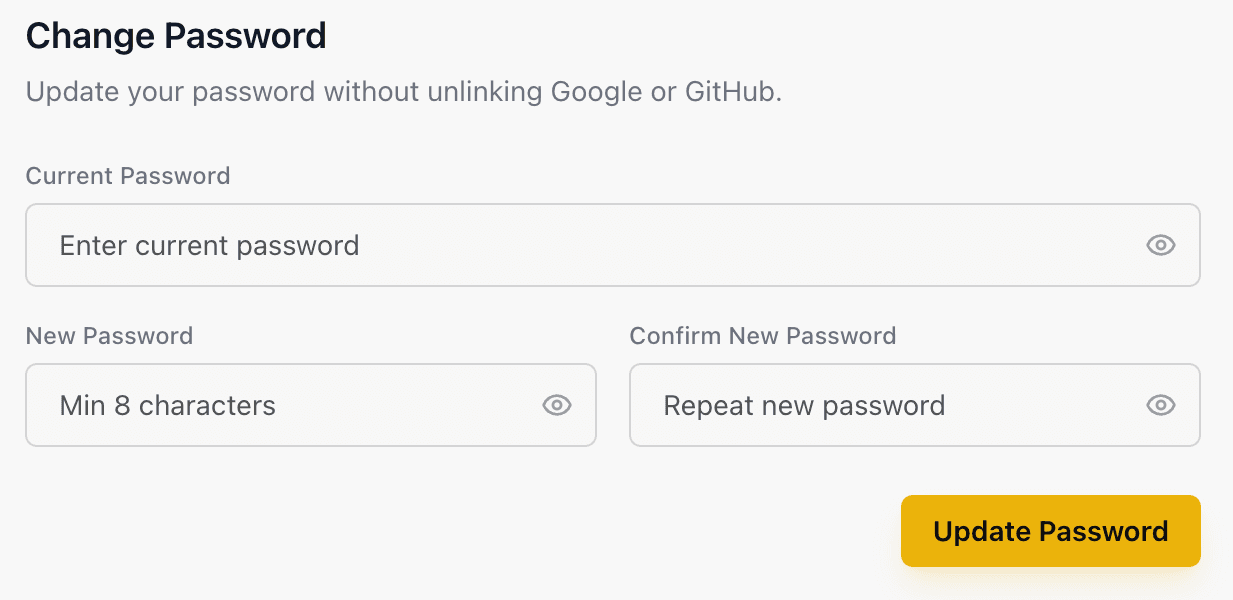
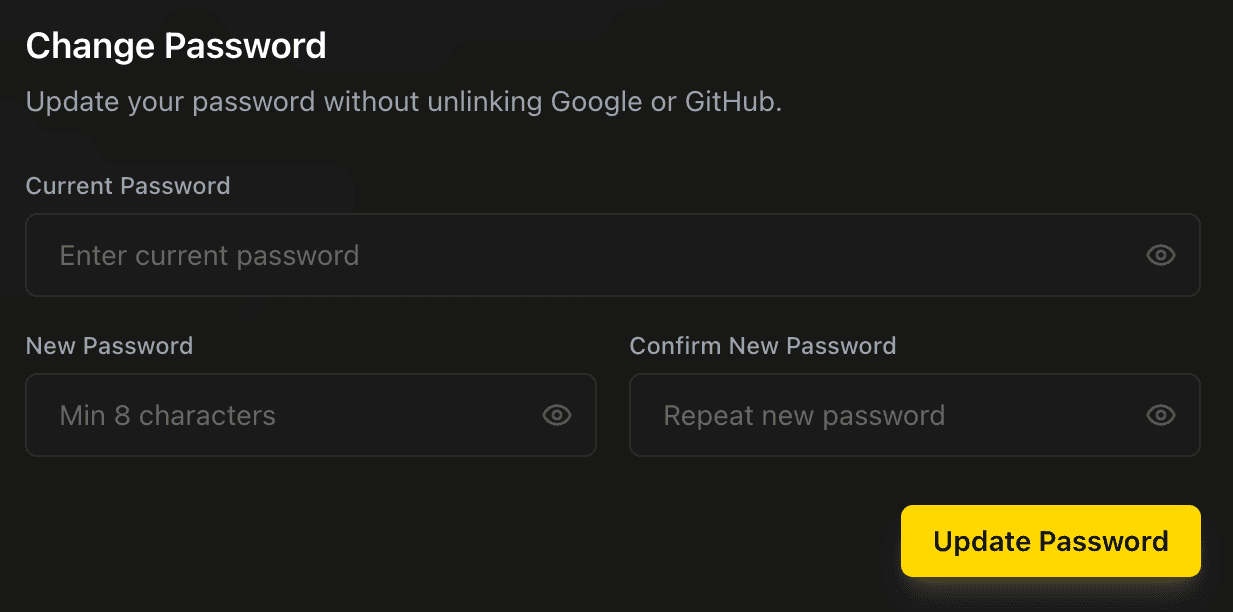
- To change an existing password, enter the current password and a new password.
- To add a password to a social-sign-in account, enter and confirm a new password.
- New passwords must contain at least eight characters and match their confirmation.
Adding a password keeps existing linked social accounts intact. It gives you another recovery method if a social provider is unavailable. Changing a password rotates the active EidoStack session credentials; sign in again where required. For password-reset help, read Sign in and recover access.
Link or unlink Google and GitHub
The Linked Accounts section shows whether Google and GitHub are linked. Select Link Account to complete the provider authorization flow, or Unlink to remove a linked method. The provider email must match the email on the EidoStack account.
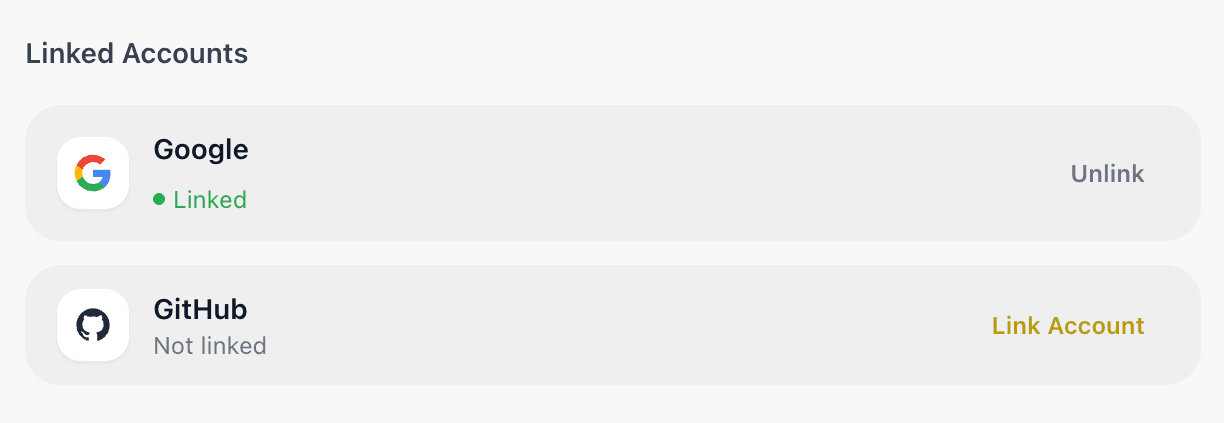
Keep at least one usable sign-in method. EidoStack prevents removal of the only remaining method, so add a password or another linked provider before unlinking your current method. Linked Google or GitHub accounts authenticate EidoStack only; they do not add a Google AI or any other model-provider key.
Keep account changes separate from workspace data
Profile, email, password, and linked-account changes do not alter saved chats, folders, provider billing, or local vault contents. Use Providers for API keys, Subscription for access level, and System Prompt or Context Memory for evaluation defaults.
To permanently remove the account instead of updating it, follow Manage your data and delete your account.