Security and Data · Vault recovery
Back up and restore your vault
Create an encrypted vault backup and restore provider access on a new or recovered browser setup.
Vault backup creates an encrypted JSON file containing the provider keys currently available in the unlocked browser vault. It is a recovery and migration tool for provider access only. It does not back up chats, messages, folders, usage records, model visibility, account settings, or EidoStack sign-in methods.
Before creating a backup
Unlock the vault and confirm that it contains at least one saved provider key. Keep the backup file and its password separate: anyone who obtains both can decrypt the provider credentials. A password manager and an encrypted storage location are appropriate places to keep the password and file separately.
The backup password is distinct from the vault master password. This allows you to choose a recovery password without exposing or reusing the master password that protects the current browser vault.
Create an encrypted backup
- Open Settings > Providers and unlock the vault.
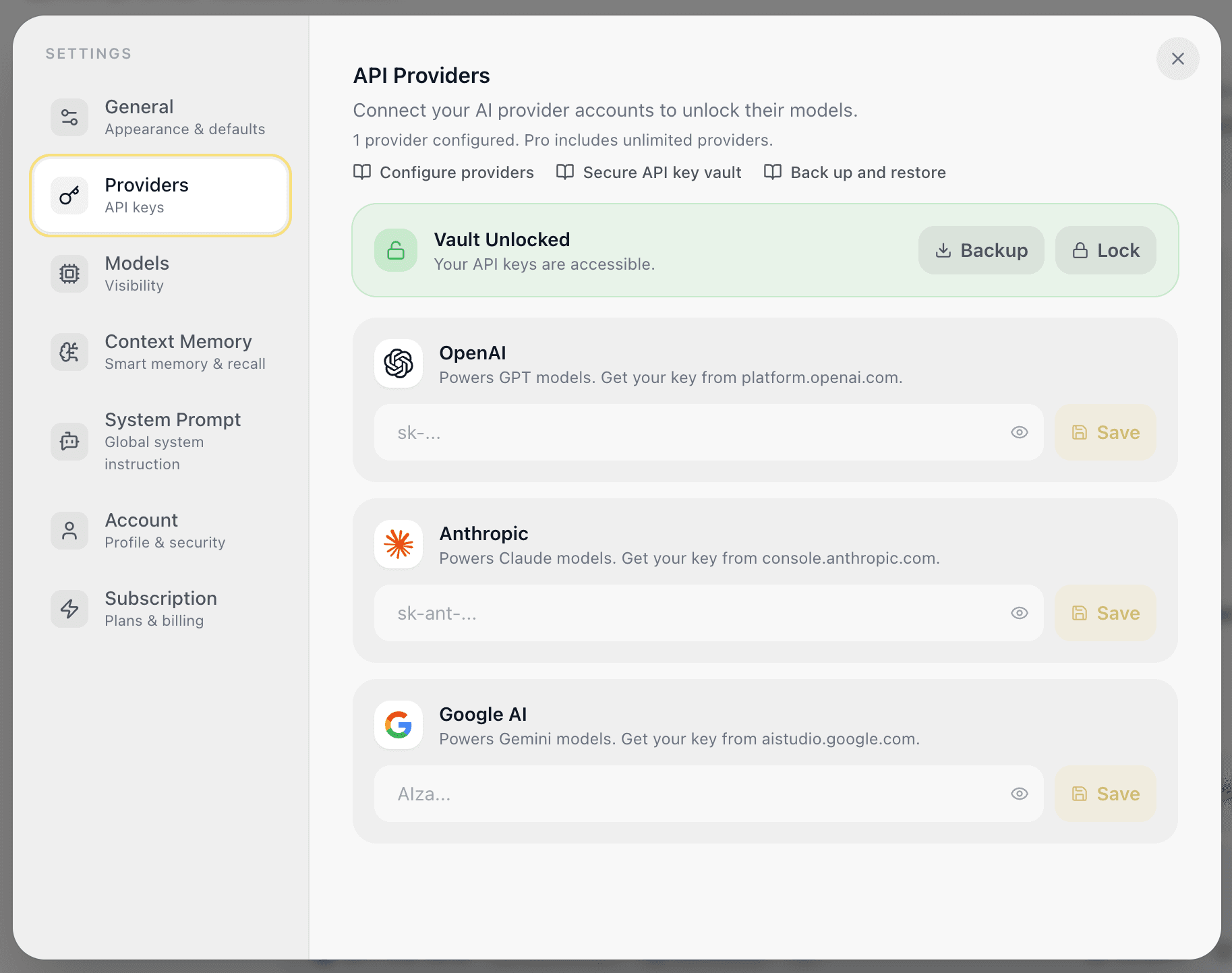
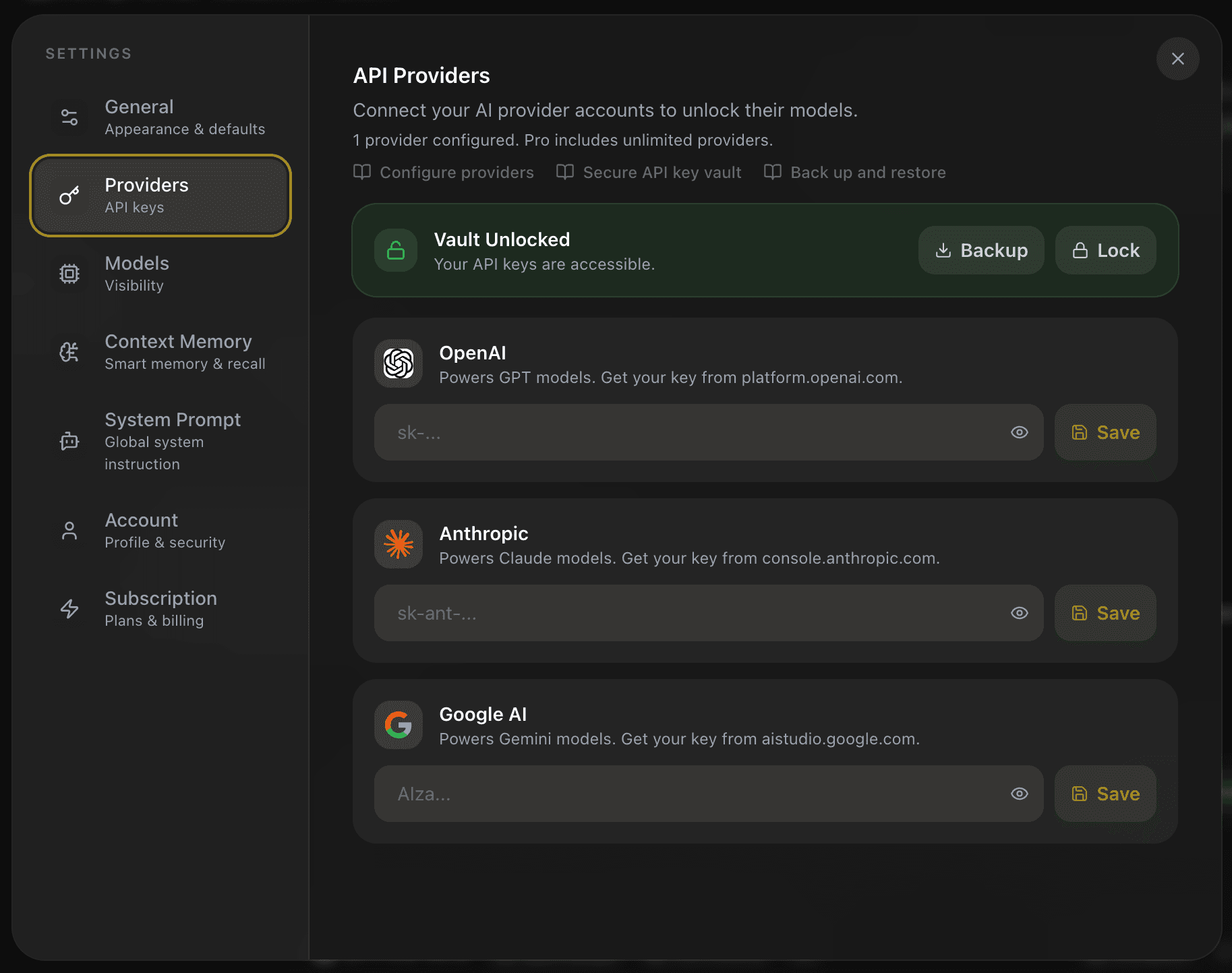
- Select Backup in the Vault Unlocked panel.


- Enter a backup password with at least eight characters and confirm it.
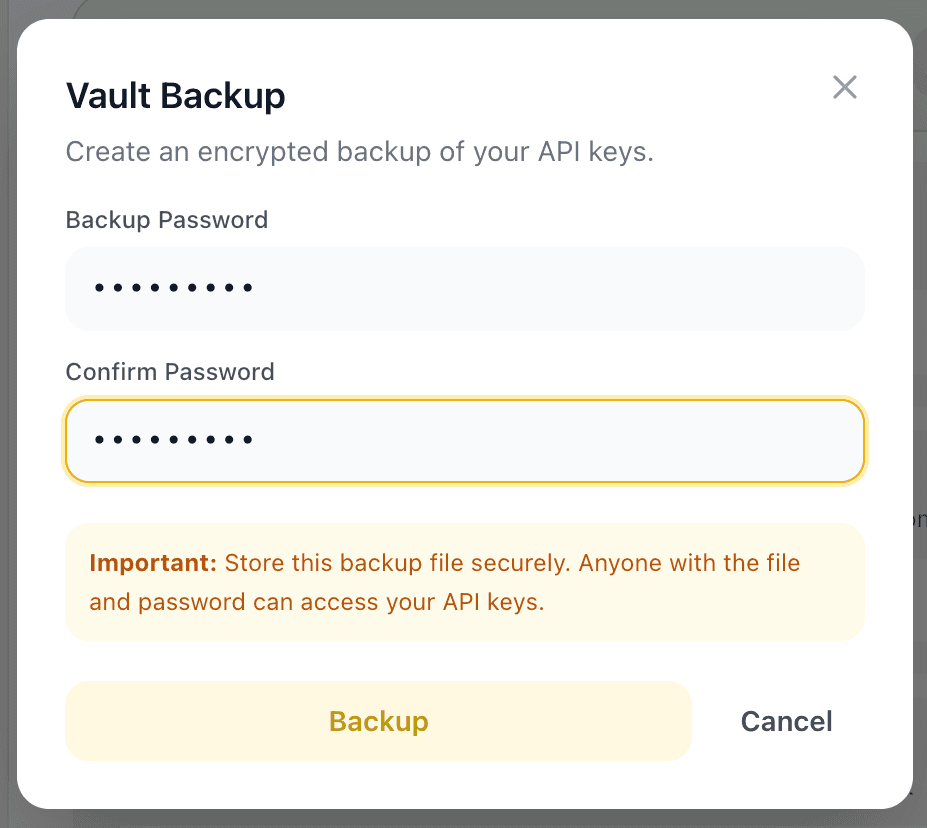
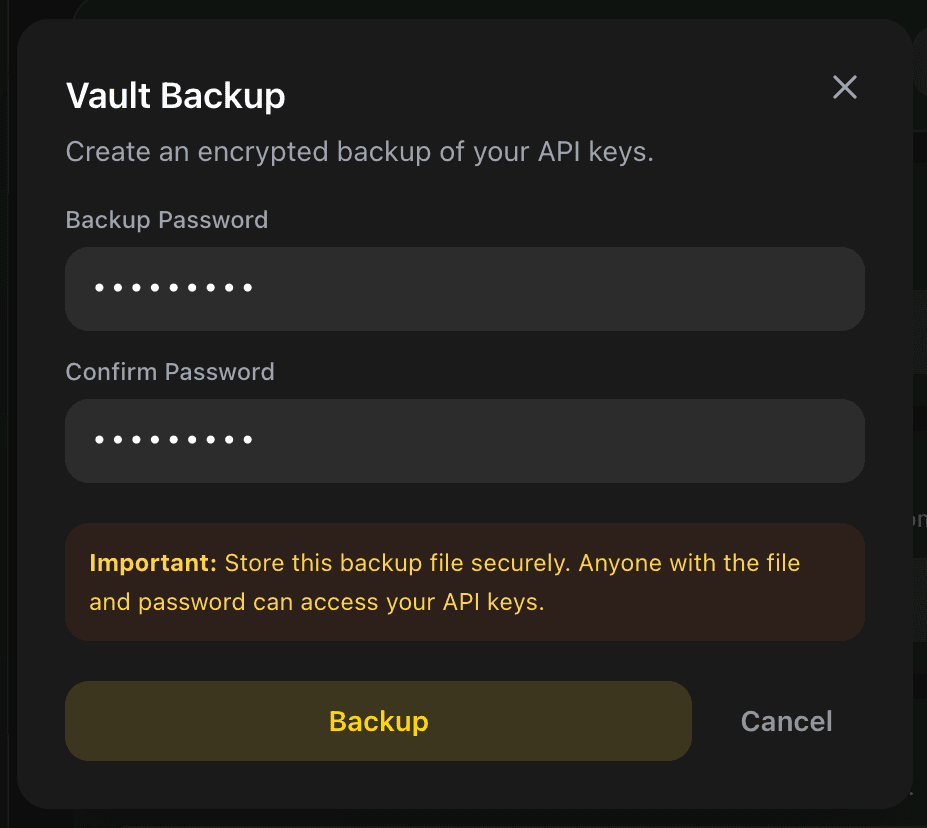
- Select Backup to download the encrypted JSON file.
EidoStack names the download eidostack-backup-YYYY-MM-DD.json. The file contains ciphertext and encryption metadata, not a readable list of API keys. Still, treat it as highly sensitive because the backup password can decrypt it.
If the vault has no saved OpenAI, Anthropic, or Google AI key, EidoStack does not create a backup. Add and save a key first.
Restore provider keys in another browser
You can start restore from the locked or first-time vault panel.
- Sign in to the target EidoStack account and open Settings > Providers.
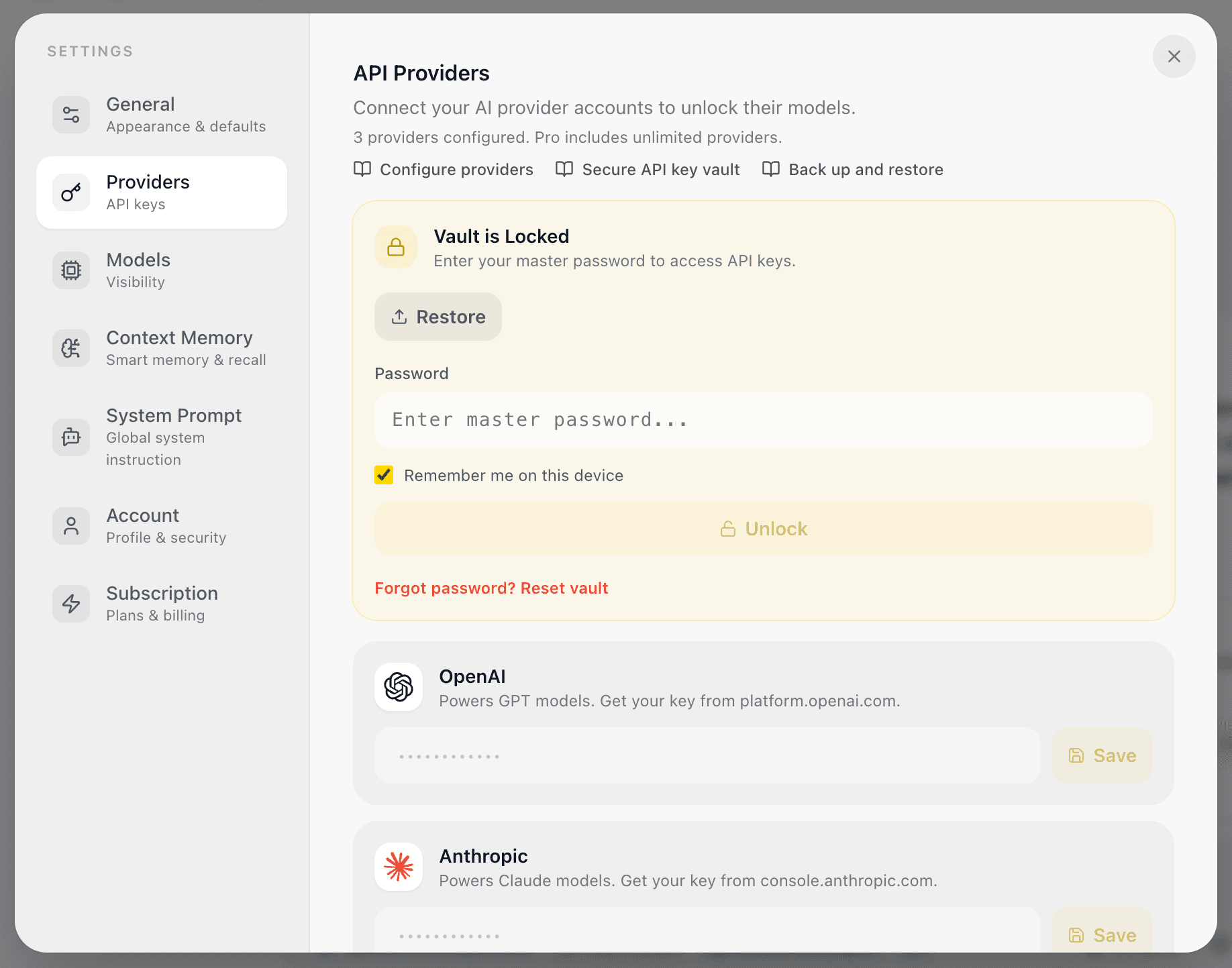
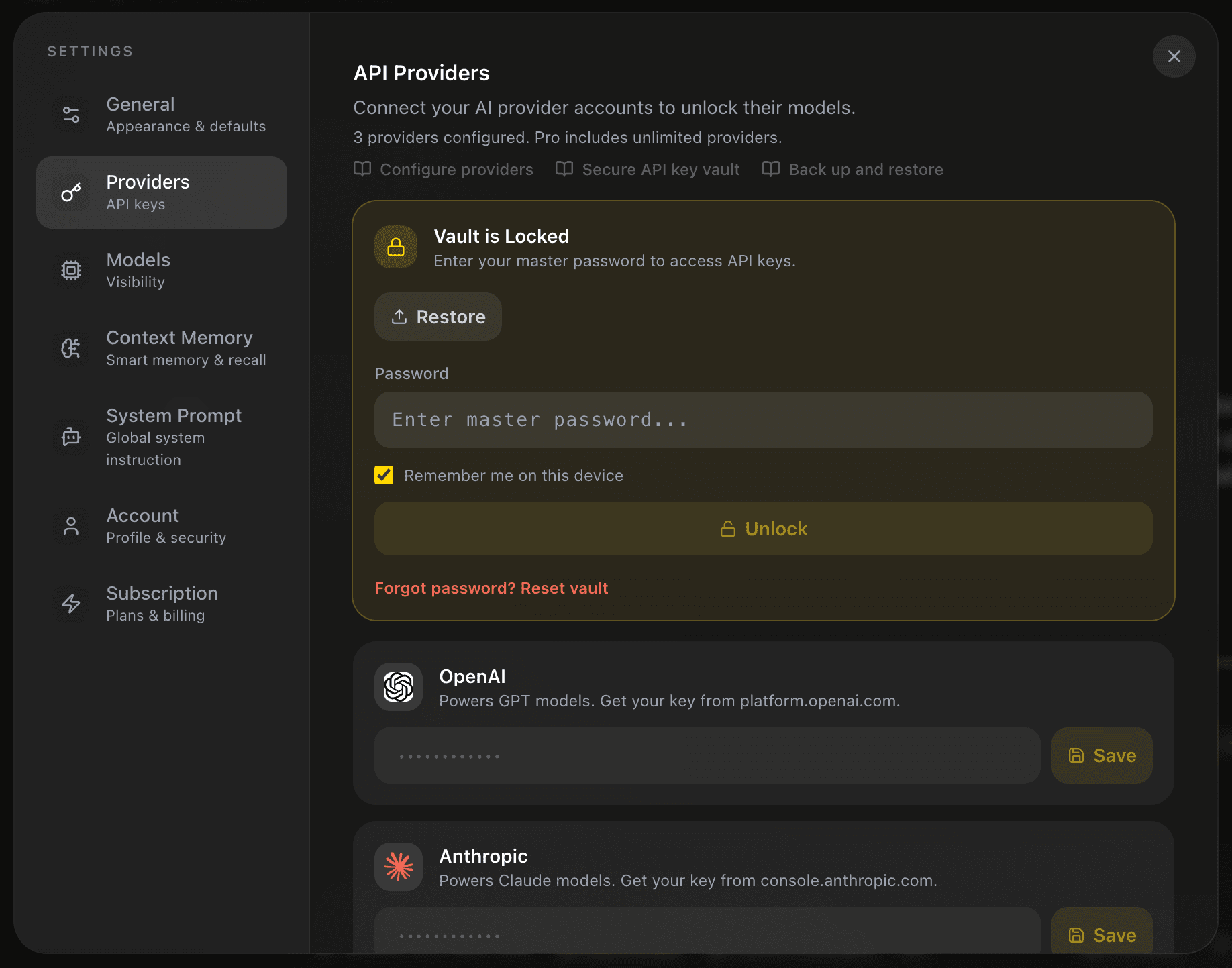
- Select Restore.
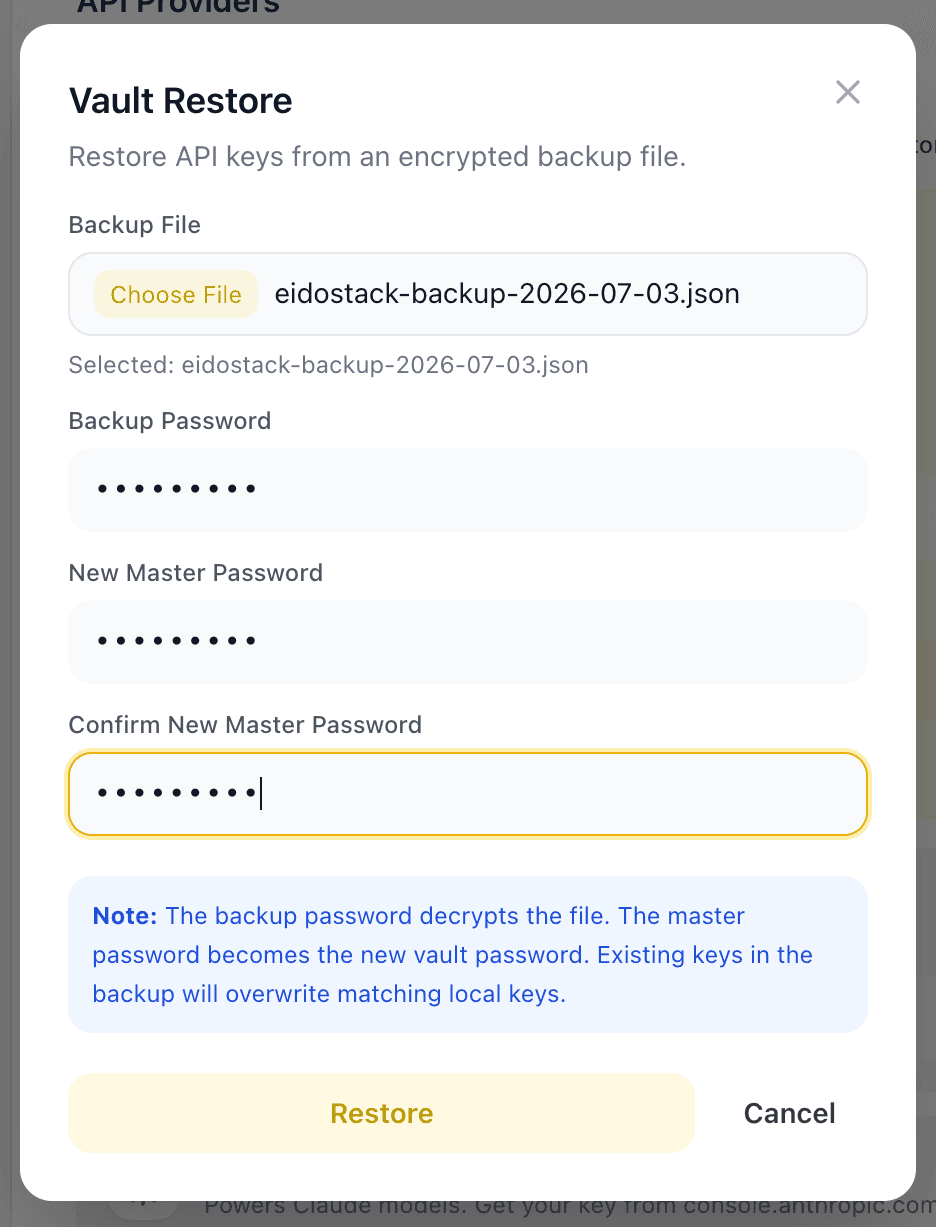
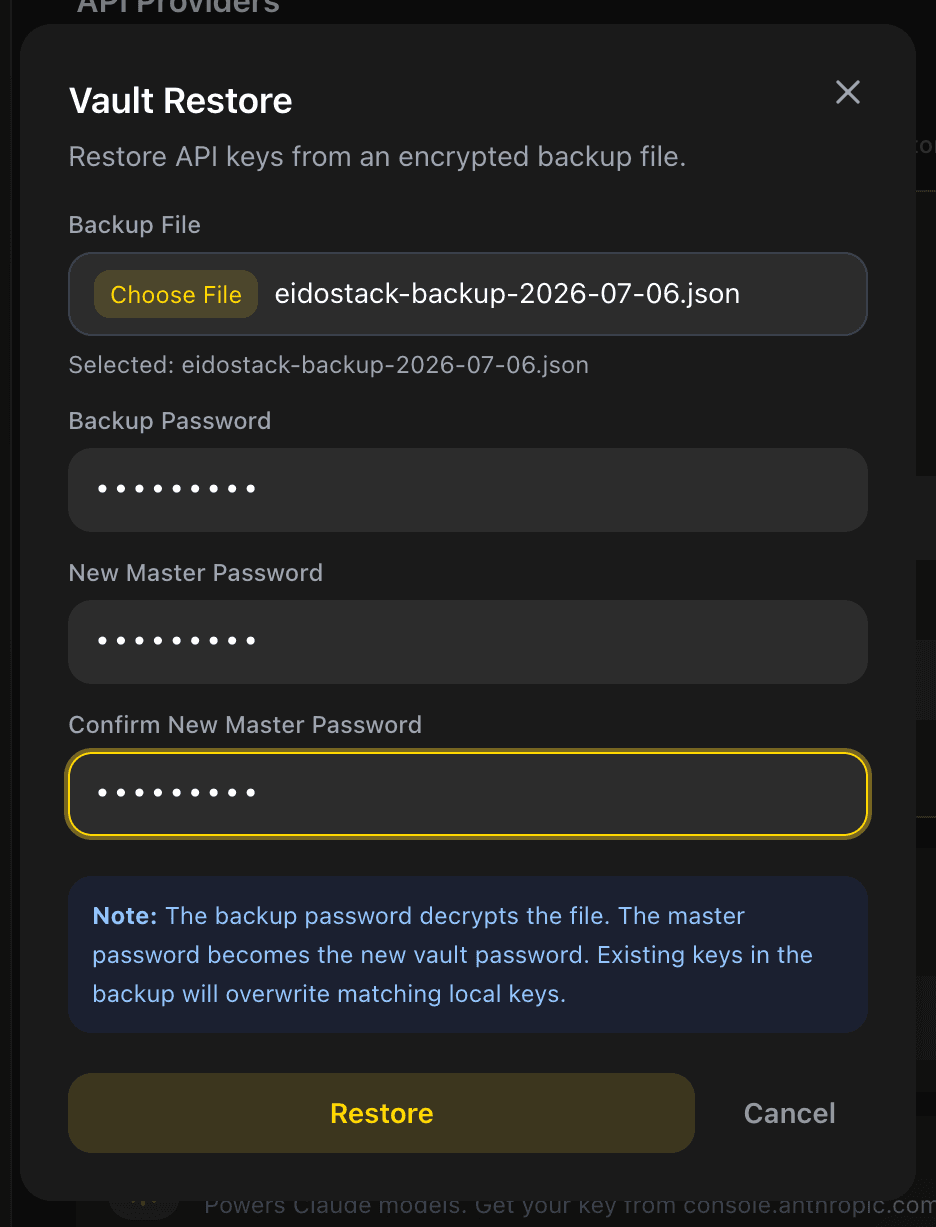
- Choose the
.jsonbackup file. - Enter the password used when the backup was created.
- Enter and confirm a new master password for the target browser vault.
- Select Restore.
The new master password must contain at least eight characters and must be different from the backup password. On success, EidoStack encrypts the restored OpenAI, Anthropic, and Google AI keys for the target browser vault, unlocks it, and makes the restored keys available in provider settings.
Know what restore replaces
Restore writes the provider-key record for the signed-in account in the current browser. Treat it as a replacement of the local provider access, not as a merge or a full workspace restore. Verify the provider settings after import and save any intended changes before sending a production-like request.
If the browser has Remember me on this device enabled, the restored vault can remain remembered on that device; otherwise it requires the new master password after the session ends or is locked.
Troubleshoot a restore
Use a JSON file created by EidoStack and the exact backup password. A wrong password, damaged file, or invalid backup structure produces an invalid-password-or-corrupted-file error. Select a new file if the current selection is not a .json file.
If you no longer know the backup password, neither EidoStack nor the provider can decrypt that backup. Create a new vault and save newly generated provider keys instead. For the security model and vault-reset behavior, read API key vault.