Chat and Evaluation · Chat workspace
Organize chats and folders
Create, rename, pin, reorder, move, and remove chats and folders as your workspace grows.
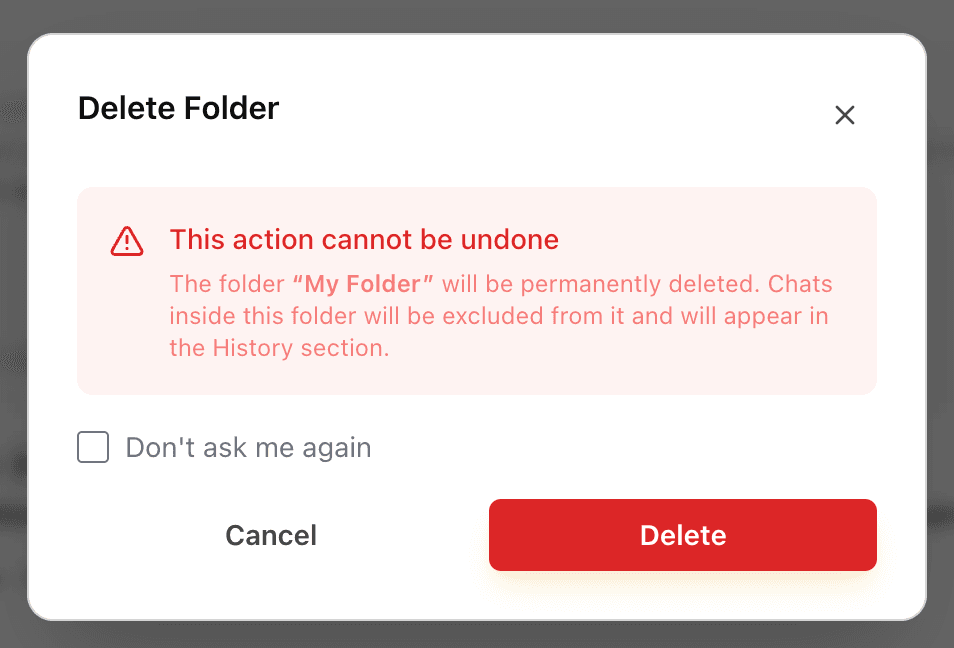
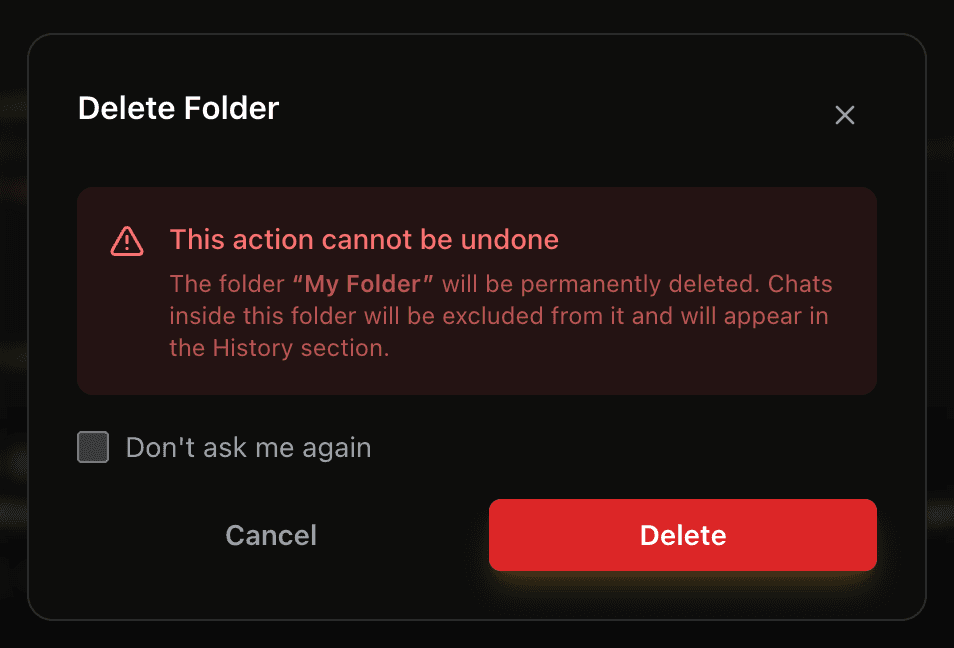
The left sidebar keeps evaluation conversations available as your workspace grows. Chats appear in Pinned, Folders, or History. Folders are organizational containers only: deleting a folder removes the folder, not the chats inside it.
Create a folder
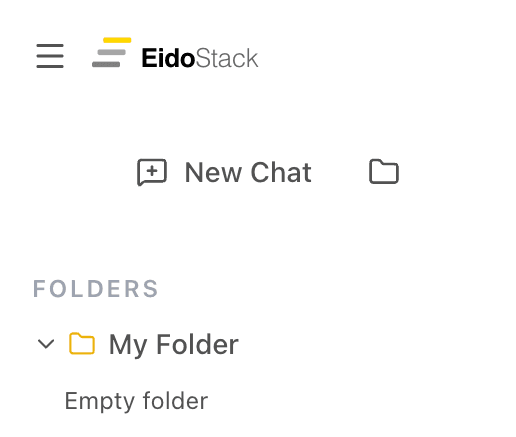
- In the sidebar, select the folder button

 beside New Chat.
 - Enter a non-empty name in New Folder.
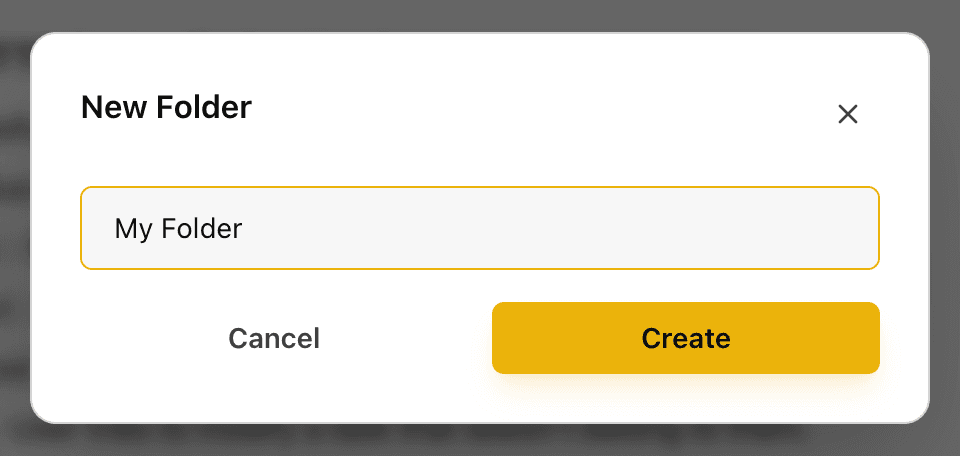
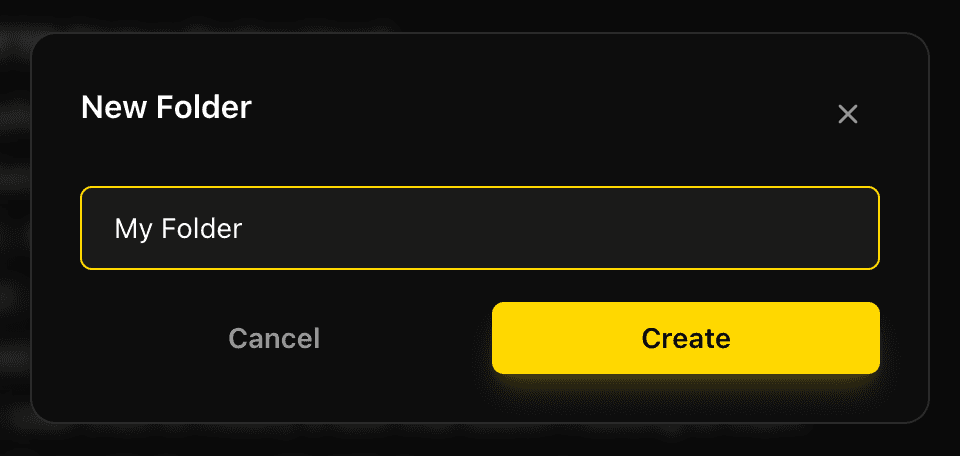
- Select Create.
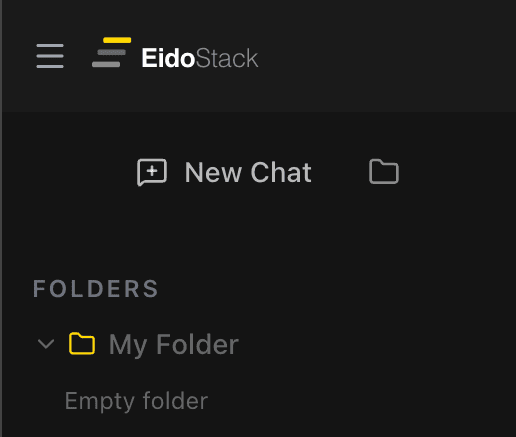
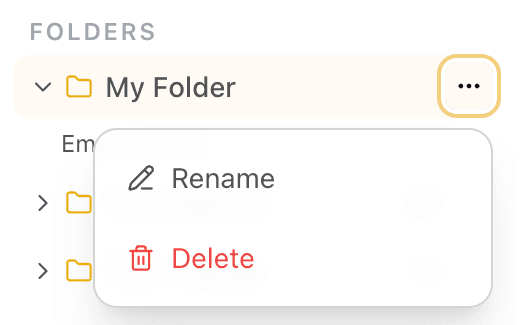
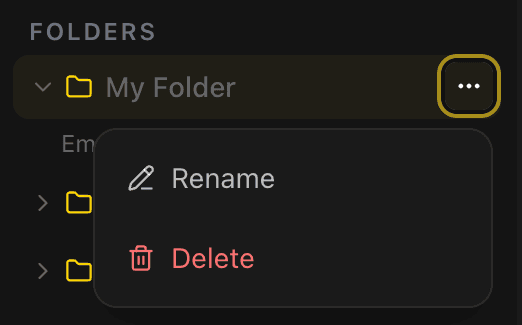
The new folder appears in the Folders section. Select a folder heading to collapse or expand its chat list. Use the folder options menu to rename or delete it.
  |   |
|---|
Put chats where they belong
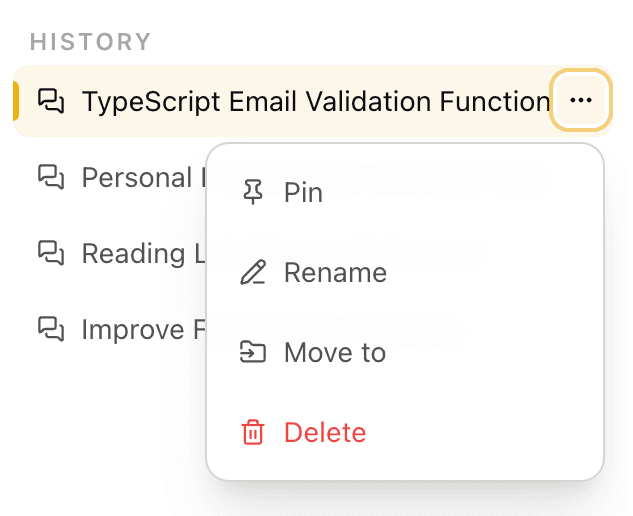
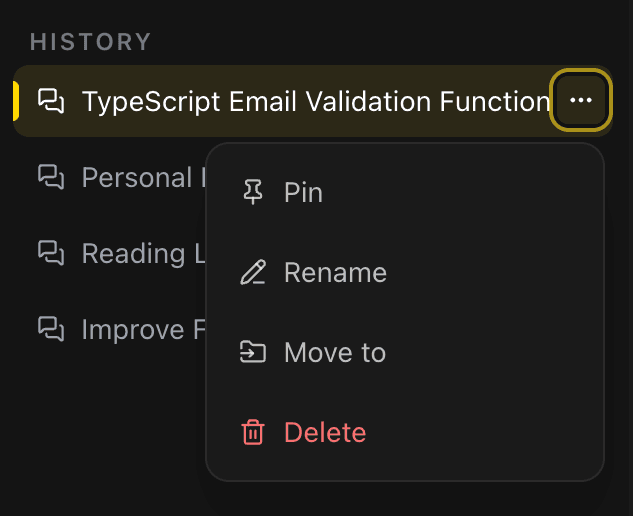
Each chat’s options menu provides the actions used most often to keep a sidebar tidy.
| Action | Result |
|---|---|
| Rename | Changes the chat title. A manual title prevents automatic naming from replacing it. |
| Pin or Unpin | Moves a chat into or out of the Pinned group. |
| Move to Folder | Opens a picker for a folder, including No folder to return the chat to History. |
| Delete | Permanently removes the chat and all of its messages. |
To move a chat without the menu, drag it onto a folder. Drag a chat to the History area to remove it from a folder. This is useful when you want to regroup a series of evaluations without changing their content.
Reorder chats and folders
Drag chats to place them before or after another chat in the same visible group. Pinned chats, chats in History, and chats inside an expanded folder each keep their own order. Drag folders before or after another folder to reorder the folder list.
When moving a chat from a folder into History by drag and drop, EidoStack both removes its folder assignment and applies the order you chose. If you only want to change a title or folder assignment, use the options menu instead of dragging.
Delete with care
Deleting a chat is permanent and removes its messages. The confirmation dialog can remember a Don’t ask me again preference in the current browser, so check the selected chat before confirming.
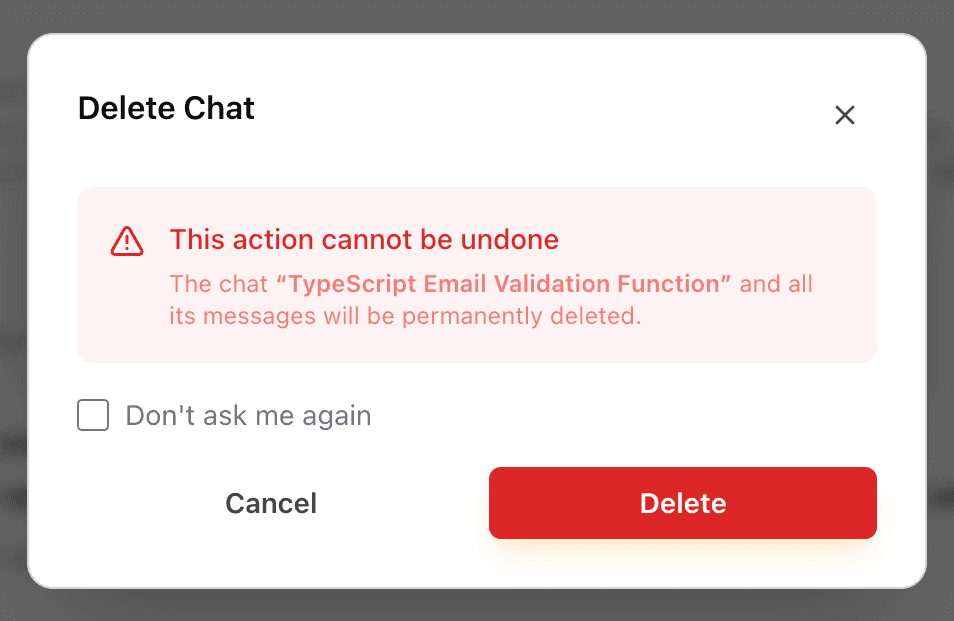
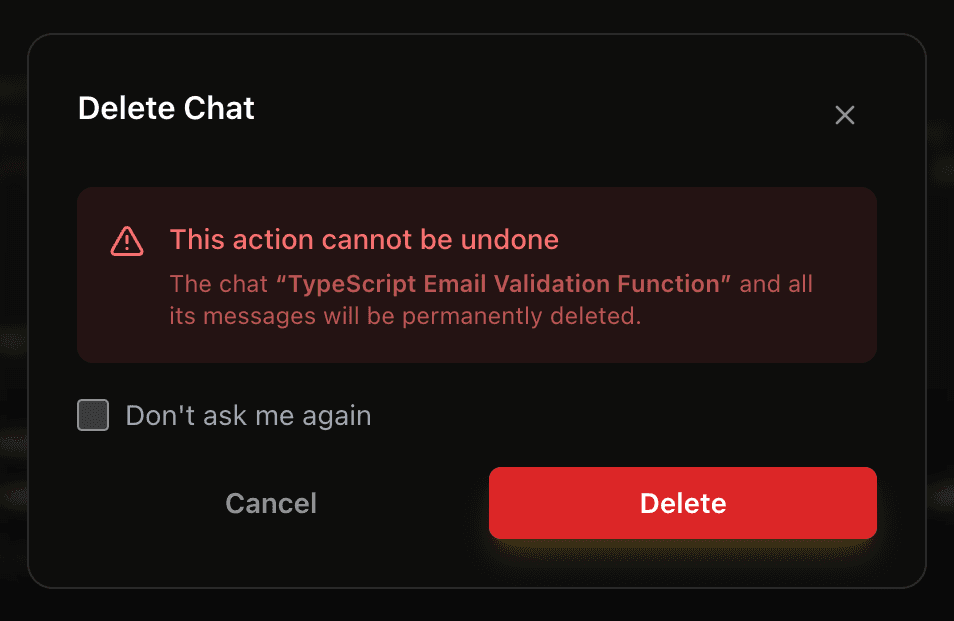
Deleting a folder is different: EidoStack permanently deletes the folder but returns its chats to History. The chats and their messages remain available. If you want to delete the chats as well, delete them individually after removing or deleting the folder.
A practical structure for evaluations
Use folders to reflect the decision you are making rather than the provider alone. For example, keep one folder for a feature’s core prompts, another for edge cases, and pin the conversations that contain the strongest evidence for a production decision. This makes it easier to find the chat-level usage and response history later.
For a chat’s configurable behavior, see Use the chat workspace. For cost and token reports across the workspace, use Usage, tokens, and costs.