Settings · AI behavior
System prompts
Set default AI instructions and override them for an individual chat or comparison model.
A system prompt is an instruction sent to the selected model before your chat messages. Use it to establish durable behavior for a task, such as response language, tone, role, required output structure, or boundaries that the model should respect. It complements the user prompt; it does not replace a clear task request.
Set the default instruction for new chats
- Open workspace settings and select System Prompt.
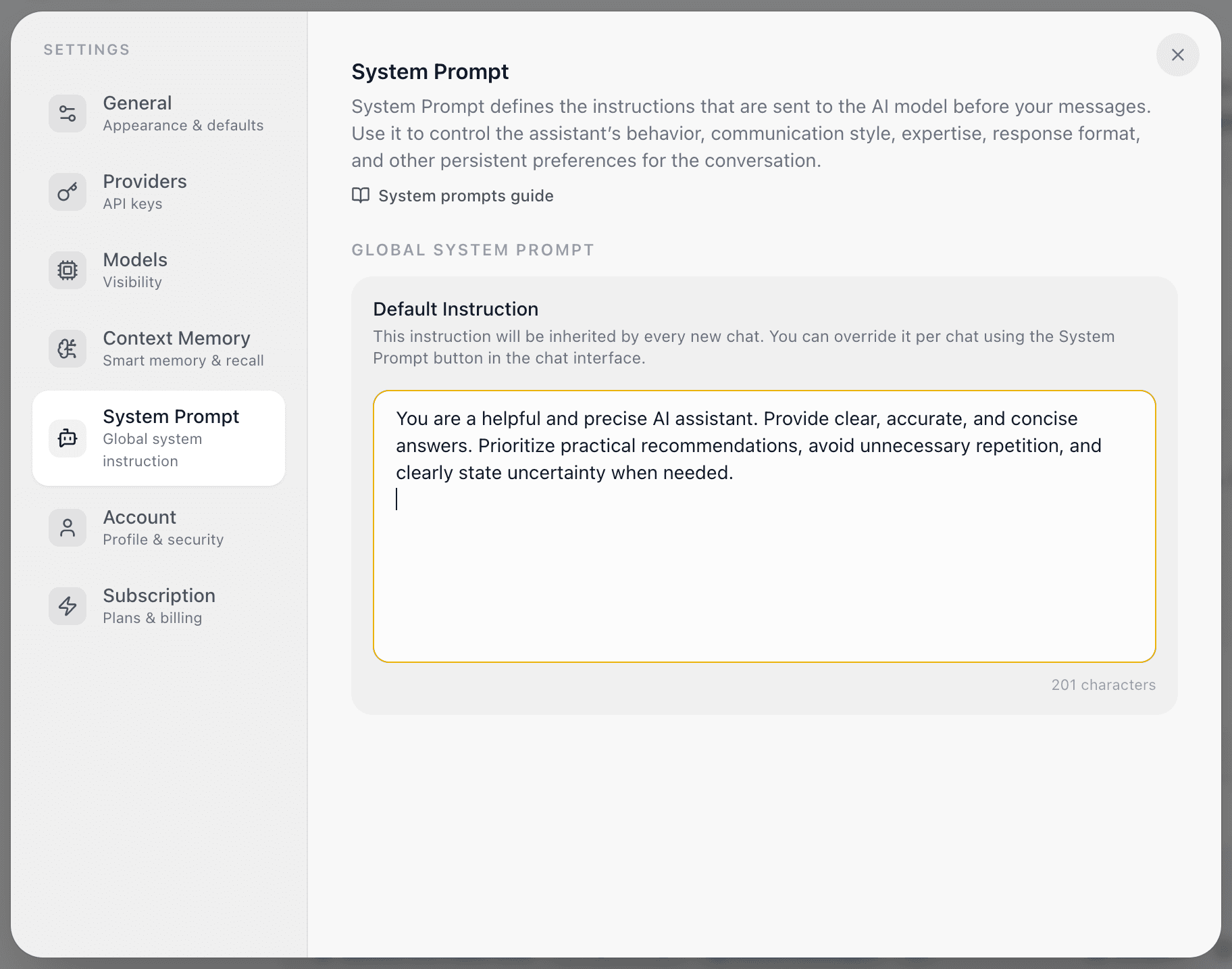
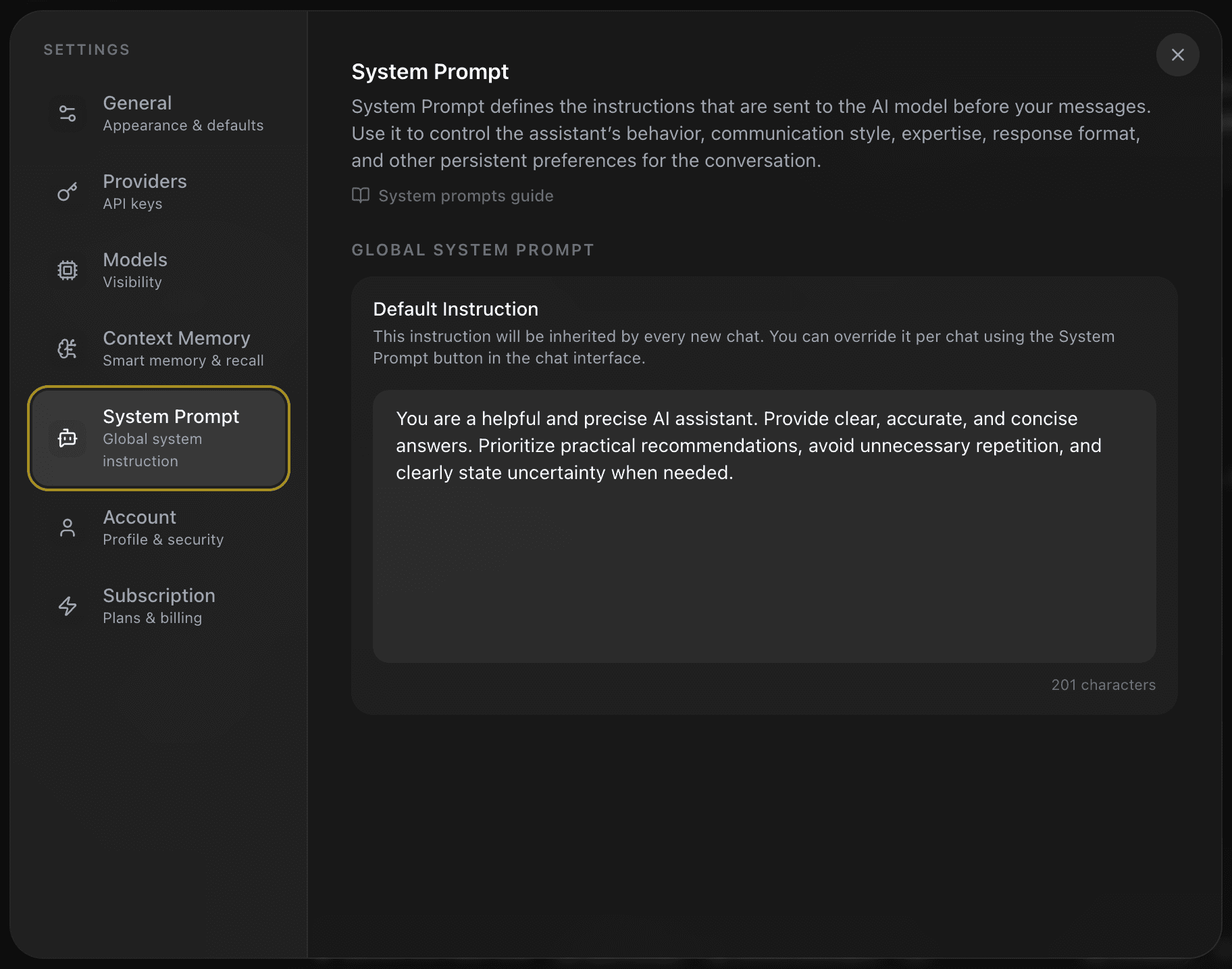
- Enter the instruction in Global System Prompt > Default Instruction.
- Create a new chat when you want that instruction to be inherited.
The global prompt is a starting value for new chats. Updating it does not rewrite the instruction already stored in an existing chat, which lets older evaluations remain reproducible. Leave it empty when each chat should begin with no shared instruction.
Use a specific, testable instruction. For example, tell the model to return a named JSON-like field set only when your evaluation prompt also provides the task and input that should populate those fields. Avoid putting secrets, provider keys, or personal data into a system prompt.
Override the instruction for one chat
- Open the chat.
- Select Sys Prompt in the prompt toolbar.
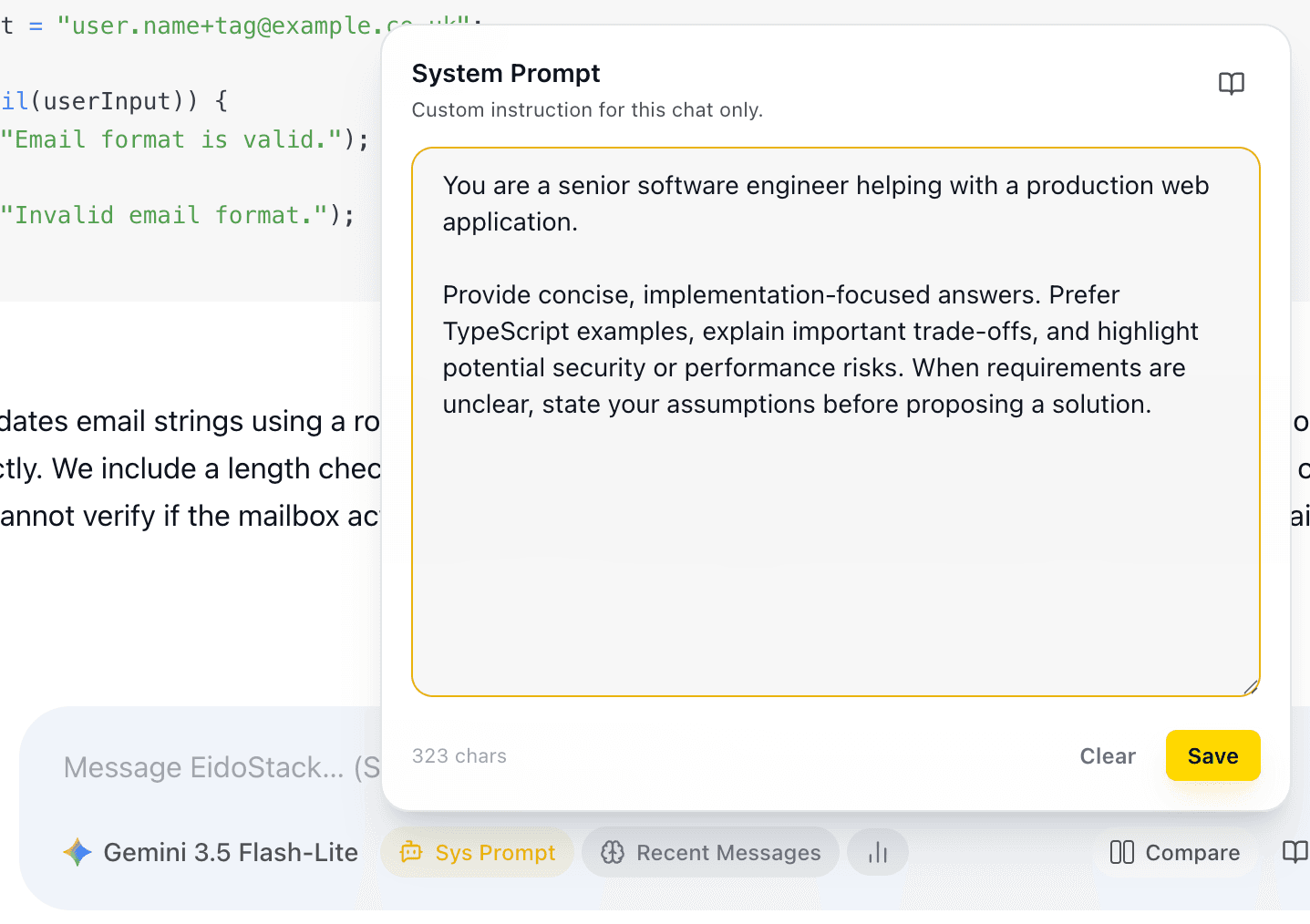
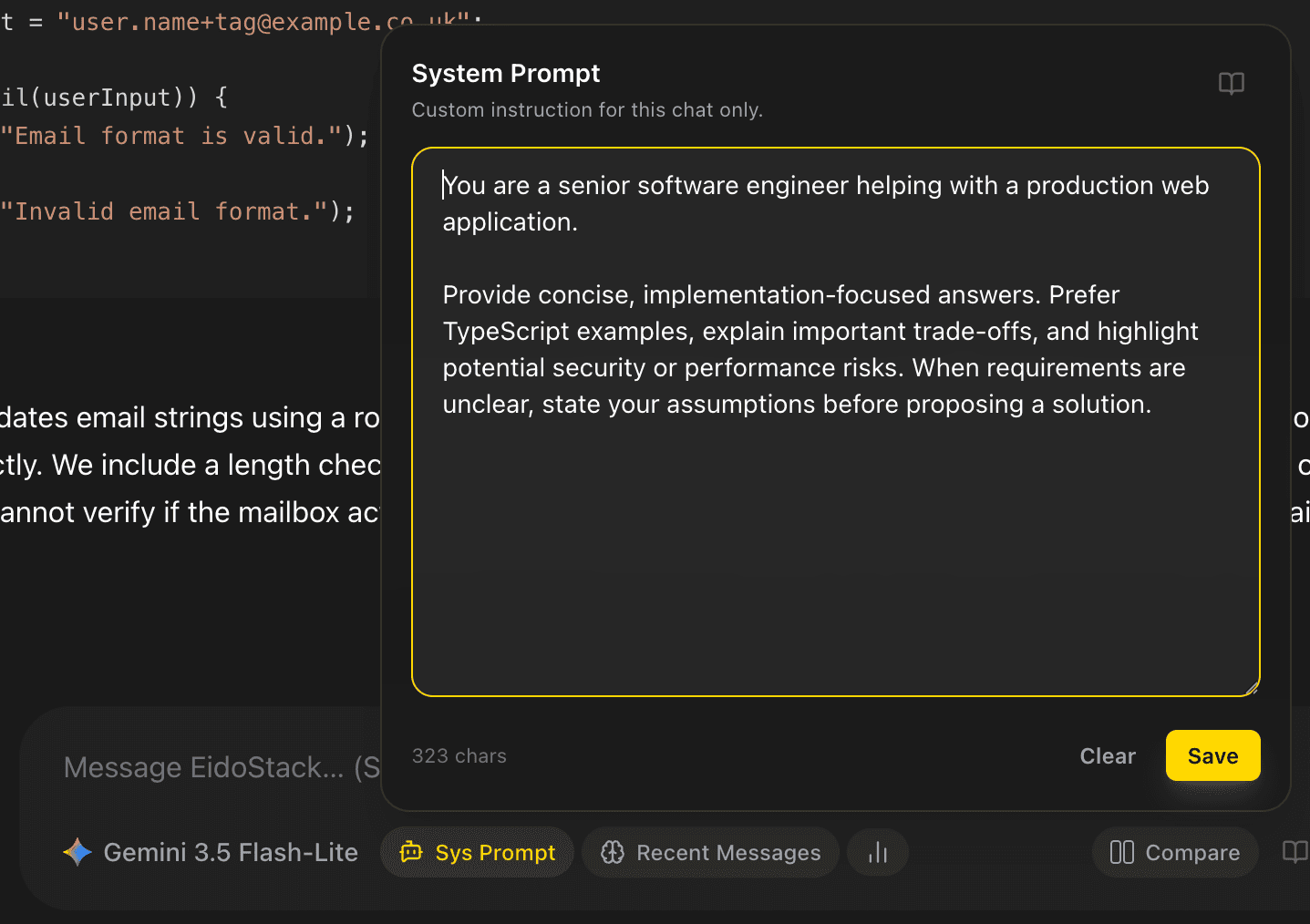
- Edit the text, select Save, and send the next prompt.
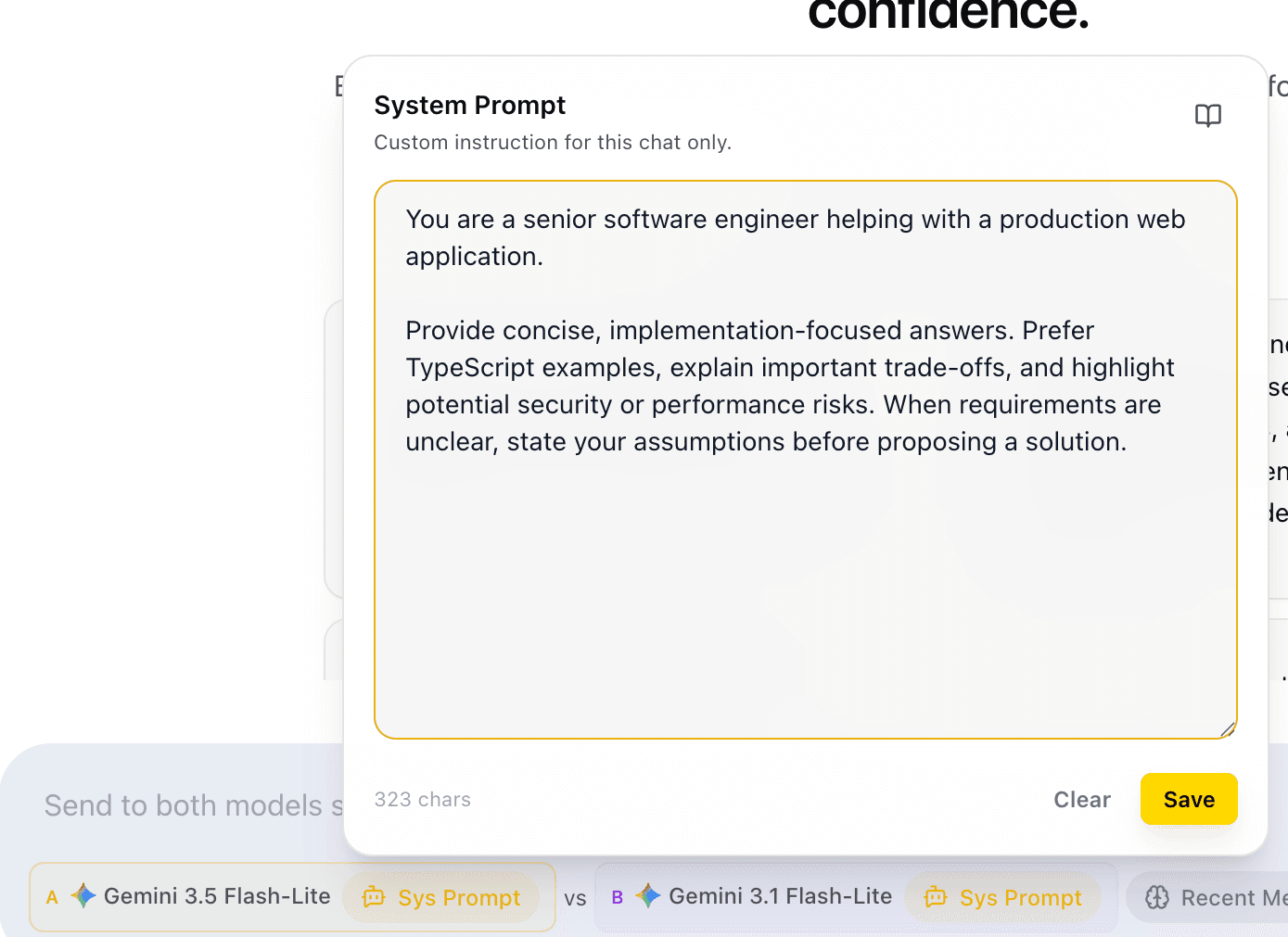
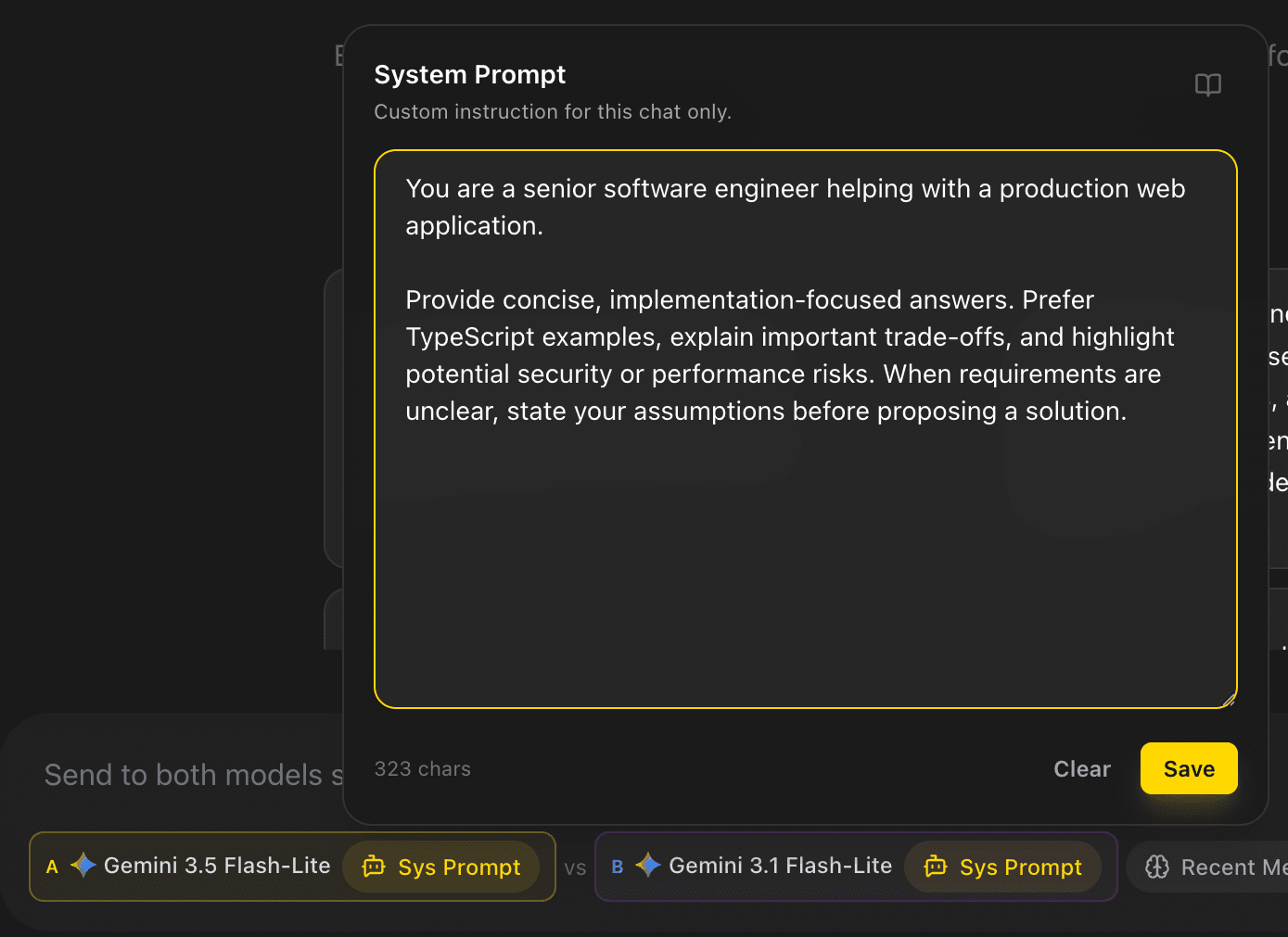
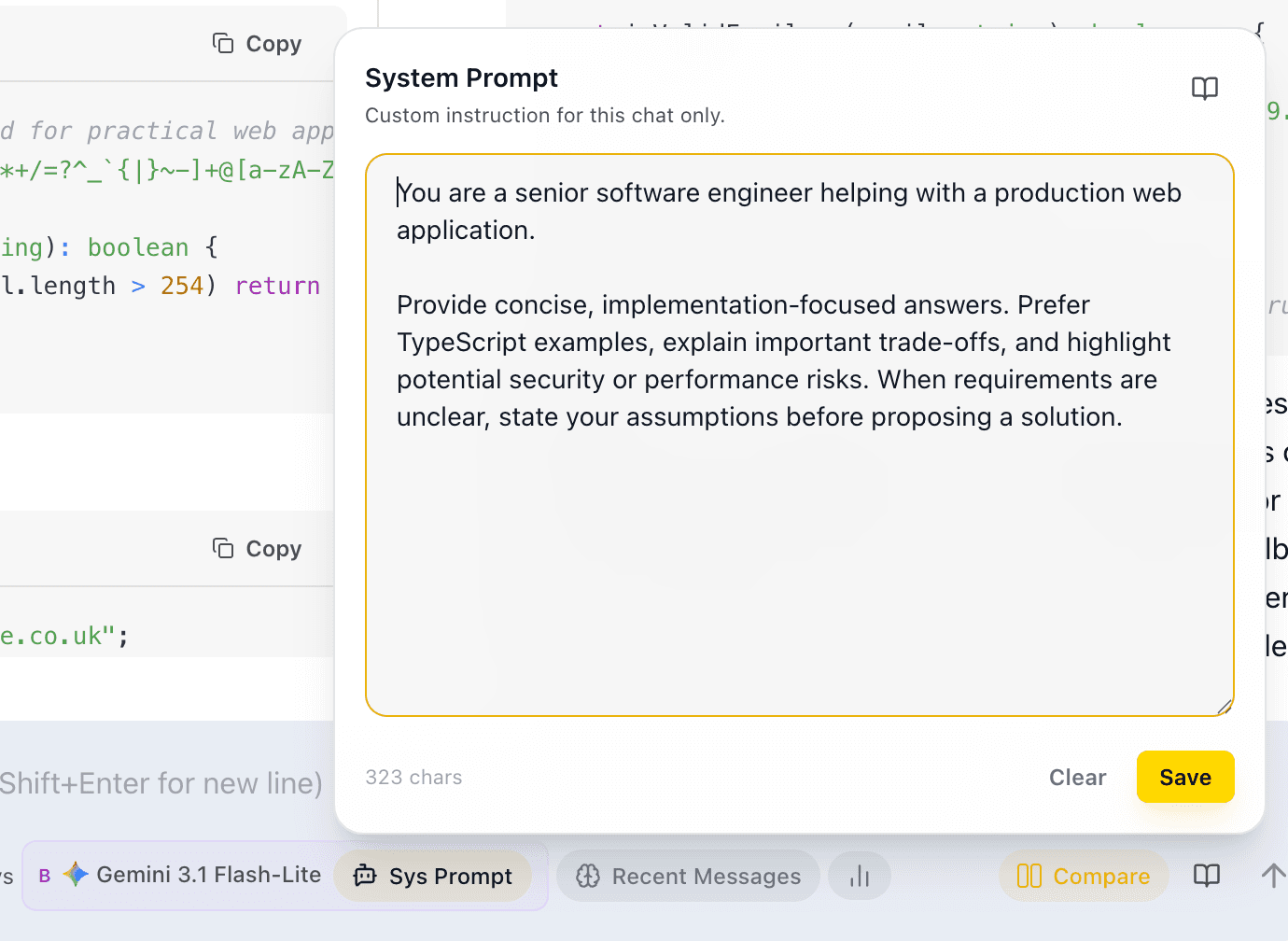
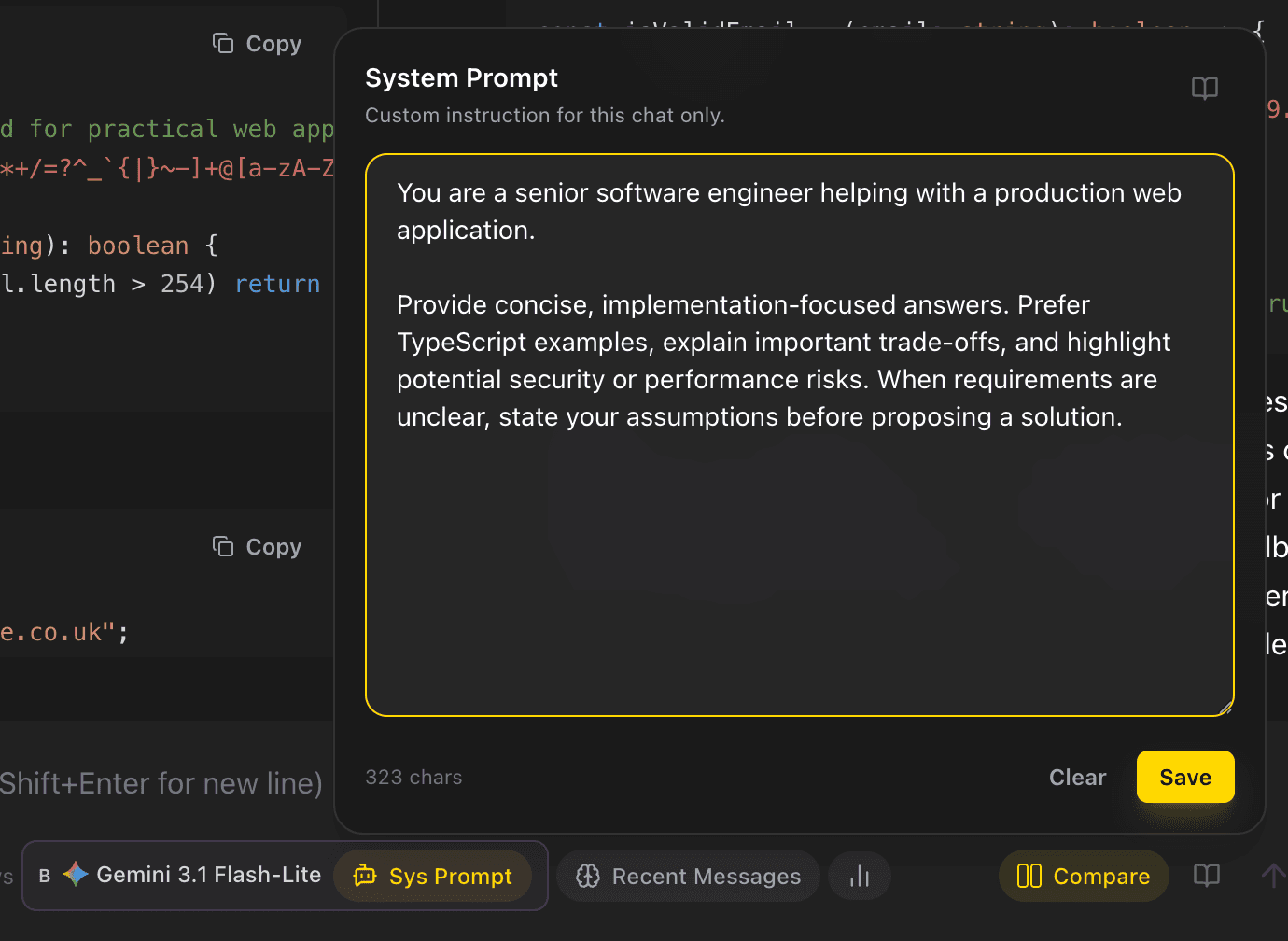
The popover labels this as a custom instruction for that chat only. Use Clear to remove the chat-level instruction, then select Save. The character count is informational; EidoStack does not turn it into a quality or token-budget guarantee.
A chat-level prompt is particularly useful when the same workspace default is appropriate for most work but one evaluation needs a different role, format, or policy. Keep it stable while testing models so that output differences can be attributed to the model rather than a hidden instruction change.
Use separate instructions in comparison mode
When Compare is enabled, the toolbar displays Model A and Model B, each with its own Sys Prompt control. This supports two valid experiment designs:
  |   |
|---|
- Use the same instruction on both sides to compare model behavior under the same conditions.
- Deliberately give each side a different instruction when evaluating a prompt or instruction strategy.
Document which design you chose before interpreting the result. If Model A and Model B receive different system prompts, the outcome is a combined model-and-instruction comparison, not a model-only comparison.
Keep prompts maintainable
Place stable, cross-task rules in the global default and task-specific constraints in the chat-level prompt. Put the actual input and one-off request in the message composer. This division makes it easier to compare chats and to identify which layer changed when a response changes.
System prompts are sent to the selected provider as part of the model request. Review the data before sending it and use only information that you are authorized to share with that provider. Pair the instruction with the appropriate Context memory strategy when the task also depends on earlier conversation turns.