Settings · AI behavior
Context memory
See how context strategy and conversation length affect model fit, token usage, and evaluation results.
Context memory controls which earlier messages accompany a new prompt. It is one of the largest drivers of a model’s continuity, token use, and fit within its context window. Choose a strategy that represents the history your production workflow would actually send instead of always using the longest possible conversation.
Choose a context strategy
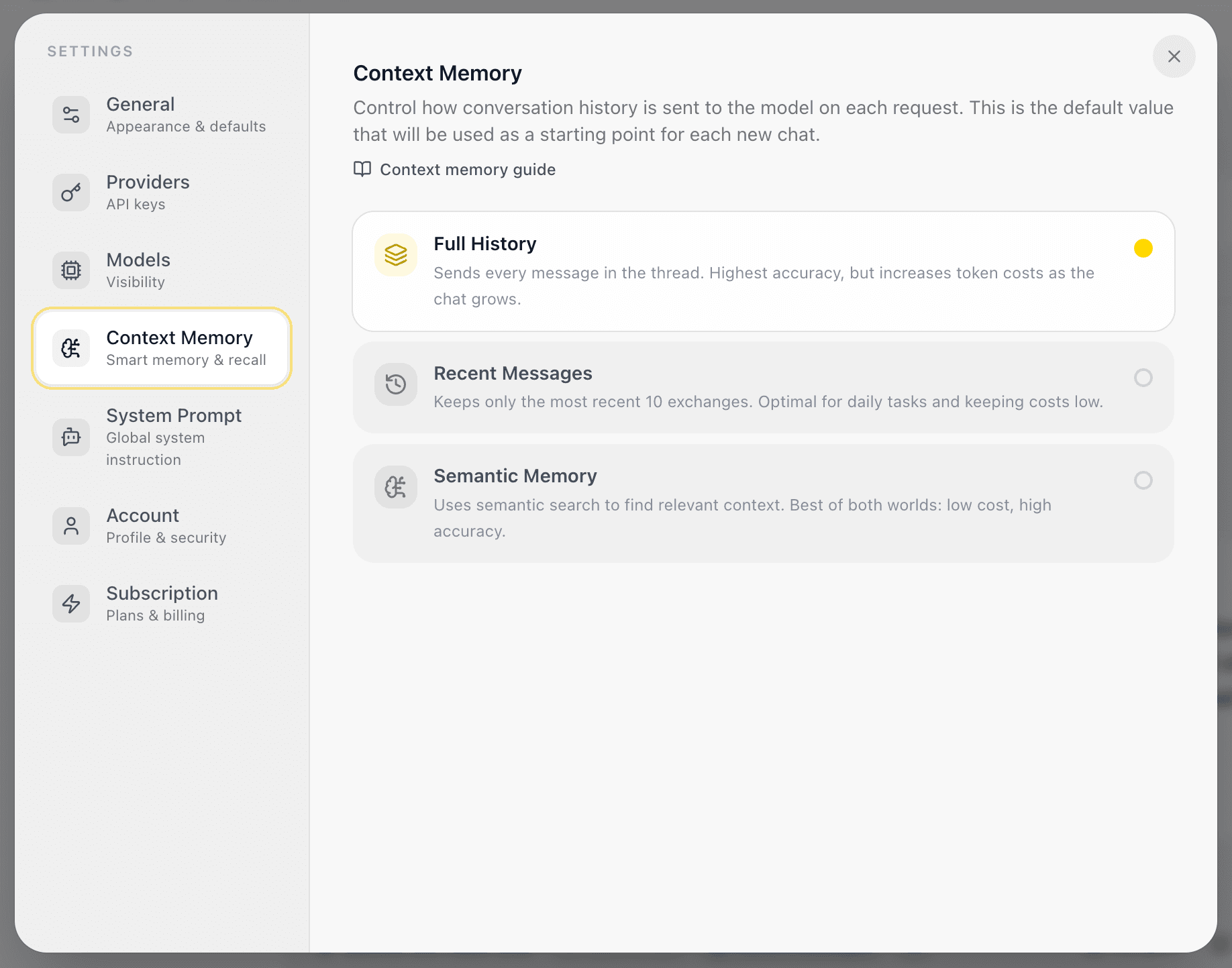
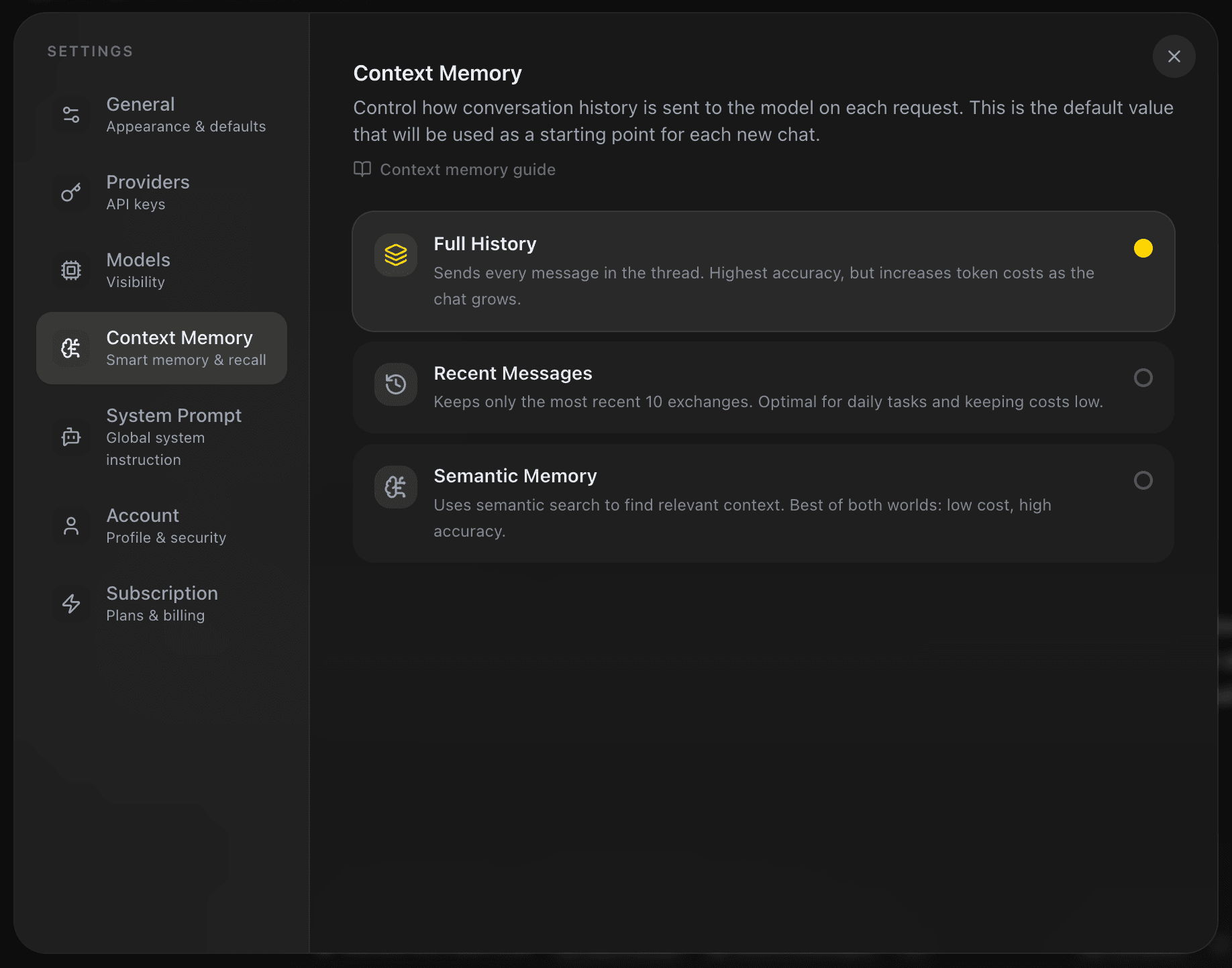
EidoStack provides three strategies in Settings > Context Memory and in the Context Memory control of each chat.
| Strategy | Request behavior | Best starting point |
|---|---|---|
| Full History | Sends the conversation history with the new prompt. | Tasks where all prior turns are relevant and the context remains manageable. |
| Recent Messages | Sends a selected window of messages from the start or end of the chat. | Ongoing tasks where recency matters more than the entire record. |
| Semantic Memory | Retrieves saved messages related to the current prompt. | Long chats where only relevant earlier details should be recalled. |
The strategy changes the context sent for a request; it does not remove messages from the saved chat. This distinction matters when judging a model: an answer may be different because of the context policy even when the visible conversation is unchanged.
Set defaults for new chats
- Open workspace settings and select Context Memory.
- Select Full History, Recent Messages, or Semantic Memory.


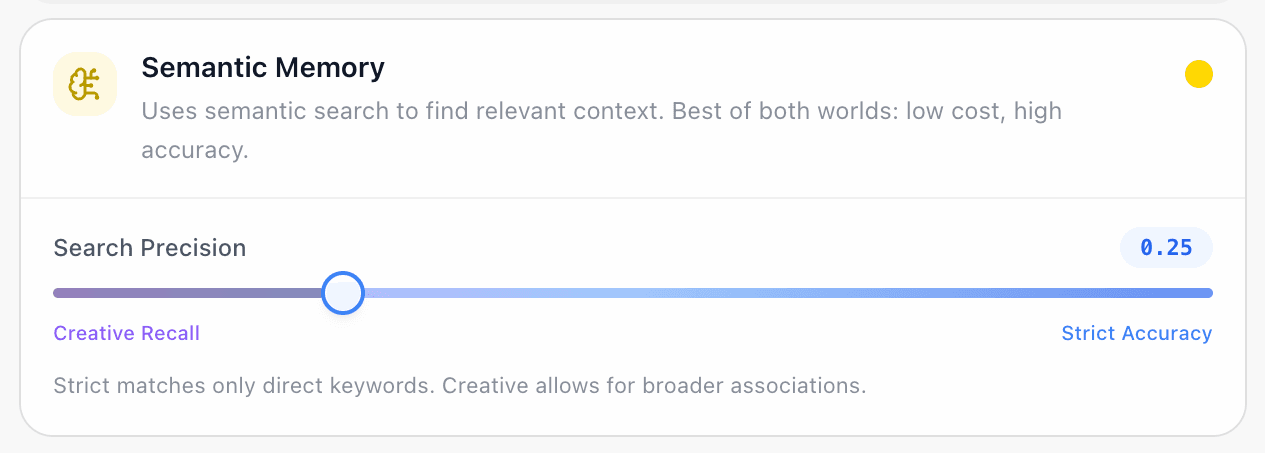
- Adjust the controls revealed for the selected strategy.
- Create a new chat to use those values as its starting point.
The settings page defines defaults for future chats. Each existing chat has its own Context Memory button in the prompt toolbar, where changes are saved to that chat without rewriting the workspace default.
Tune Recent Messages
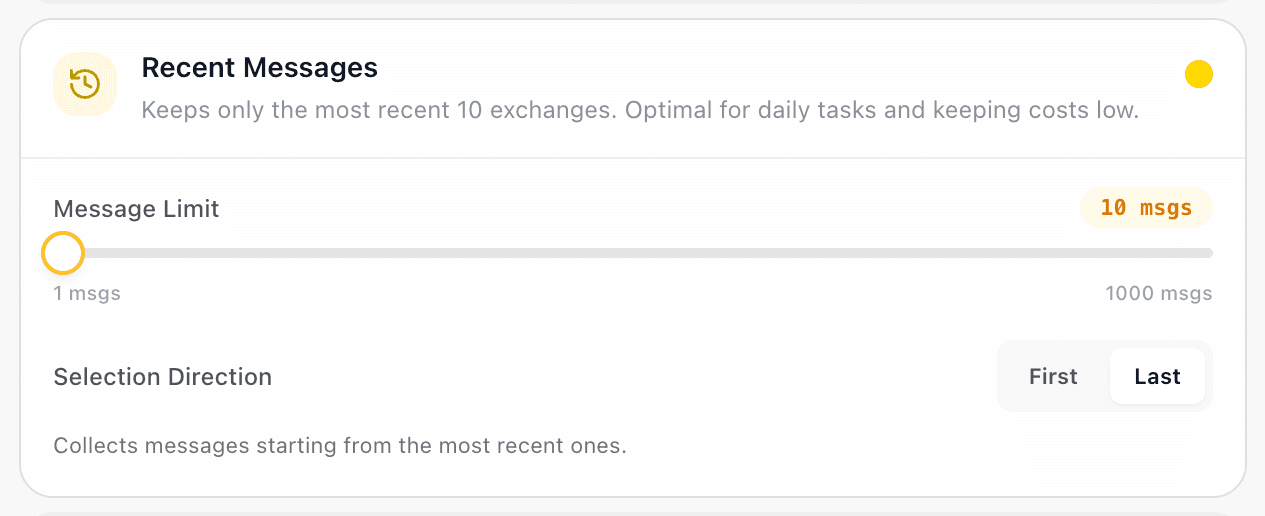
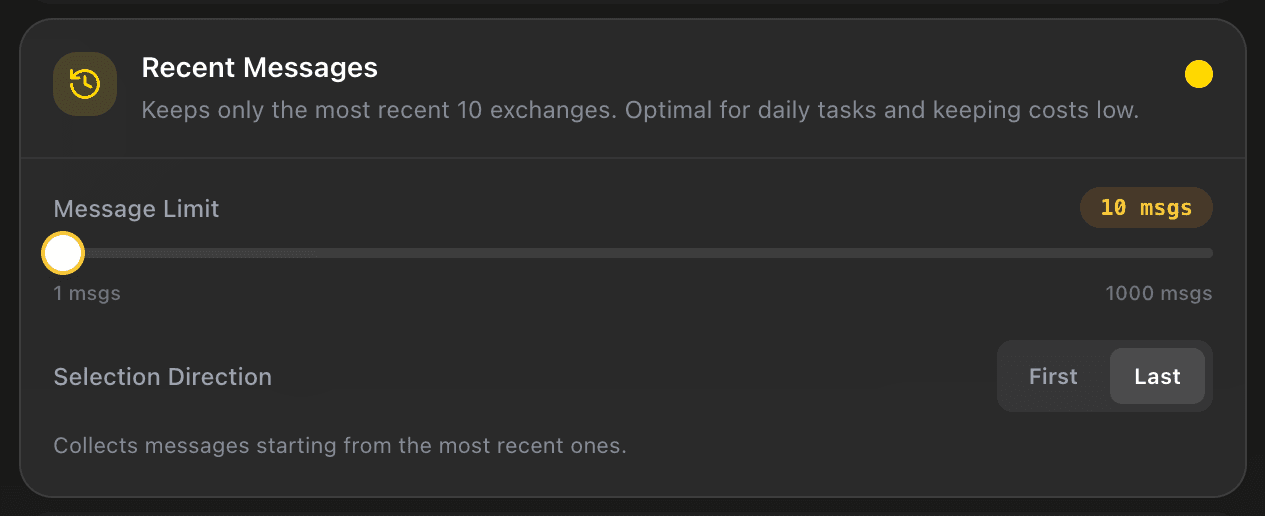
Select Recent Messages to reveal Message Limit and Selection Direction.
- Message Limit sets the number of messages to include. The control supports 1 to 1,000 messages and defaults to 20.
- First starts collecting from the oldest messages in the chat.
- Last starts collecting from the most recent messages, which is the default and is usually the practical choice for an active conversation.
Use a smaller window to reduce input tokens and keep attention on the recent task. Use a larger window only when the earlier turns genuinely affect the answer. A window is measured in messages, not in tokens, so a few long messages can still consume substantial context capacity.
Tune Semantic Memory
Select Semantic Memory to reveal Search Precision. Its value runs from 0.00 to 1.00:
- A lower value permits broader associations and is useful when relevant information may be phrased differently.
- A higher value requires stricter matches and reduces the chance that loosely related history is included.
Semantic Memory retrieves related saved messages from the current chat using the new prompt. It is not a guarantee that every necessary detail will be selected, so test representative long-history cases before relying on it for a production workflow.
Watch context capacity and cost
The chat’s context control shows an estimated capacity meter for the selected model. The usage button also shows the model’s context-window capacity and input tokens from the last API response. Green, amber, and red states indicate increasing use of that capacity.
Treat the meter as a planning signal, not as a quality score. A model can have available context capacity while still losing important information in a reduced window or retrieving the wrong semantic matches. Compare the answer quality and usage together, ideally with the same prompt under more than one strategy.
For instructions that belong before the conversation history, use System prompts. For a controlled decision process, continue to Evaluate a model.